How kitchen tickets are controlled
This guide explains how to control what information is sent to the kitchen and in what order – using article types, servings, and connections to kitchen printers.
1. Article Types and Servings
For an item to be sent to the right place at the right time, it needs an article type – for example, “Drink,” “Starter,” or “Main Course.”
✅
When working with your articles, make sure each one has a relevant article type.
The article type determines how and when the item is printed in the kitchen.
Go to BackOffice → Articles and select an article
Click the Edit button to view the article’s settings
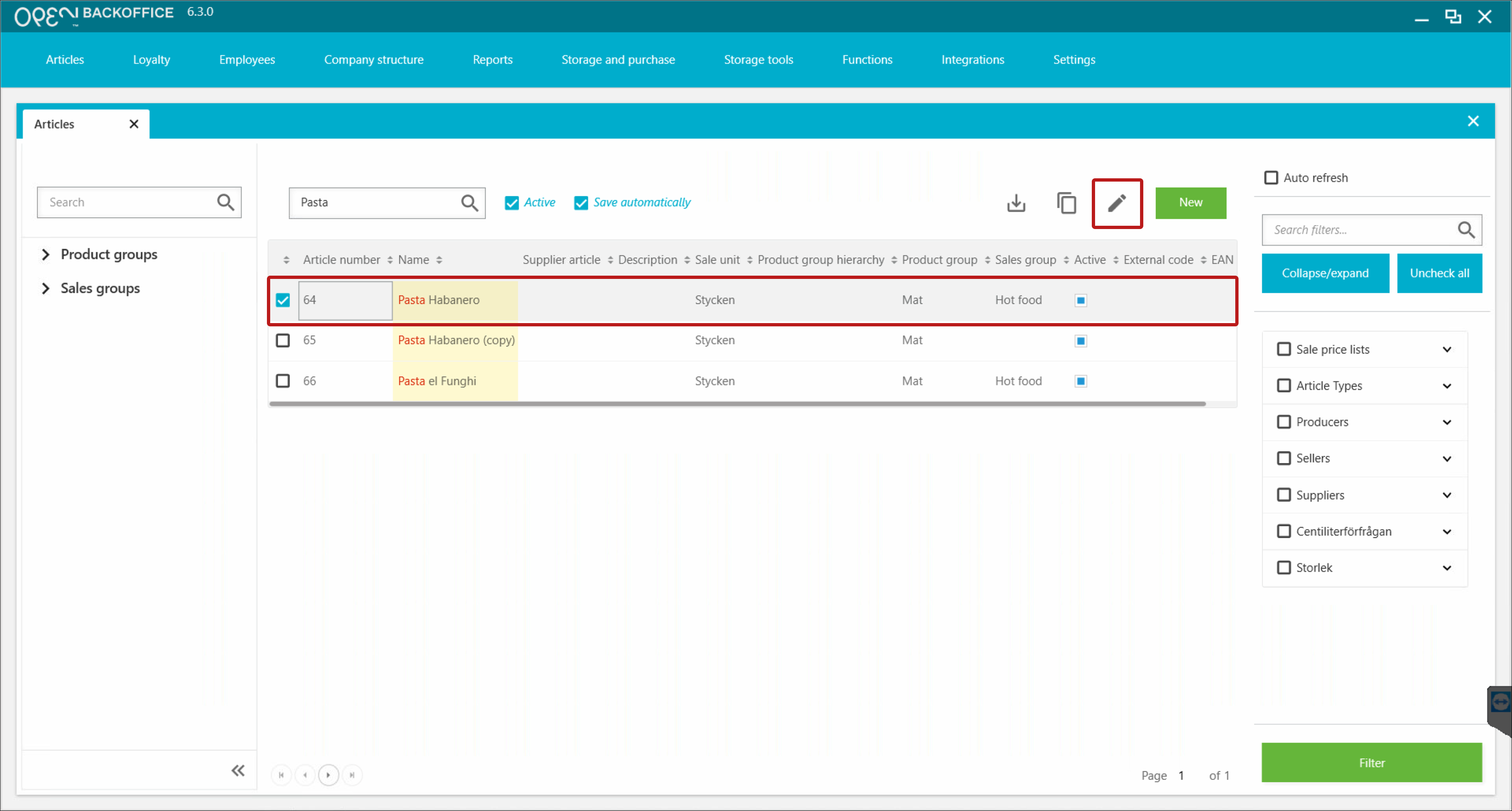

- In the window that opens on the right, make sure a relevant article type is selected, or change it if needed.

- Examples of article types: “Drink,” “Starter,” “Main Course”
- Save your changes

How Article Types Work
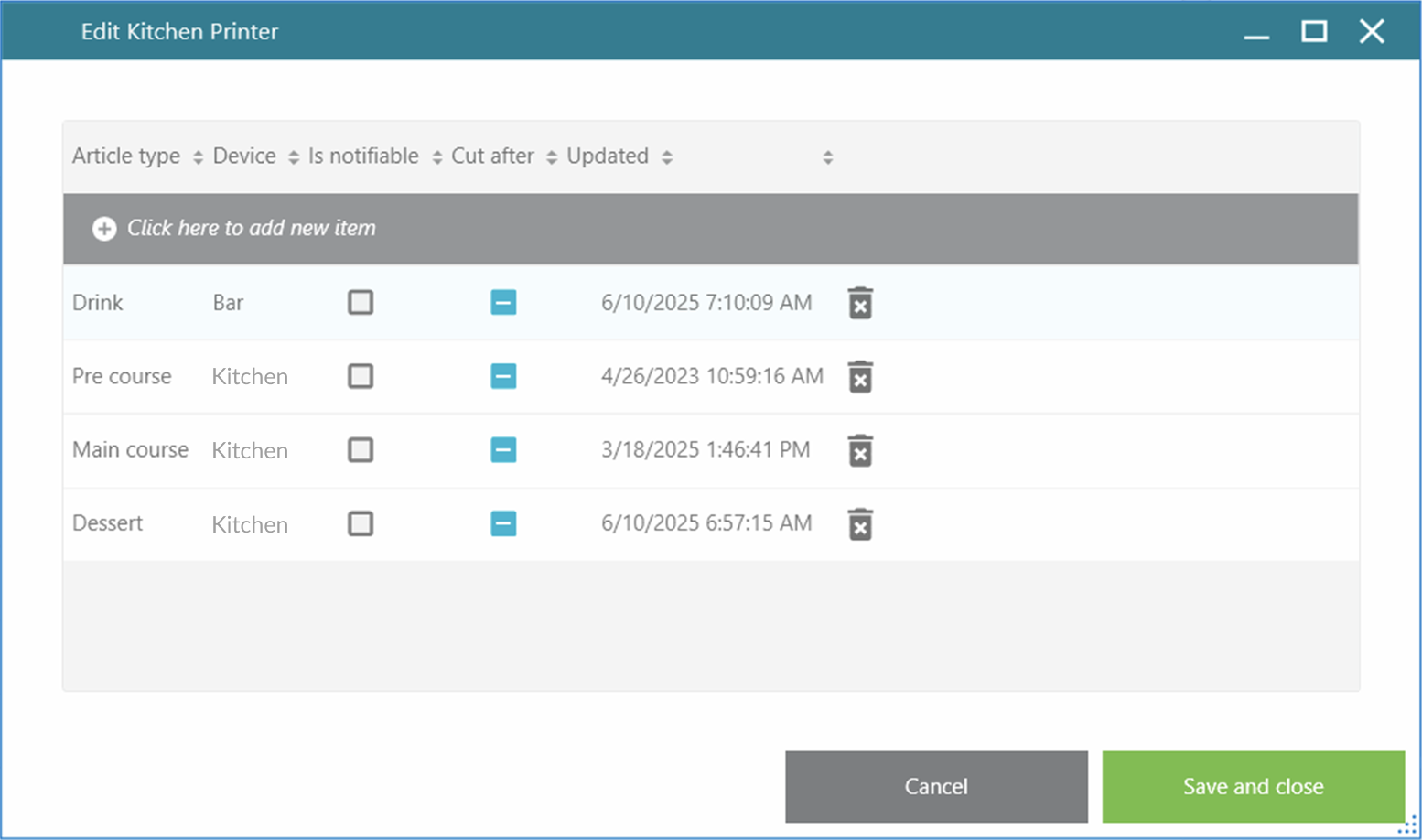
- Each article type is linked to a serving, which controls the ticket order.
You’ll find these under BackOffice → Articles → Article Types

Additional Setting: “Cut After”
- Cuts the ticket between servings
- Useful for separating, for example, a drinks ticket
- Enabled in the article type’s settings

How Servings Work
- Servings have a number that determines the print order:
- 1 = Drink (first)
- 2 = Pre course
- 3 = Main course
- 4 = Dessert
You can view and edit these under BackOffice → Articles → Servings

ℹ️
Servings are usually set up during installation – users rarely need to change them.
💡
You can enter the order in any sequence at the register – kitchen tickets will still sort them based on serving order.
⚠️
If a guest wants a starter as their main course, you’ll need to inform the kitchen manually – the serving order won't account for this.
2. Printer Connections
Cost Center
Go to BackOffice → Company Structure → Cost Centers
Specify which printers should handle which servings
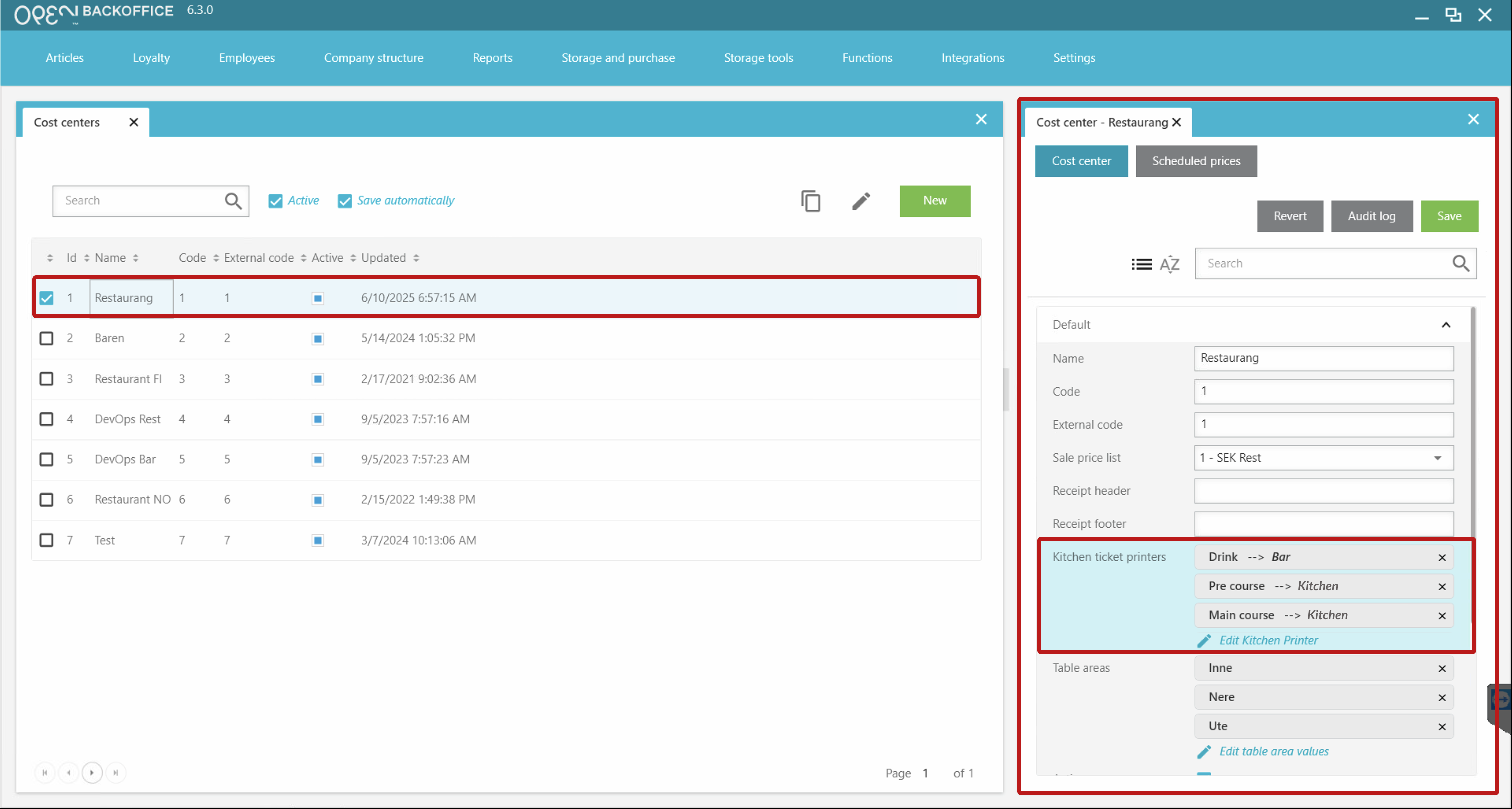
Example: “Drink → Bar,” “Main Course → Kitchen”


Cash register Groups
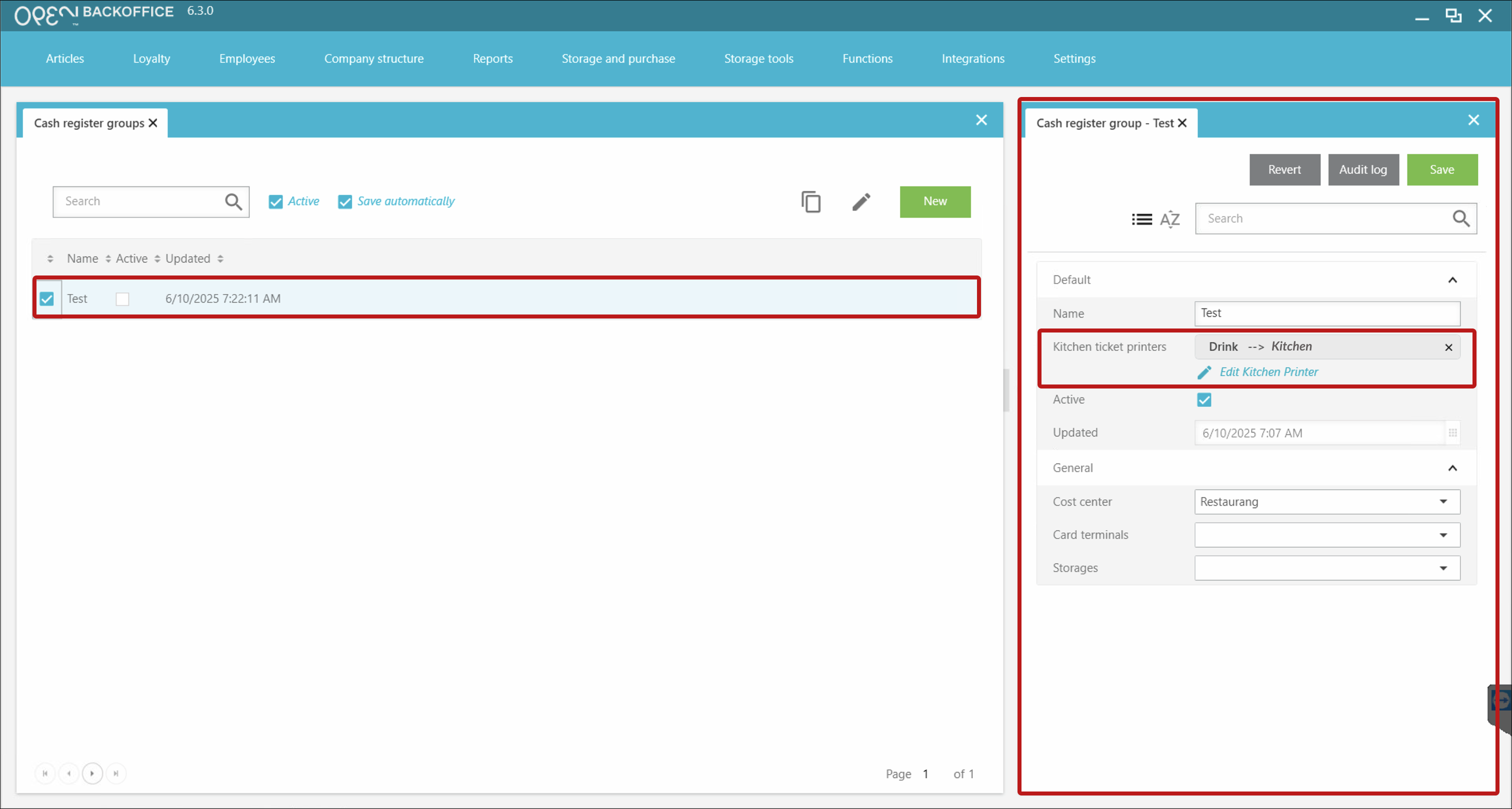
Can be configured to override the ticket settings of the cost center
Go to BackOffice → Company Structure → Cash register Groups