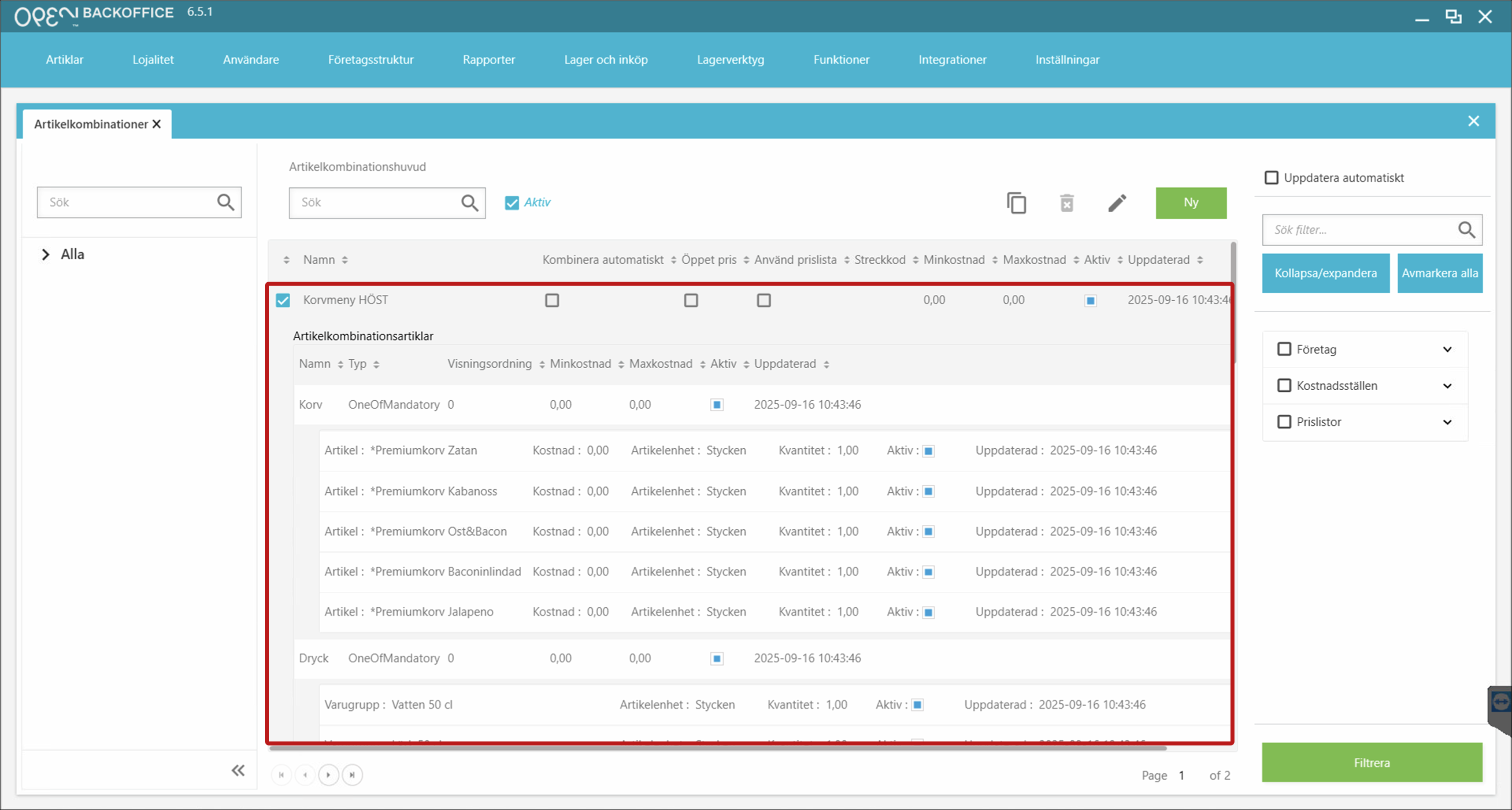
Creating article combinations in BackOffice
What are article combinations?
Article combinations let you sell multiple articles together, either with or without customer choice.
Menu combinations
Use menu combinations when customers can choose between options. Example: a Sausage Menu where customers select one sausage and one drink.
- Add menu groups (e.g., “Sausage” and “Drink”).
- Define which articles are available in each group.
Package combinations
Use package combinations when the menu is fixed. Example: a Bacon Burger Menu that always includes one bacon burger and one Coke, with no choices for the customer.
Pricing options
There are four ways to set prices for combinations:
Open price – the system prompts you to enter a price at checkout.
Price list – the POS uses each article’s price from the active price list.
- Useful when customers can pick from different options or when the combination is simply a sum of articles.
- Tip: If no price appears at checkout, check that all included articles have a price in the current price list.
Total price for the combination (Edit all prices) – set a fixed price for the entire combination, per price list.
- If multiple articles are included, the system automatically splits the total among them.
Category pricing (Menu combinations only) – use when combinations have categories (e.g., a three-course meal).
- You can set fixed prices for each course regardless of the chosen article.
- Example: Starter = 100 SEK, Main = 150 SEK, Dessert = 100 SEK.

Step 1: Add a new combination
- Sign in to BackOffice.
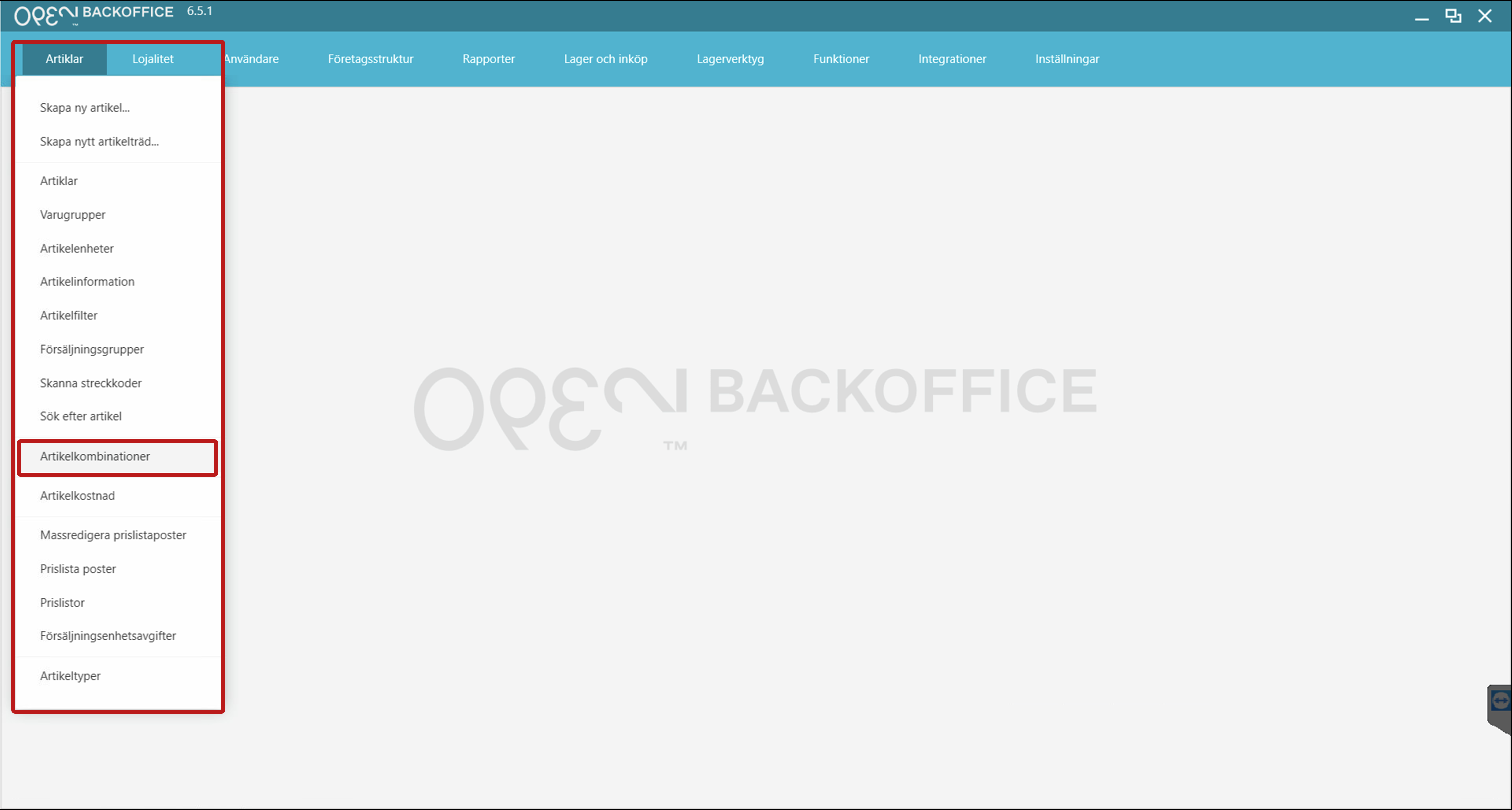
- Go to Articles > Article combinations.
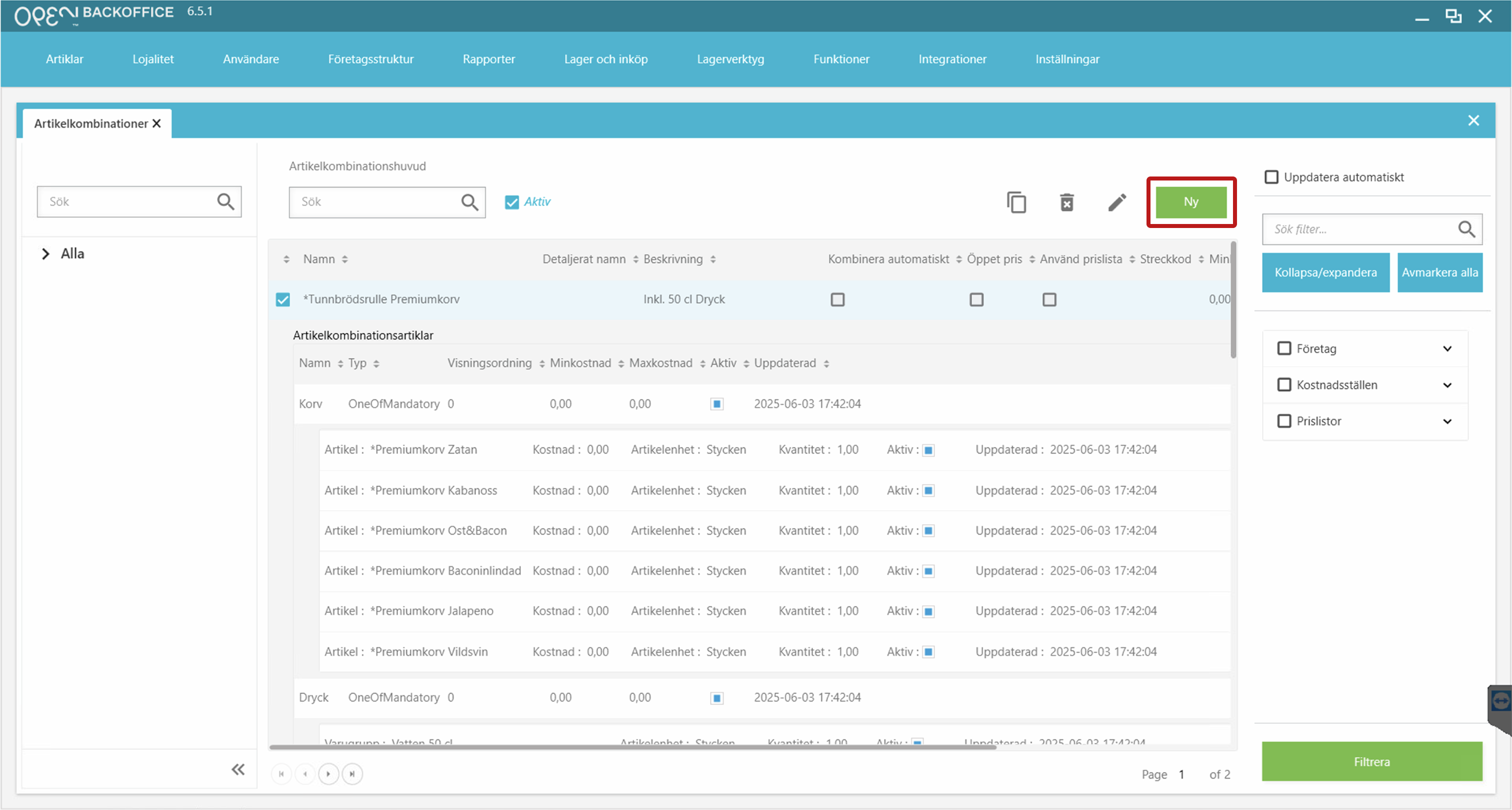
- Press New (upper right corner).


Step 2: Set basic details
In the setup view:
- Enter a name for the combination.
- Choose a type: Package combination or Menu combination (default).
- (Optional) Select a sales group.

Step 3: Build the combination structure
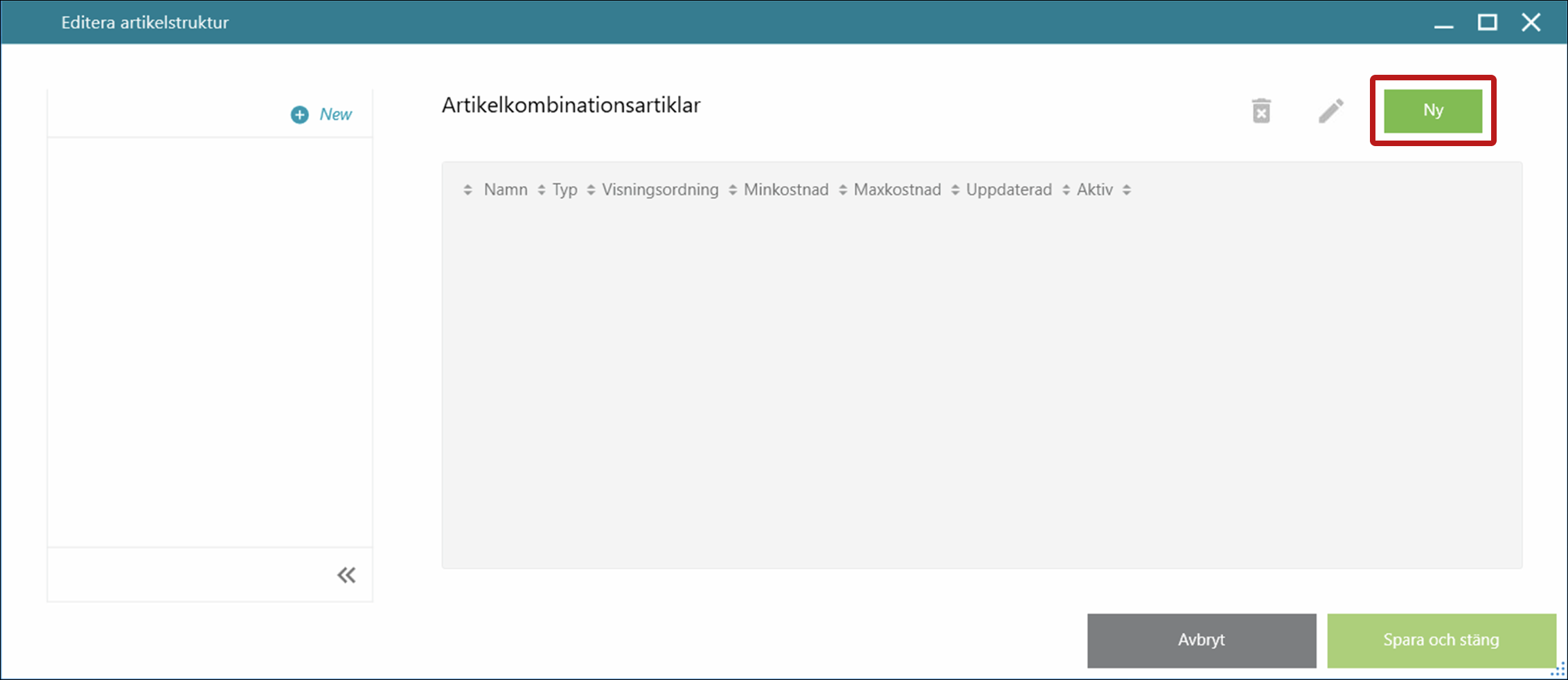
Press Edit combination structure.

For Menu combinations
- Press New to create your first menu group.

In the popup:
- Enter a name (e.g., “Sausage”).
- Choose a type: One article, One of mandatory, or One of optional.

Pricing menu groups
Press Edit all prices to set a fixed price for the menu group.
TIP
Other pricing methods are available – see the "Pricing options" section above.

- Select a price list and enter a price.
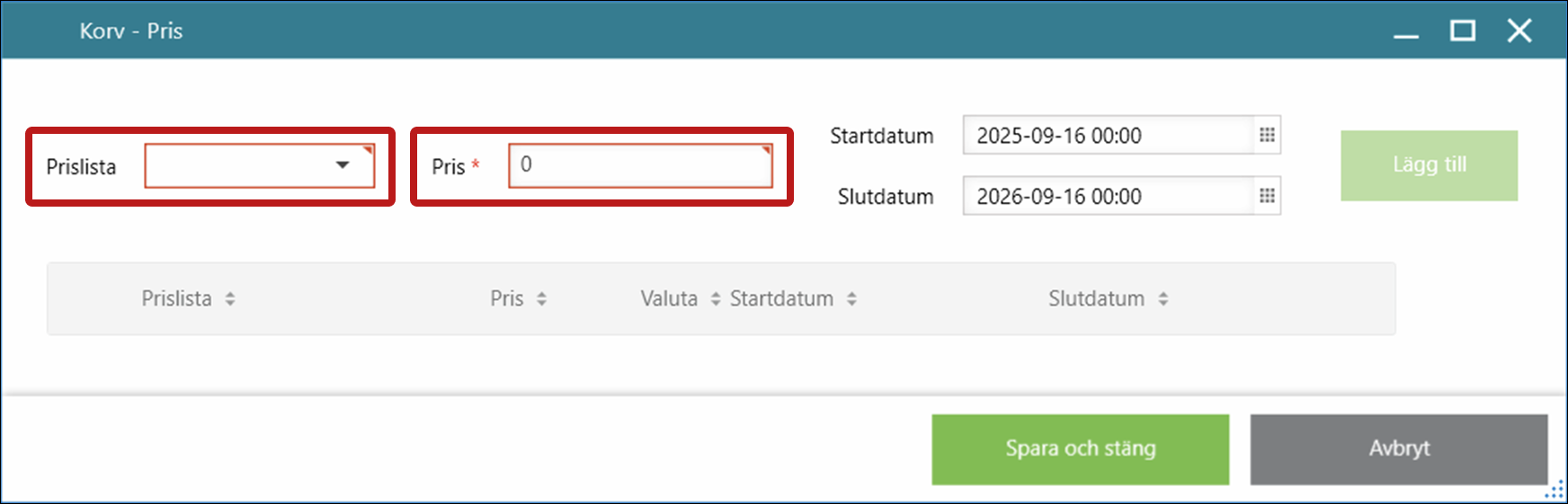
- Press Add.
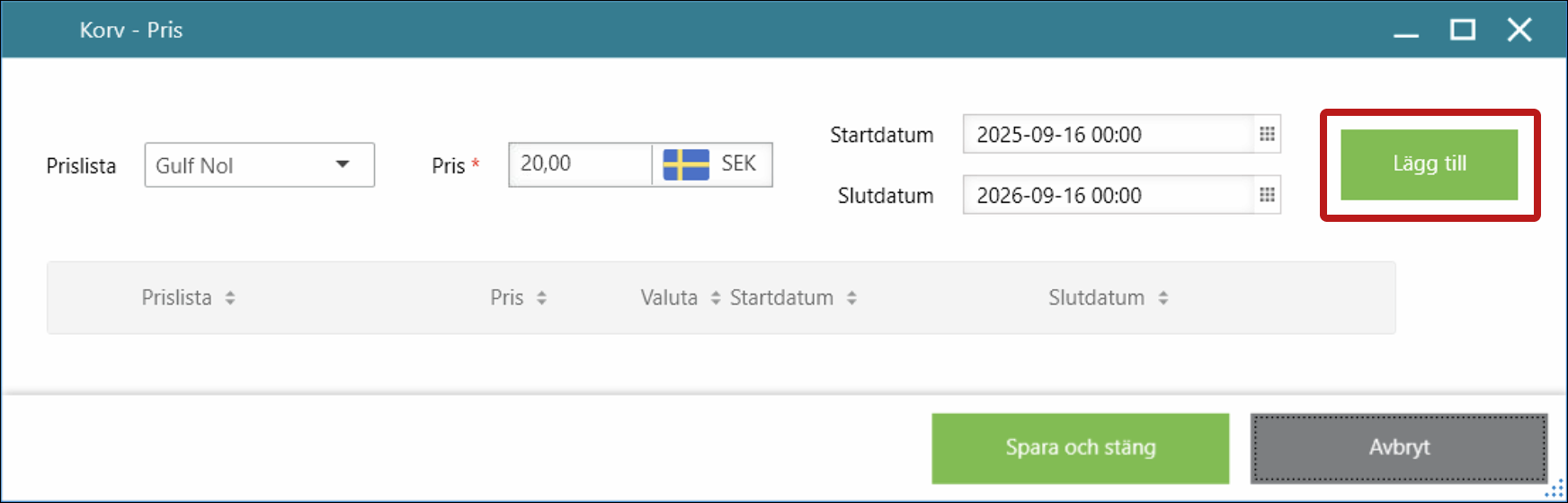
- The price appears in the list. Press Save & close.
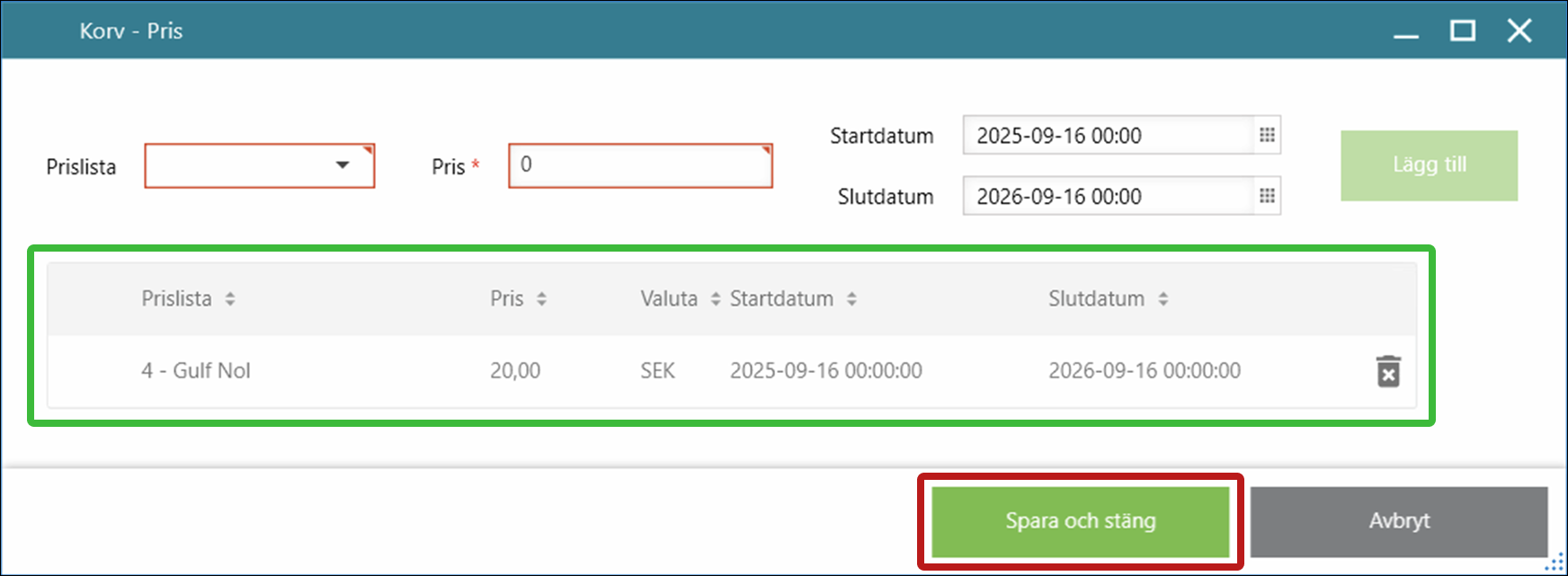


- Press Save.

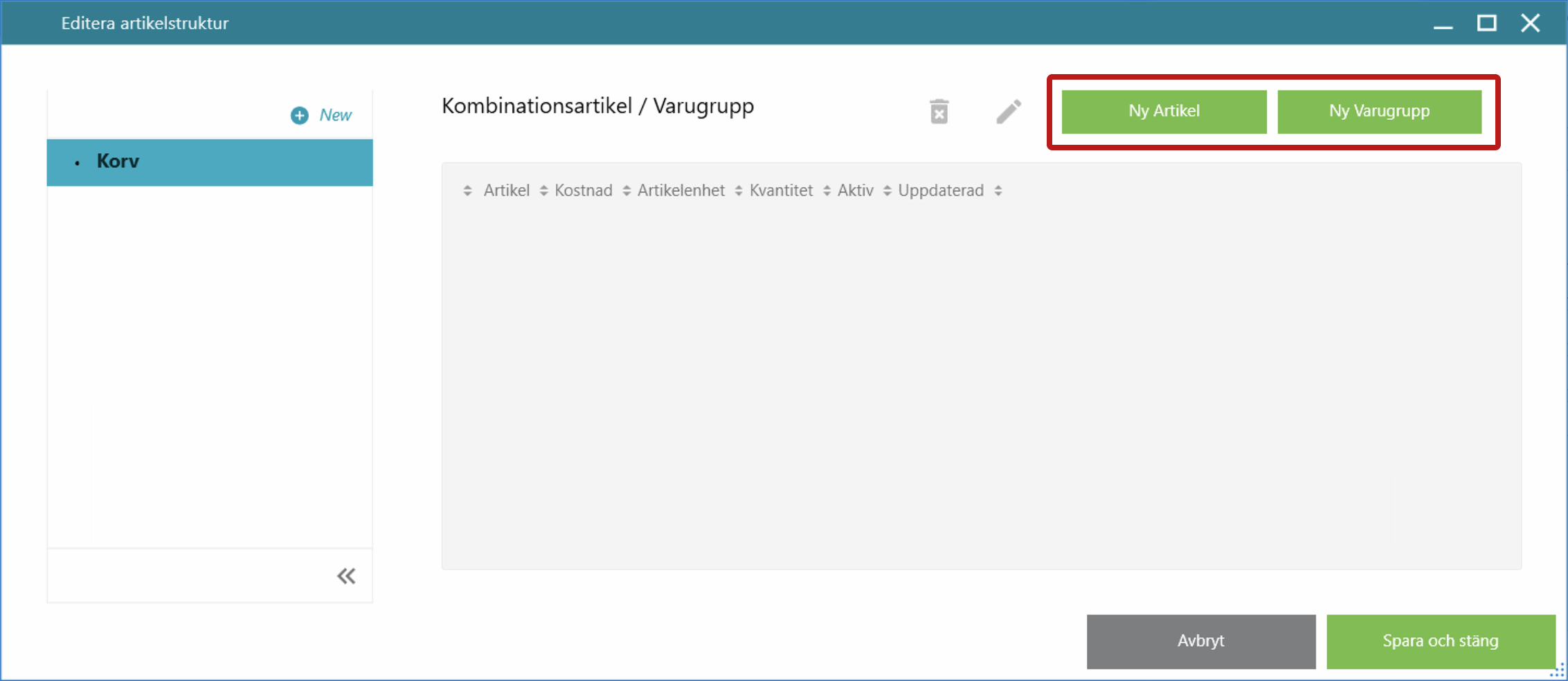
Add articles or product groups
Select the menu group you just created.
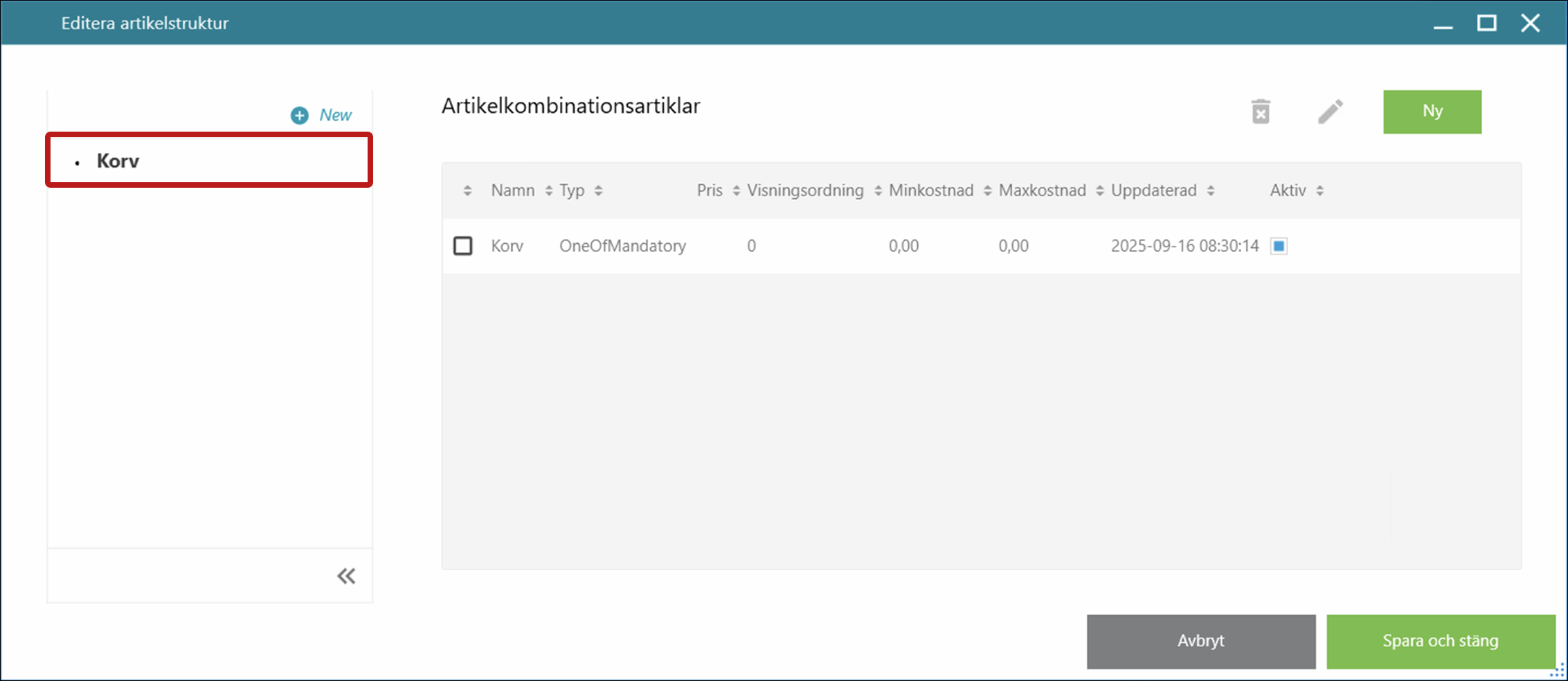
Choose to add either articles or product groups.
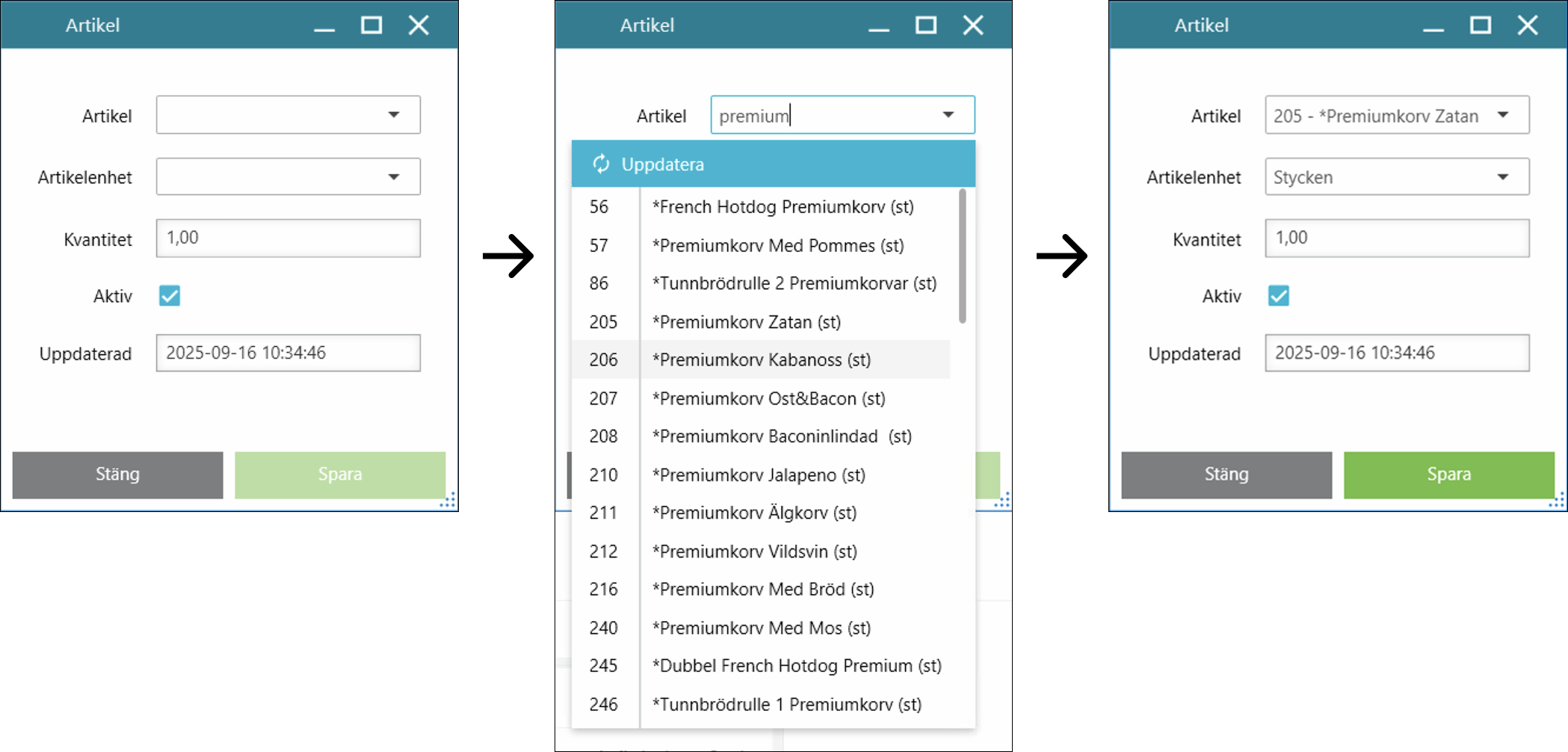
- For articles:
- Select an article.
- Select an article unit.
- Press Save.
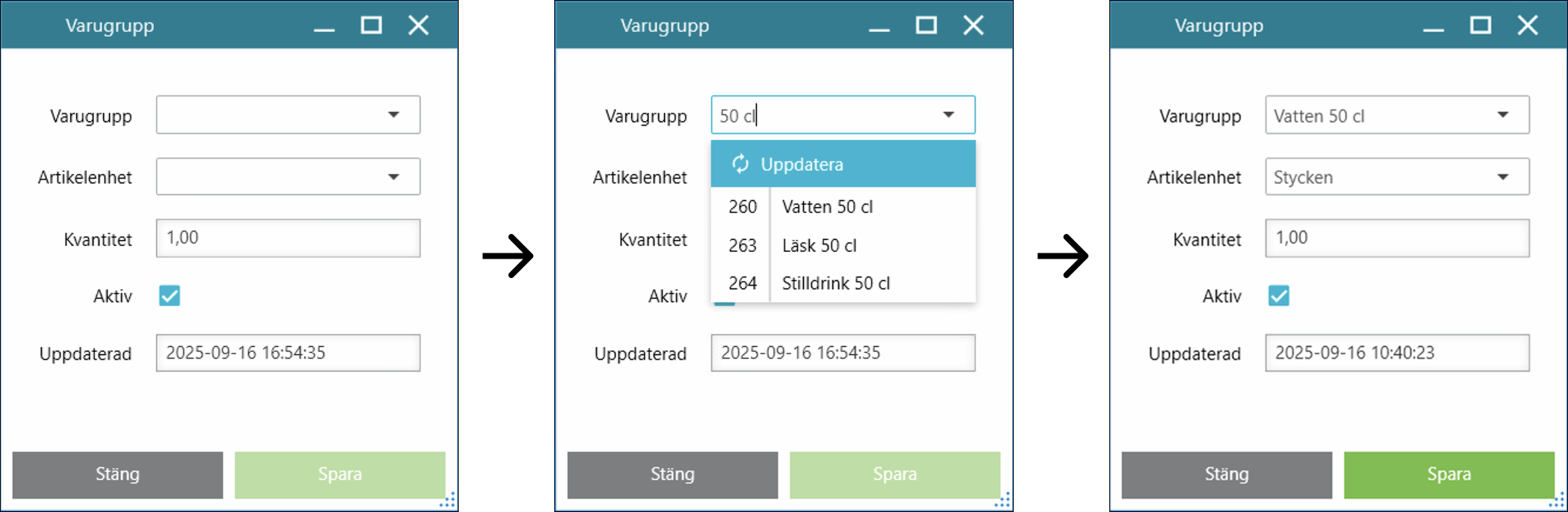
- For product groups:
- Select a product group.
- Select an article unit.
- Press Save.
- For articles:


Add more menu groups
- Press New to add another menu group.
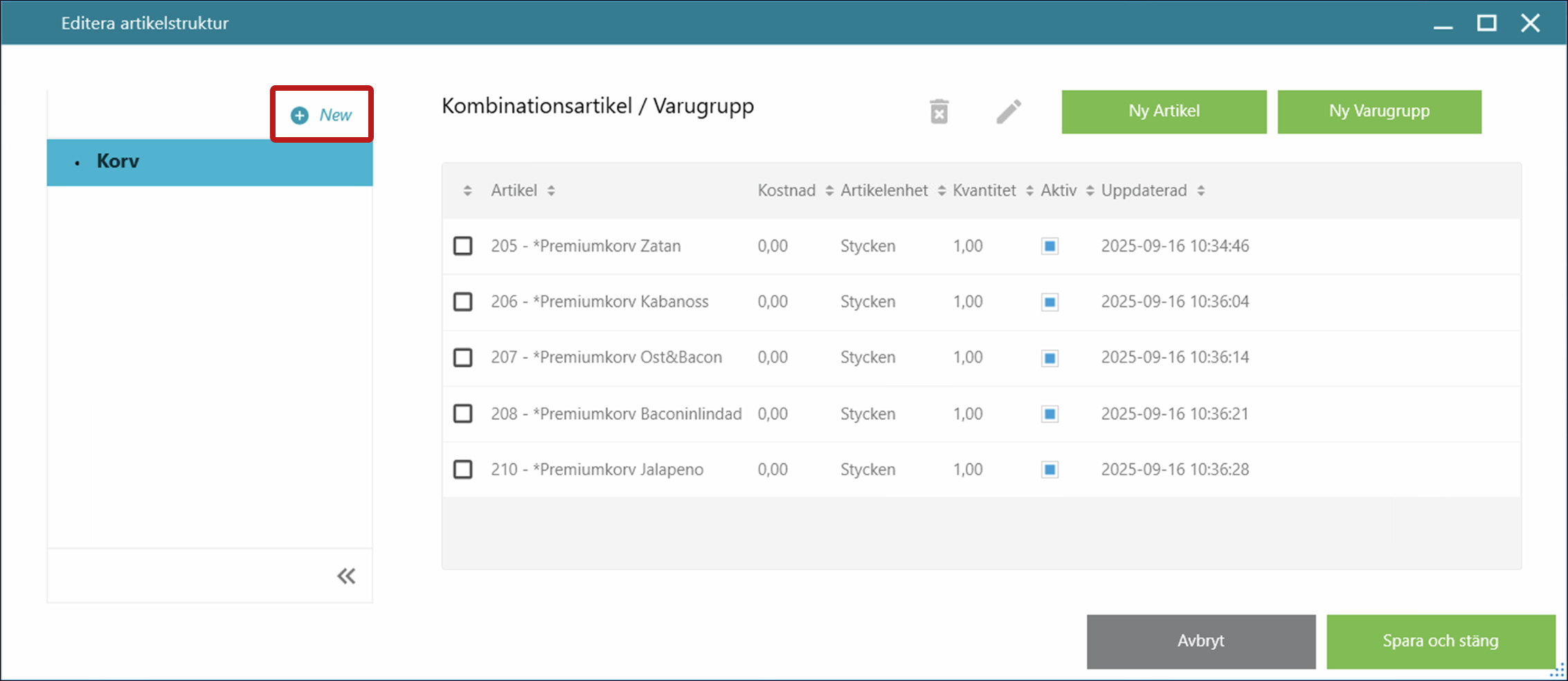
- Repeat the steps until your structure is complete.
- Press Save & close.

For Package combinations
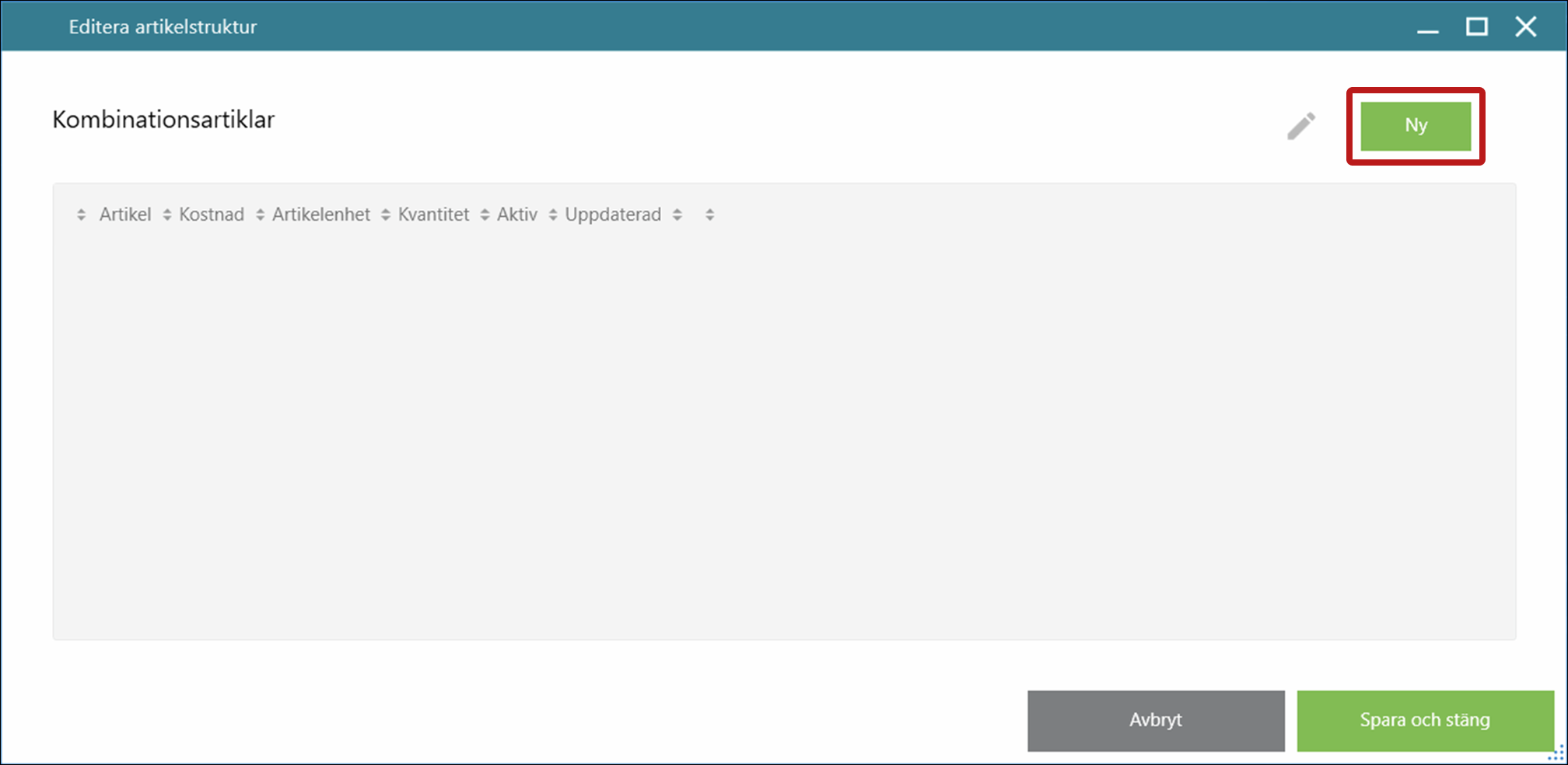
- Press New to add an article.
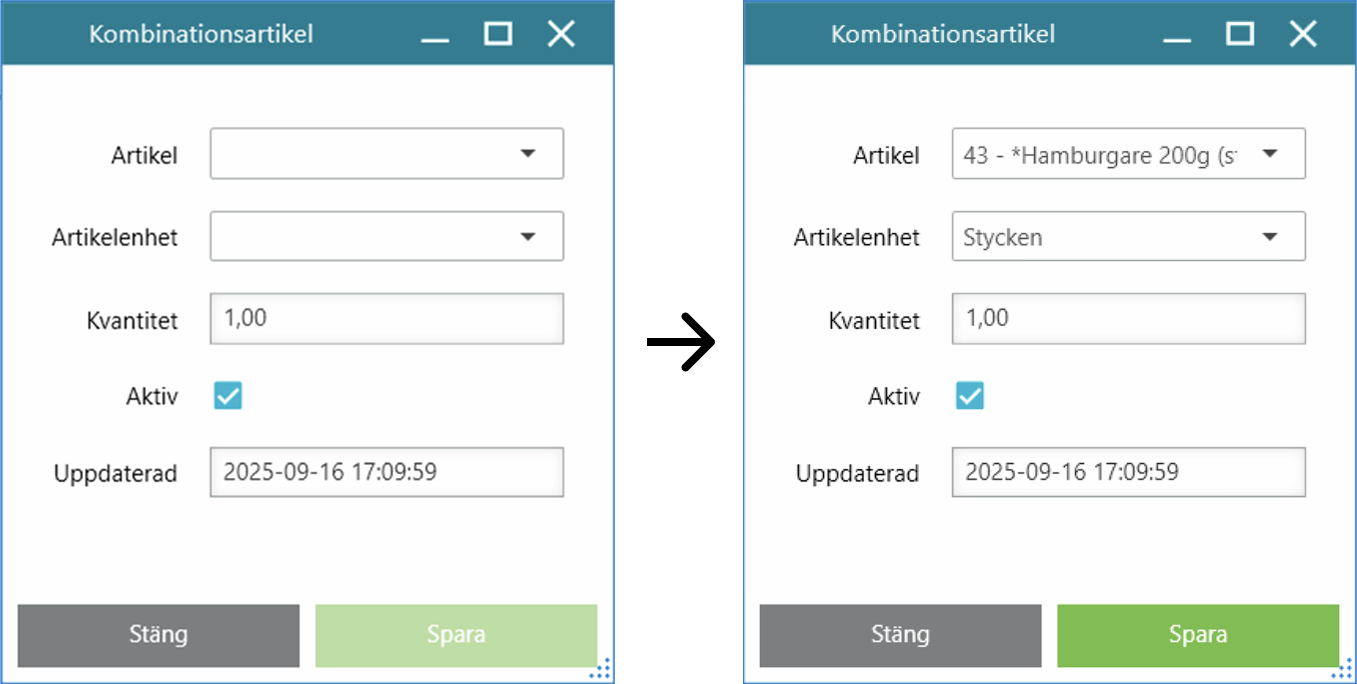
- In the popup:
- Select an article.
- Select an article unit.
- Press Save.
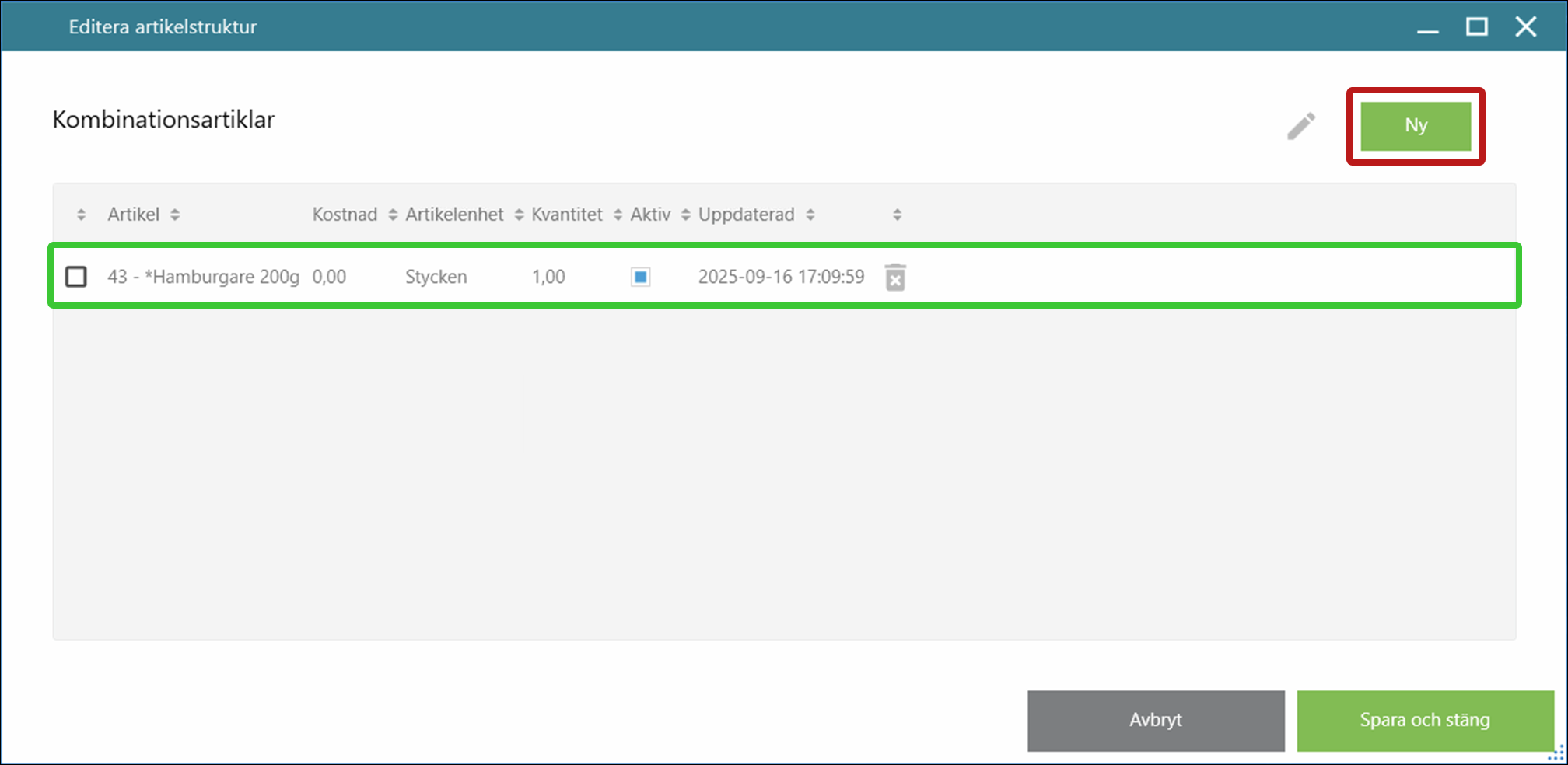
- Repeat to add more articles as needed.
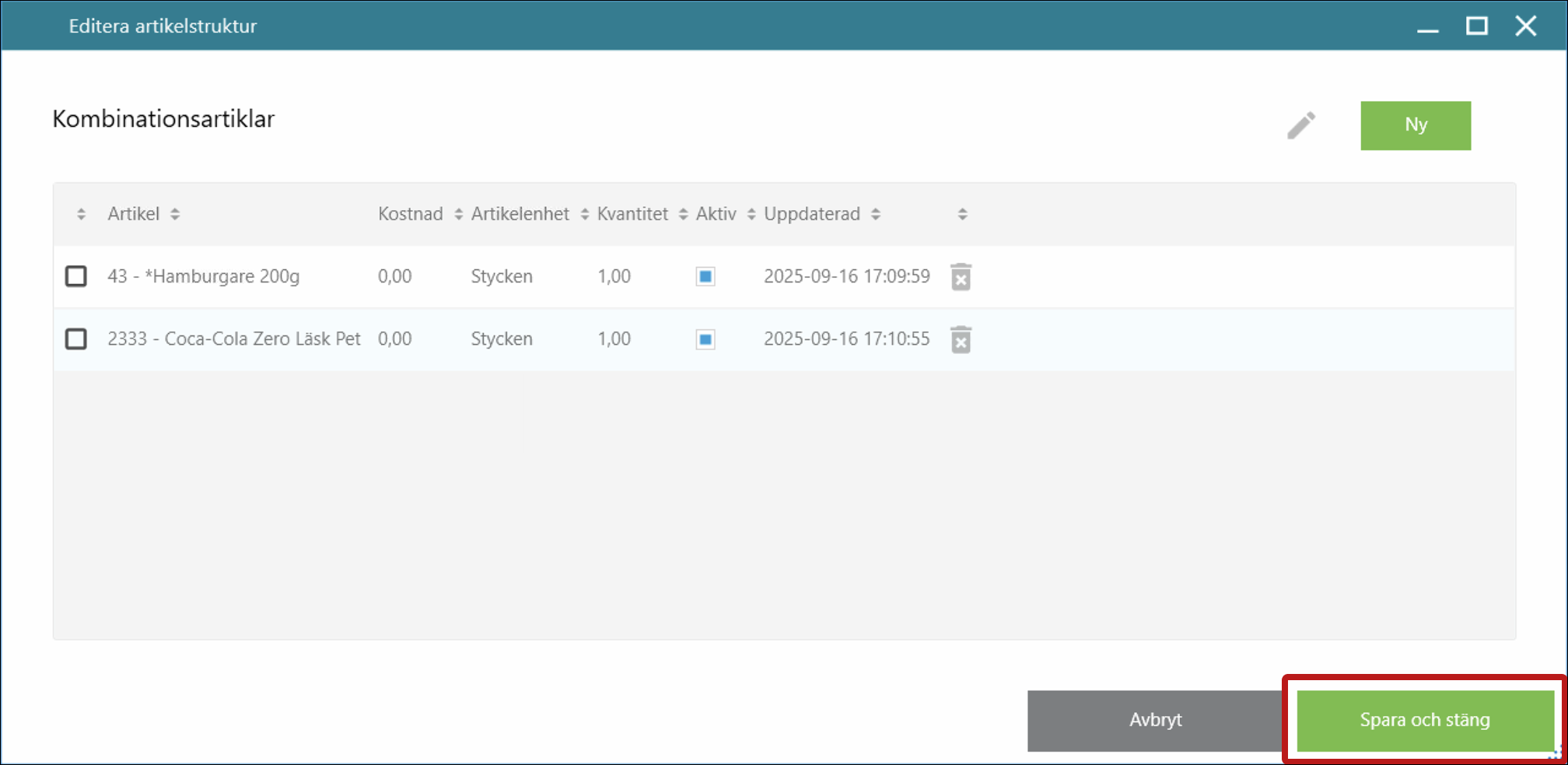
- When finished, press Save & close.


Step 4: Save and review
- Press Save to save your article combination.

- You can now view your combination in the list.