Managing payments
When guests are ready to pay, tap Pay to open the payment view. Depending on your guests' needs, you can:
- Charge for everything at once
- Split the bill evenly between guests
- Choose which articles each guest pays for
- Split a single payment across multiple methods (e.g. 100 SEK cash and the rest by card)
- Split a shared article into portions
How the payment flow works depends on whether you have a single payment terminal connected (standard setup) or multiple terminals (Multipay).
Charge for everything
Standard setup
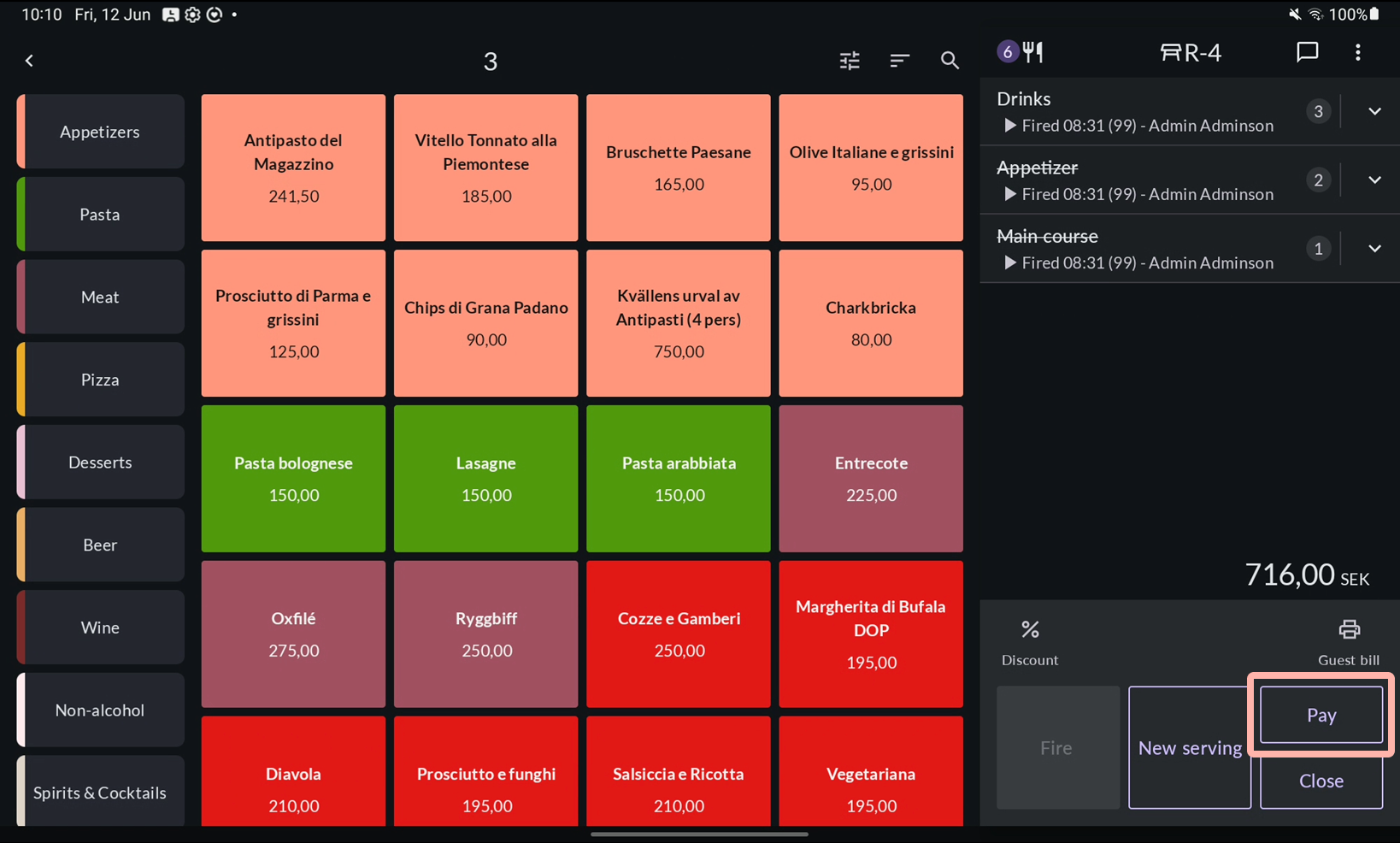
- Tap Pay to open the payment view.
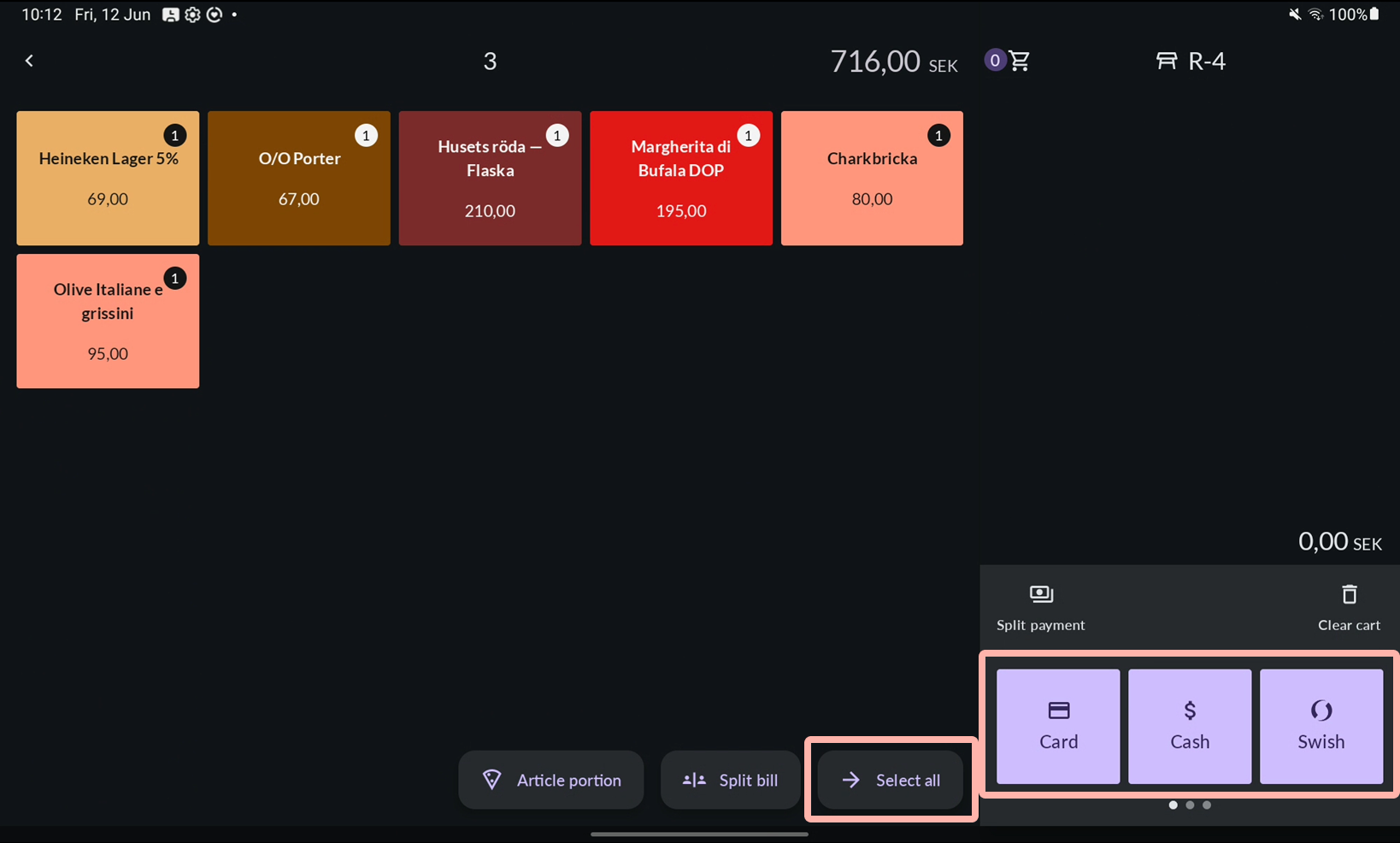
- Tap Select all to move all articles to the cart, or choose a payment method directly (all articles will be automatically moved to the cart).
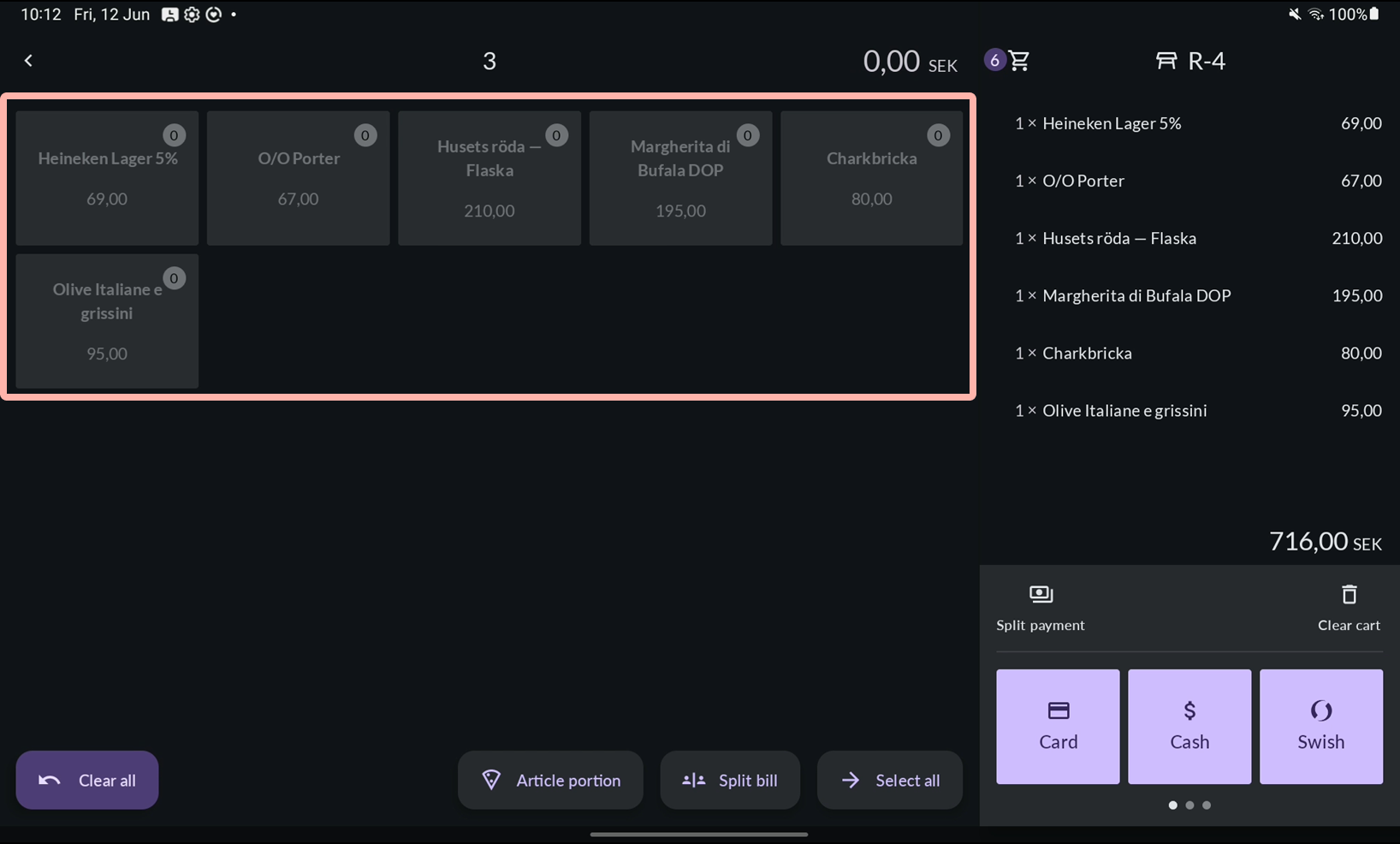
- Items that have been moved to the cart are greyed out to the left.
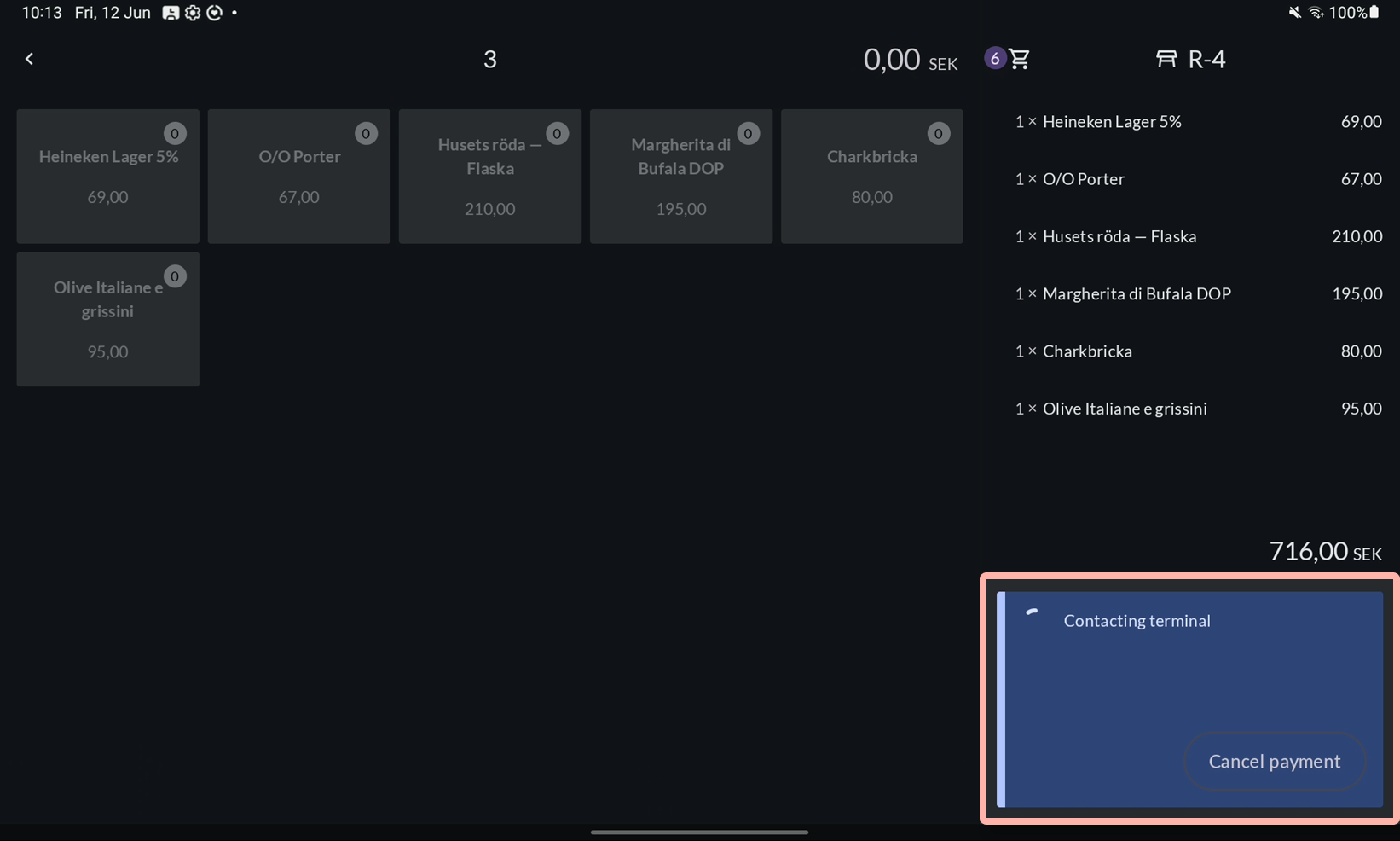
- Wait for the payment to complete.
- Choose a receipt option, or let No receipt be selected automatically.
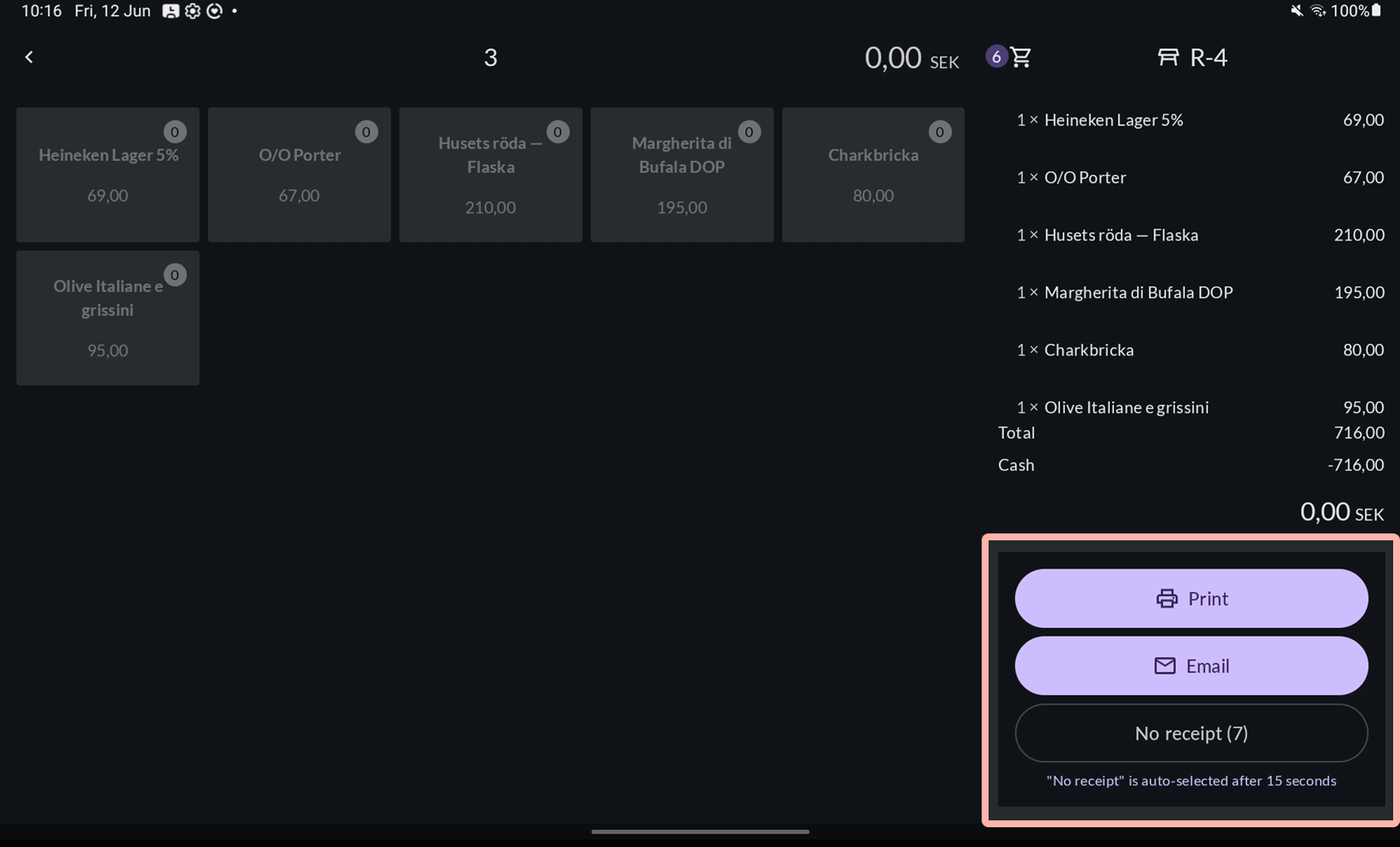
- The table closes automatically and you return to the table map.
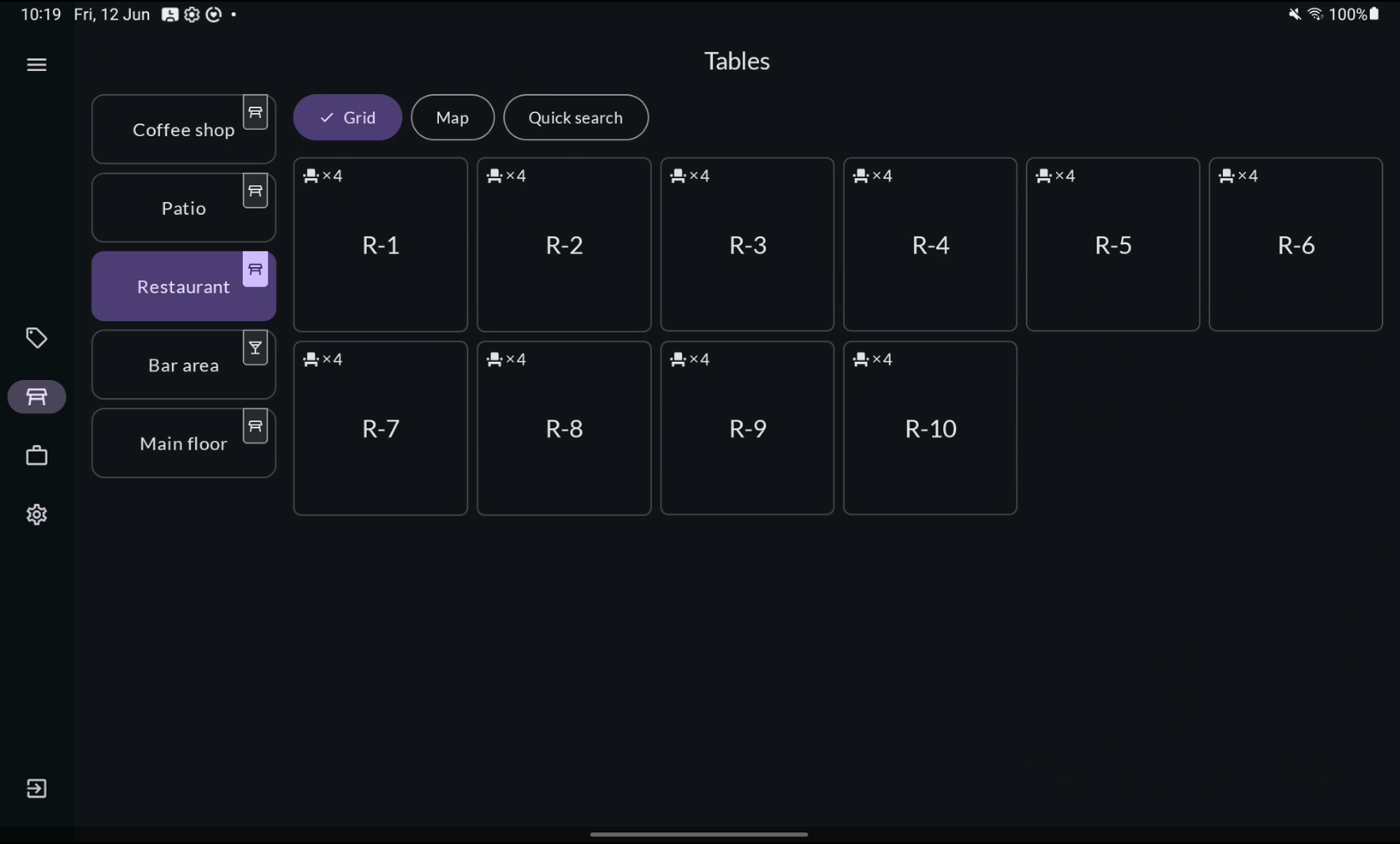


Multipay
Multipay is a payment flow setting that allows multiple parallel transactions. As soon as you start a payment with one terminal, a new empty bill is created automatically — so you can immediately begin another payment without waiting for the first to complete.
Multipay works best when combined with multiple payment terminals connected to the register, but can also be used with a single terminal.
To enable it, go to Settings → General in the register, scroll down to Payments, and set the payment flow to Multipay — Allow multiple parallel transactions.
For charging everything at once, the steps are the same as the standard setup. The difference is that you can choose between multiple payment terminals.

Split the bill evenly
Use Split bill when guests want to divide the total evenly — for example, four guests splitting the bill in four. Each part generates its own receipt.
This differs from Split payment, where one guest pays the full amount using multiple payment methods and receives a single receipt.
Tablet
- Tap Pay to open the payment view.
- Tap Split bill.
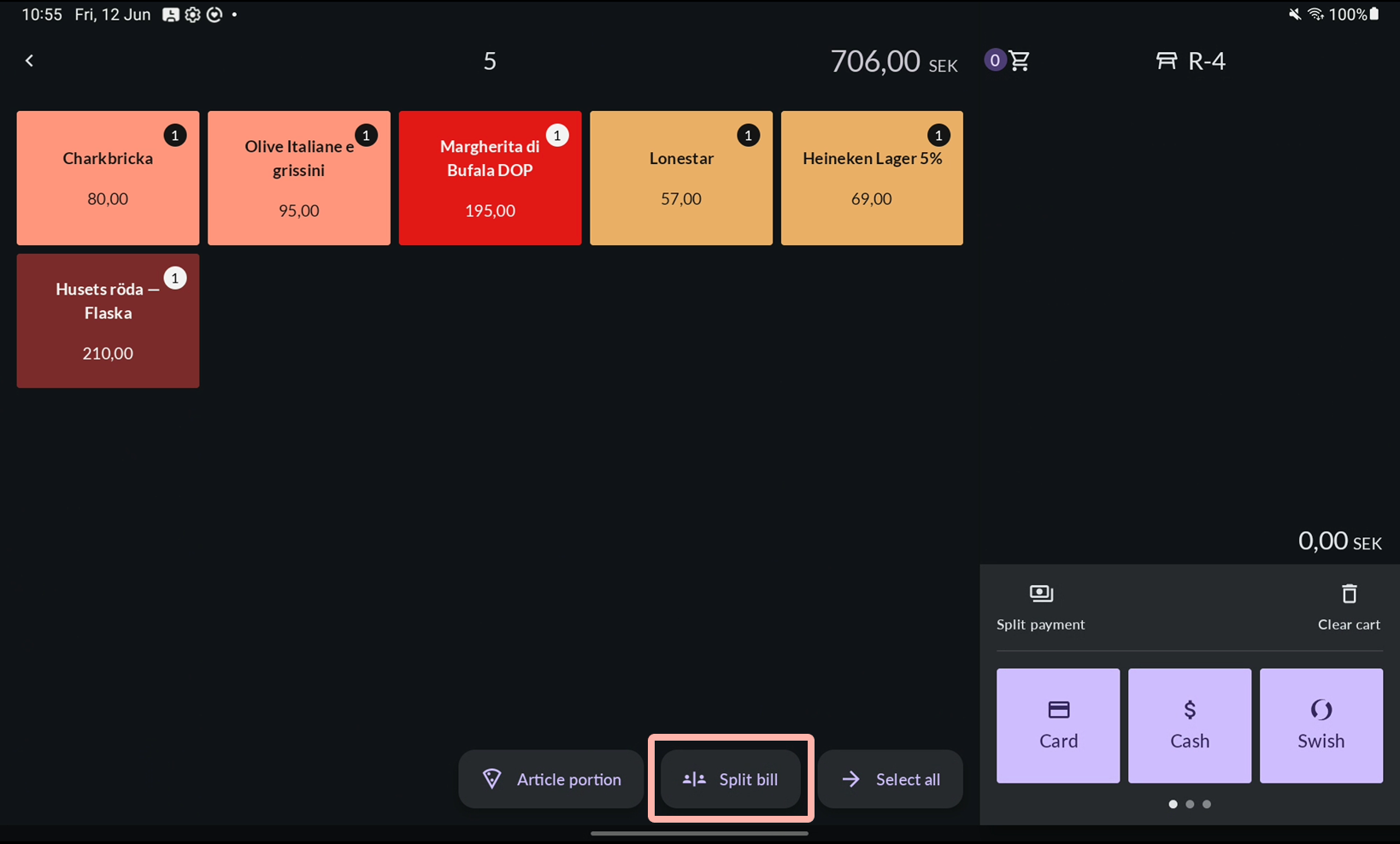
- Choose how many parts to split the bill into. Two is the default — tap Custom to enter any number. Tap Confirm.
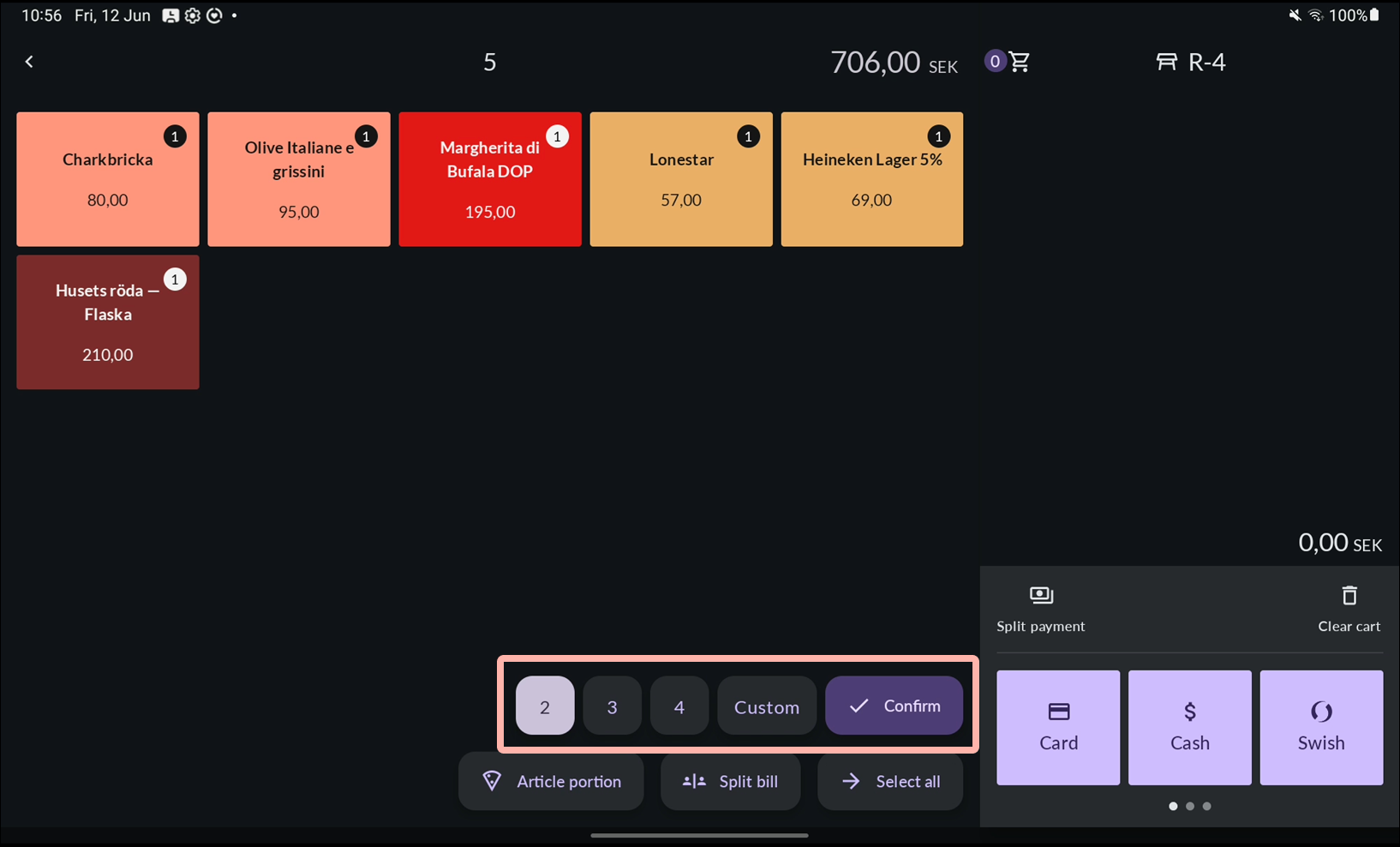
- The articles are divided evenly across bills. Choose a payment method for Bill 1.
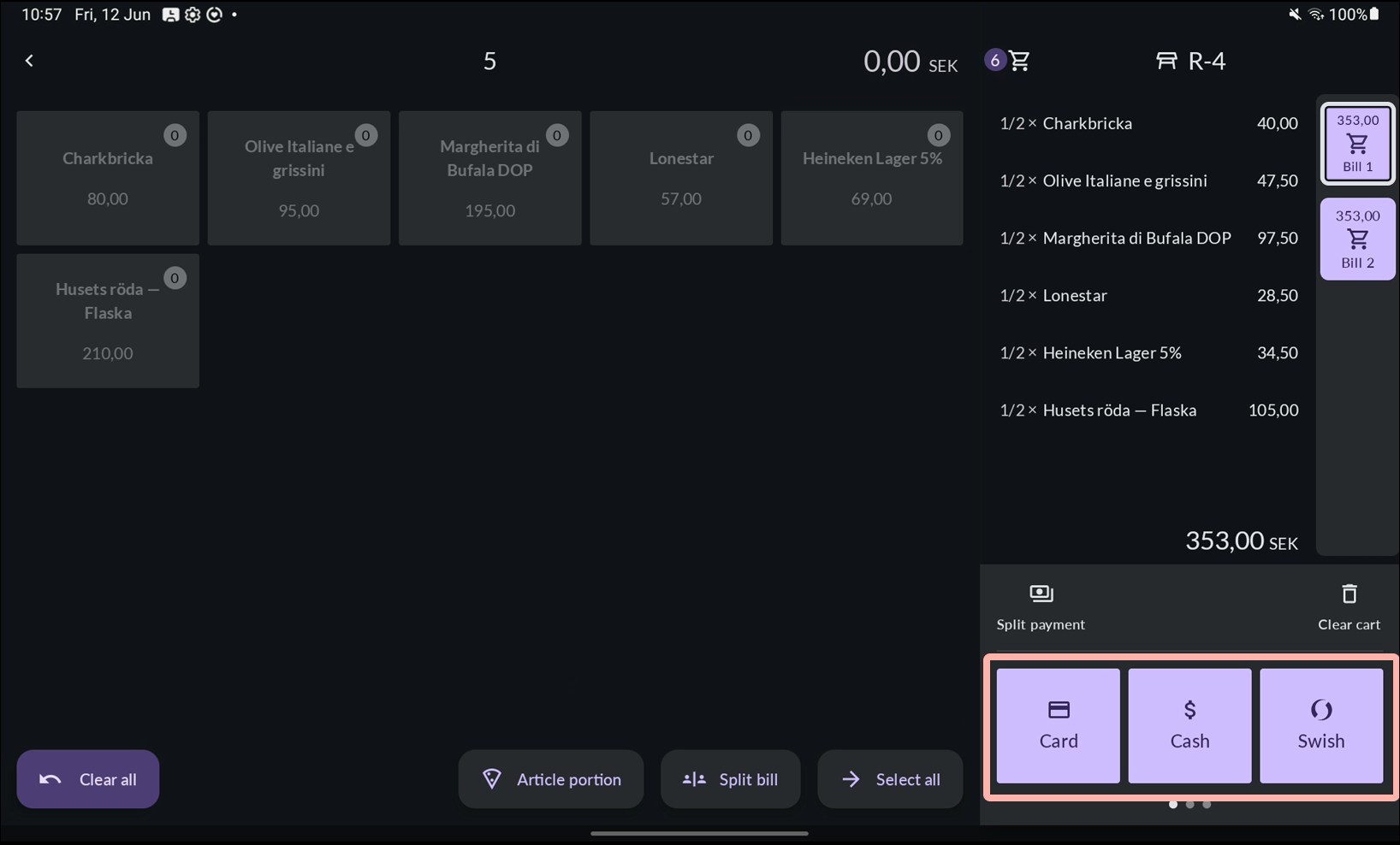
- Complete the payment and choose a receipt option.
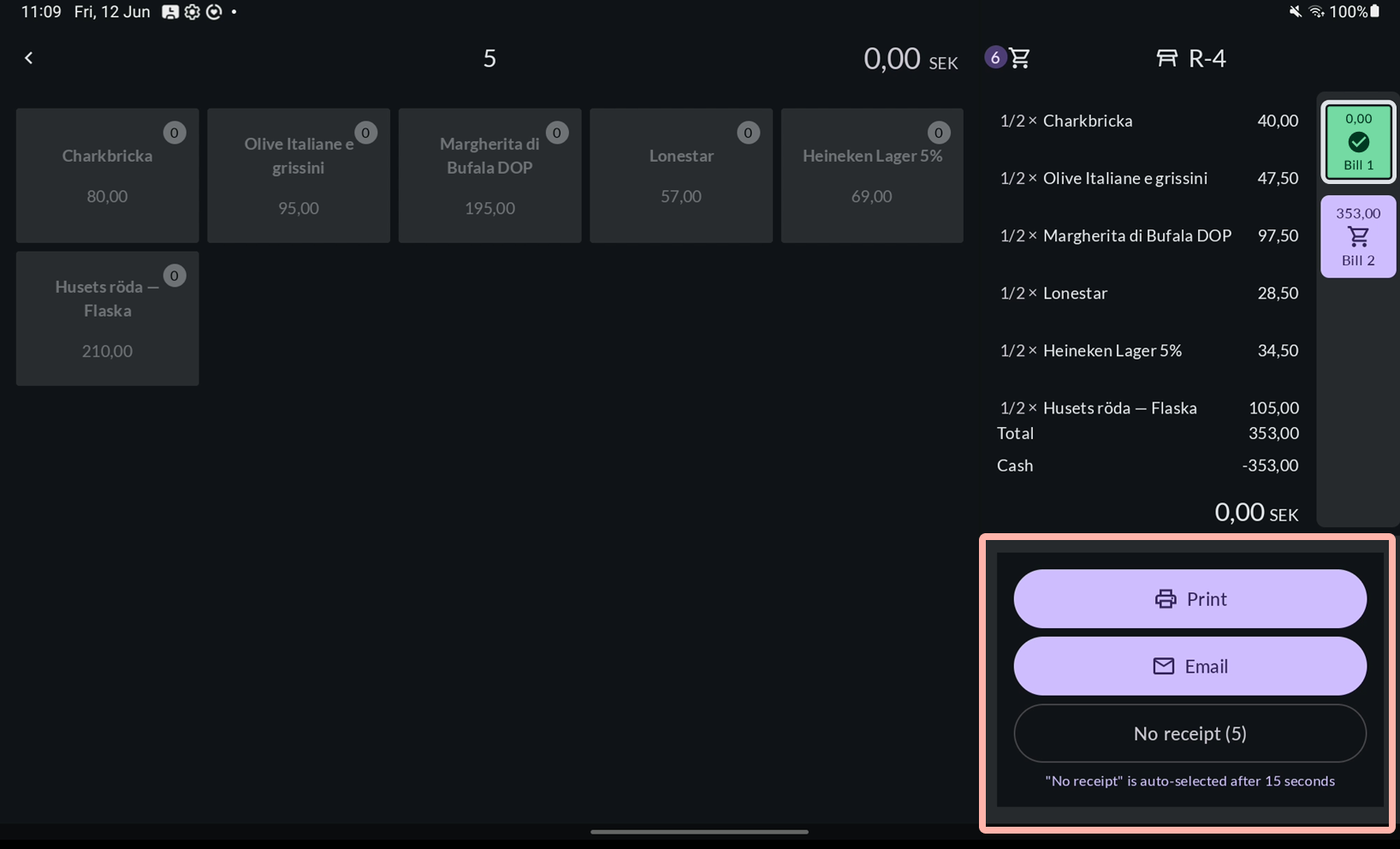
- Repeat for each remaining bill. The table closes automatically once all bills are paid.
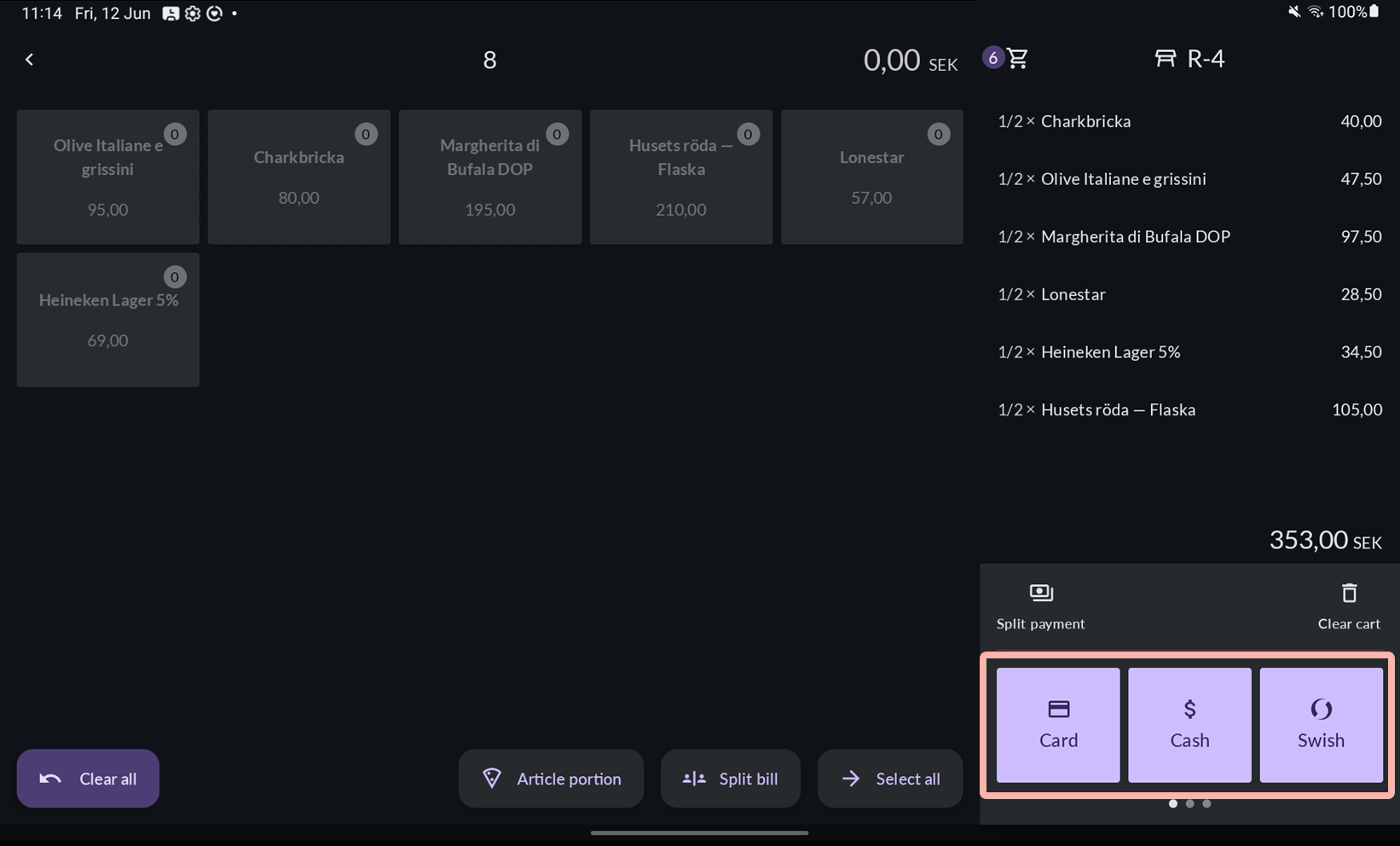


To discard all changes before any payment has started, tap Clear all.

Mobile / POS terminal
- Tap the bottom of the screen to open the servings view.

- Tap Pay to open the payment view.

- Tap the three-dot menu.

- Select Split bill.

Choose how many parts to split the bill into (2 is preselected) and Confirm with the checkmark.
Tips:
- Tap Custom to enter any number
- Tap X to cancel

- Tap the bottom of the screen to open the payment view.

- The articles are divided evenly across bills. Choose a payment method for Bill 1.

- Complete the payment and choose a receipt option.

- Repeat for each remaining bill. The table closes automatically once all bills are paid.

To discard all changes before any payment has started, tap the three-dot menu and select Clear all.

Choose which articles each guest pays for
Standard setup
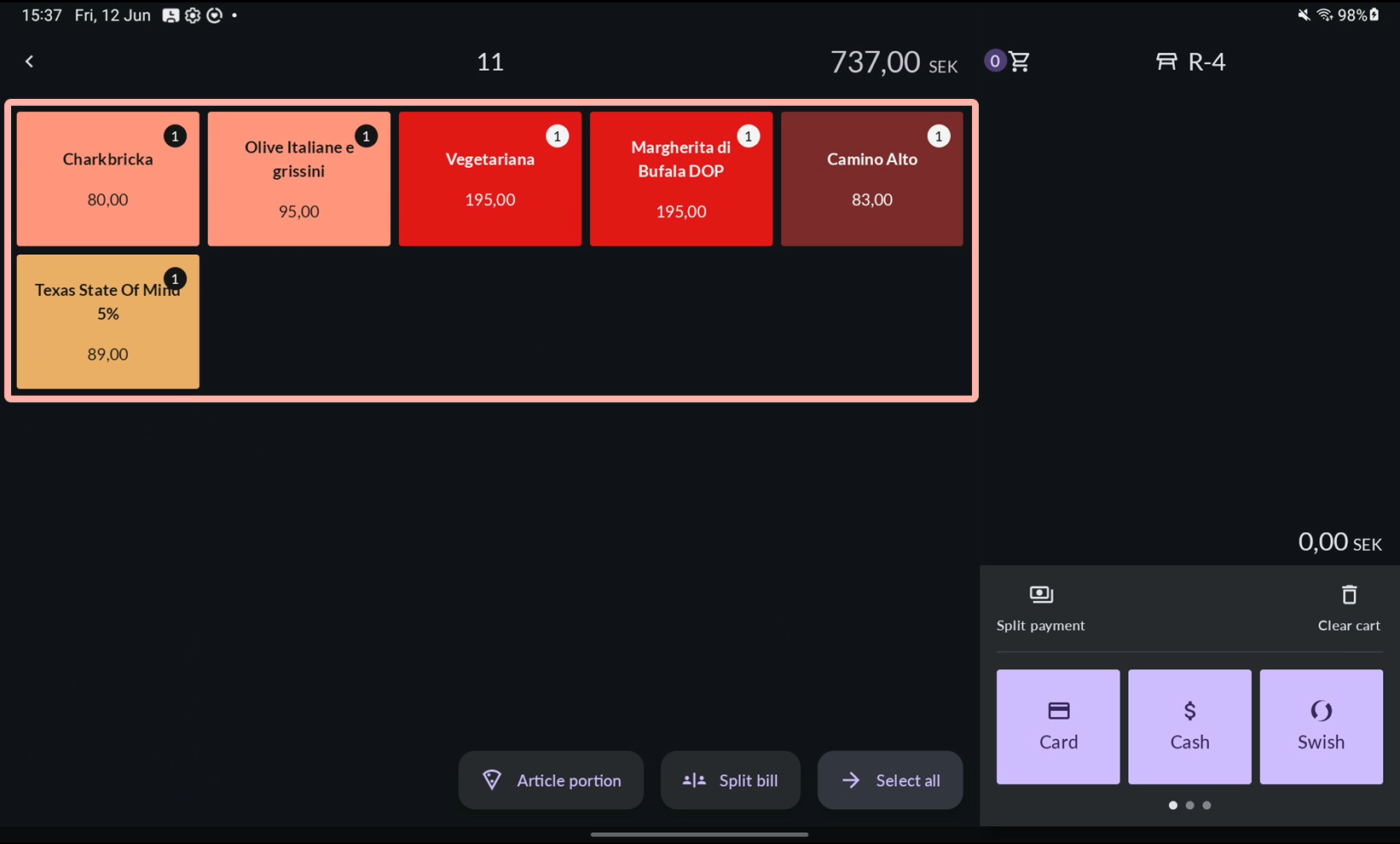
- Tap Pay to open the payment view.
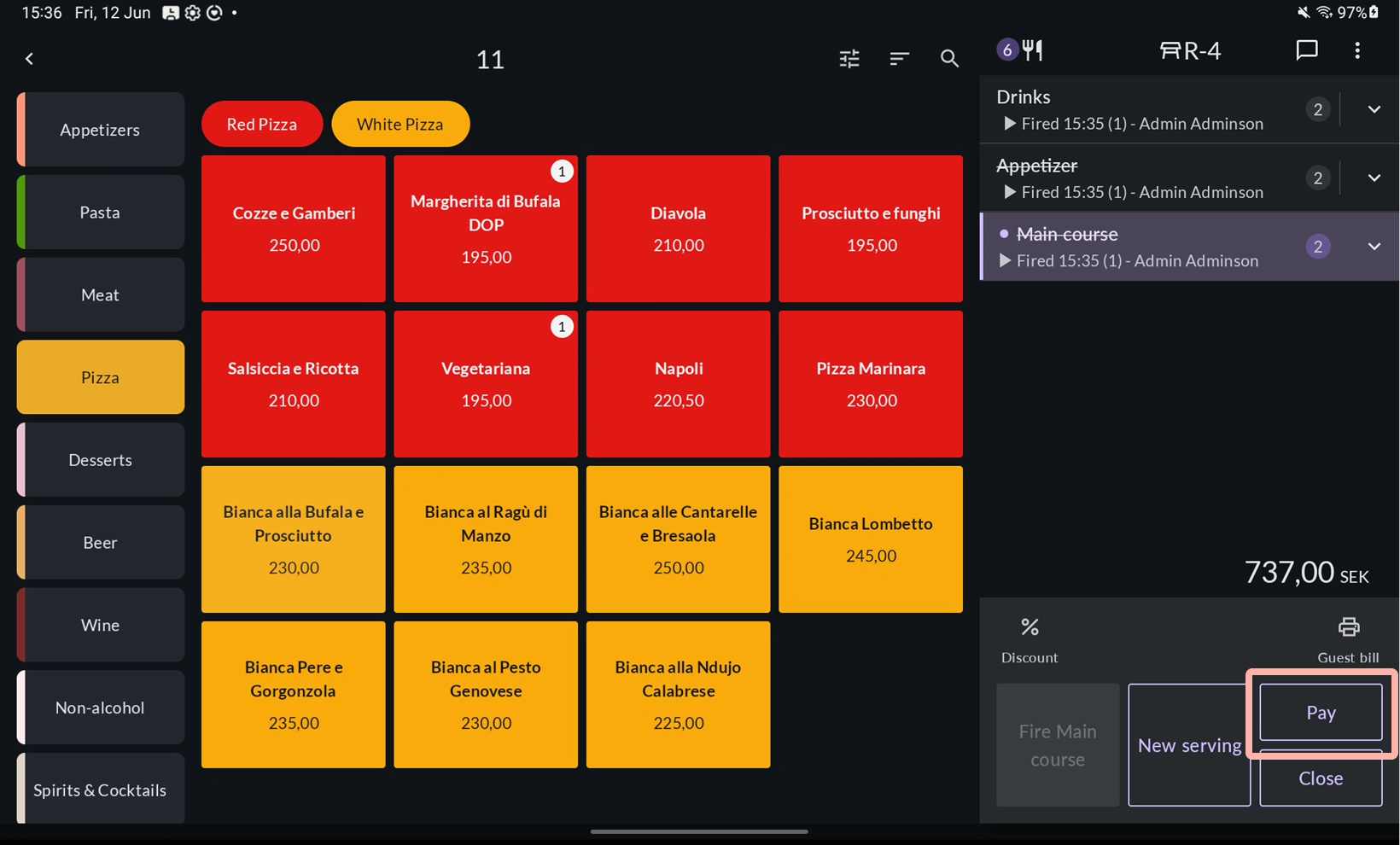
- Tap the articles the first guest will pay for. They will then move to the cart.
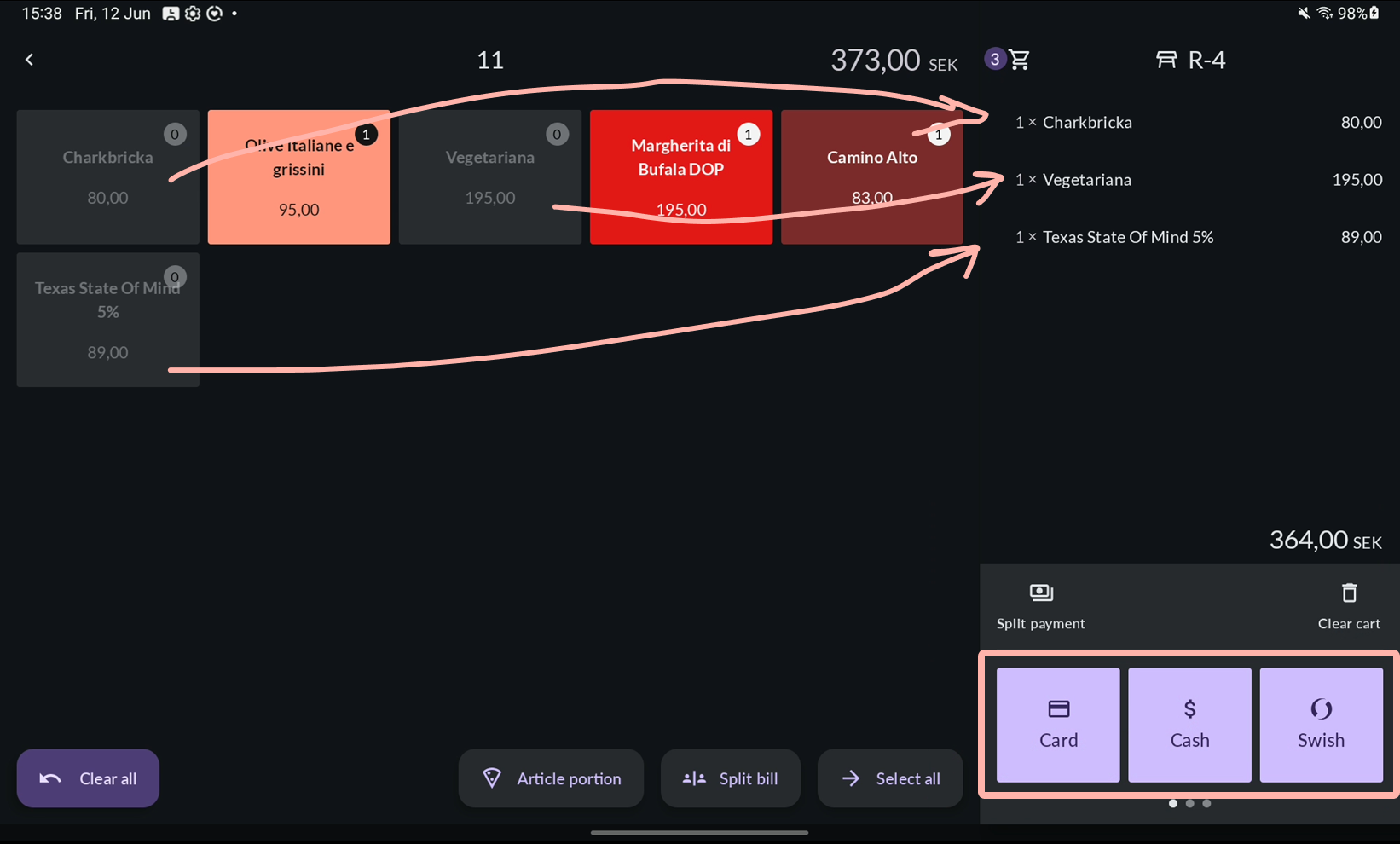
- Greyed out articles are now in the cart. Choose a payment method and process the payment.
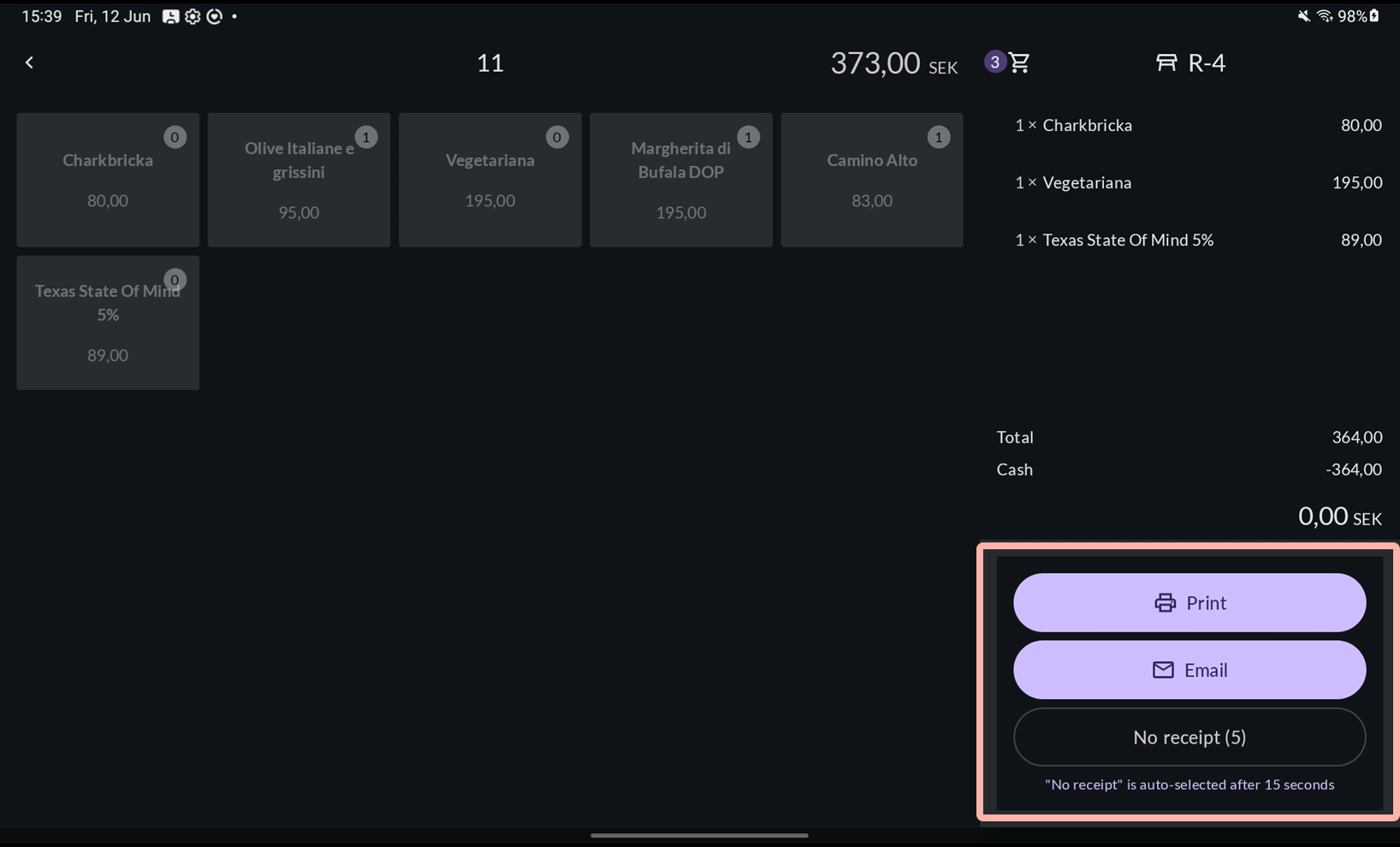
- Wait for the payment to complete and choose a receipt option.
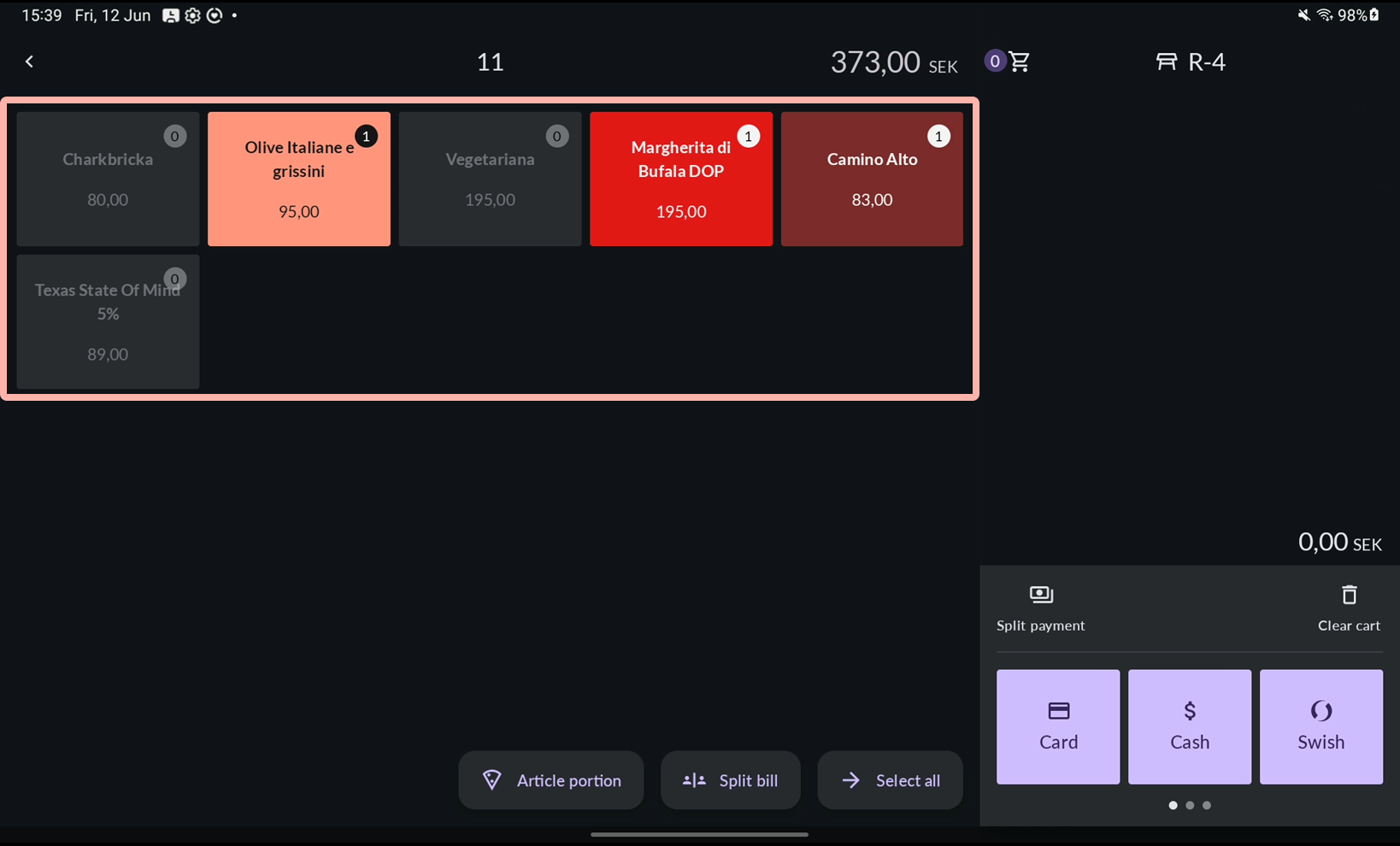
- Repeat steps 2–4 for each remaining guest.


Multipay
With Multipay, you can handle multiple guests' payments simultaneously.
- Tap Pay to open the payment view.
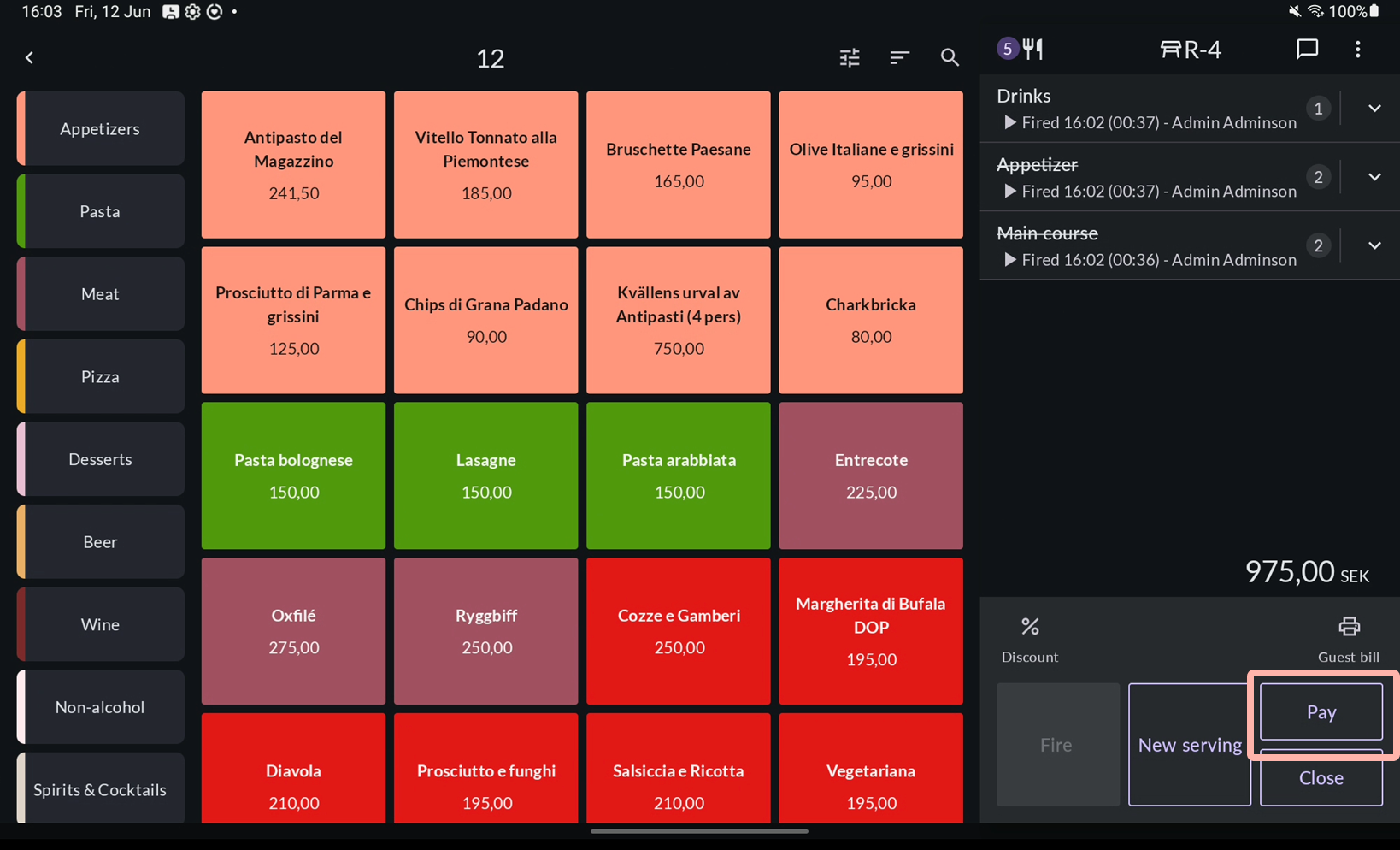
- Tap the articles the first guest will pay for to move them to the cart.
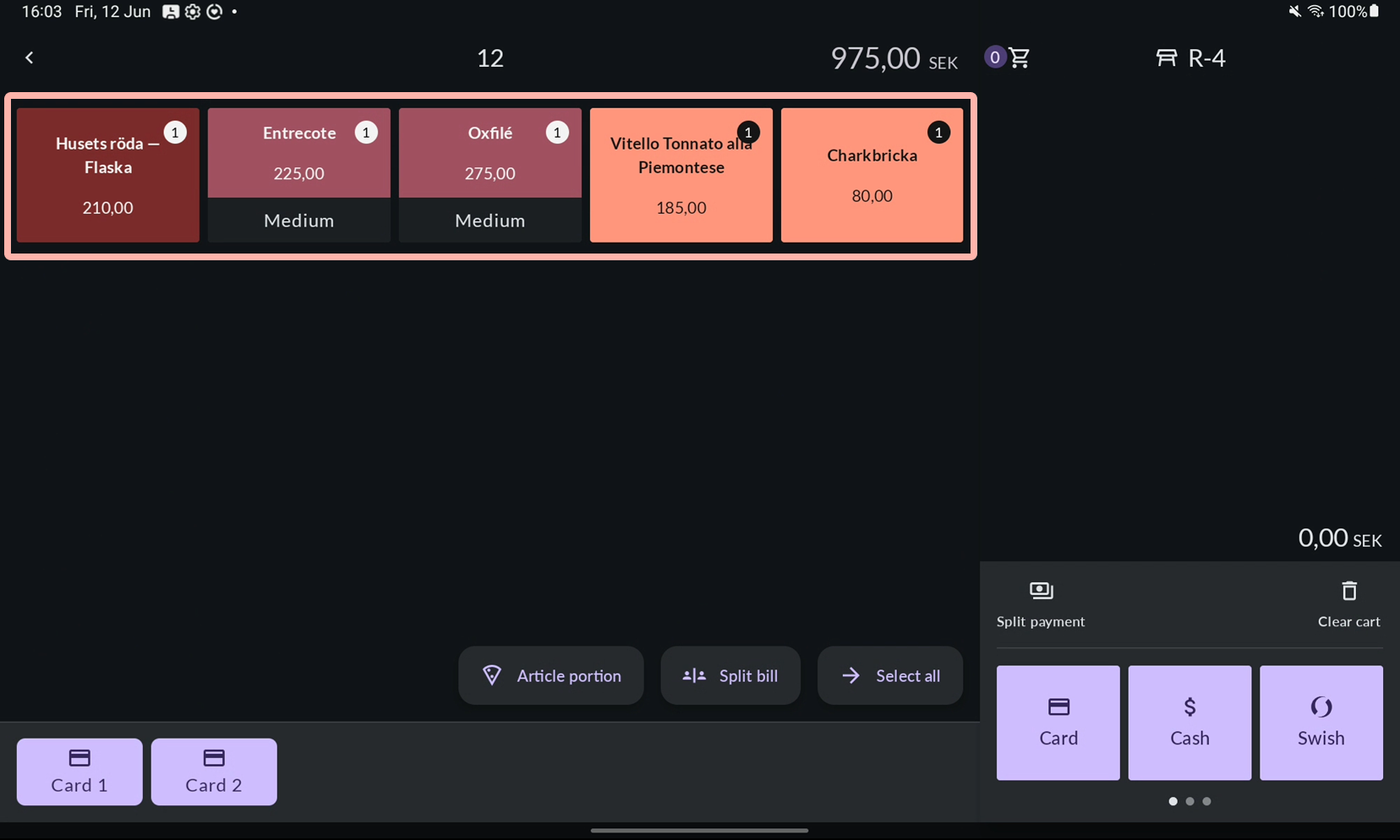
- Choose a payment terminal and process the payment.
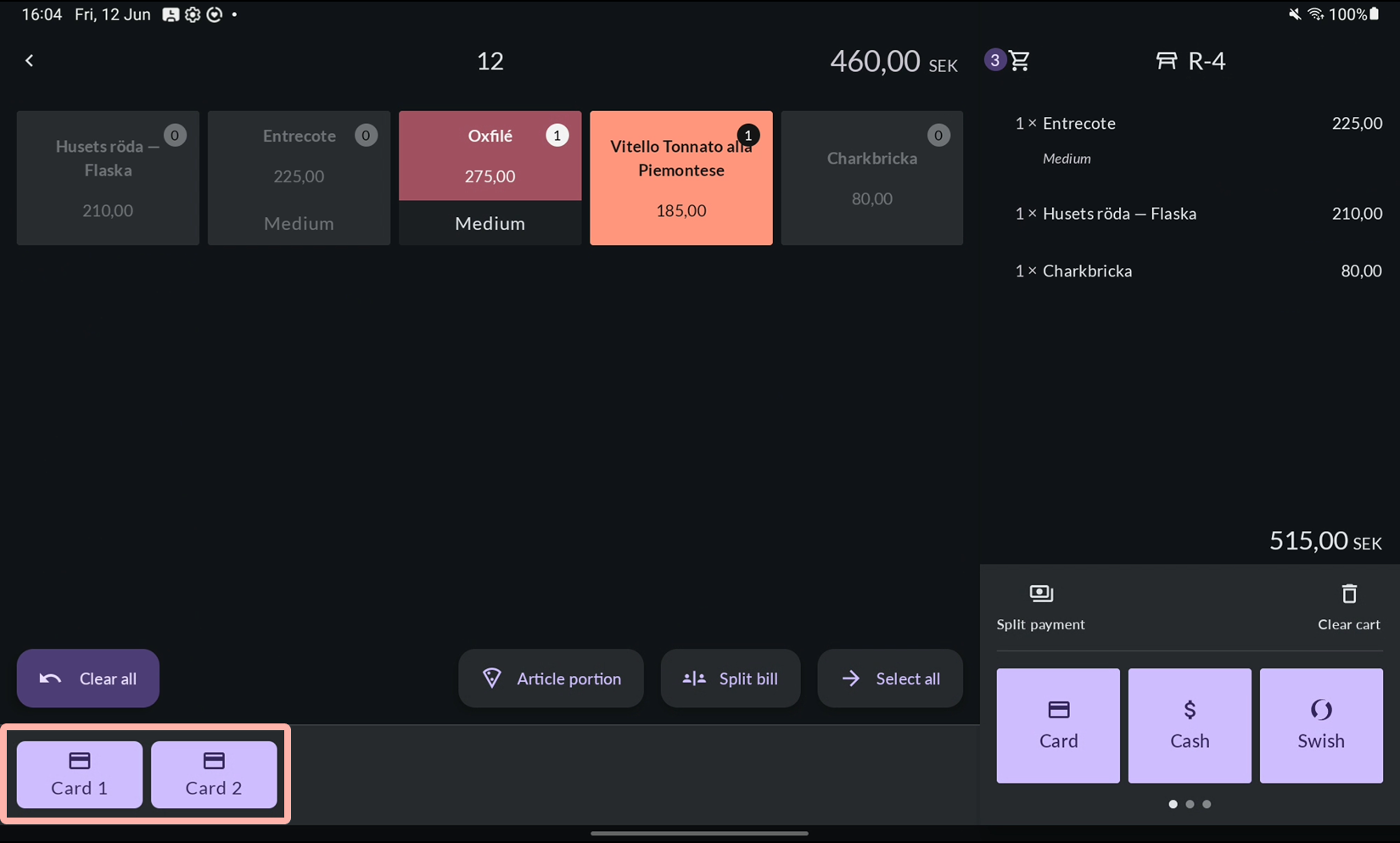
- As soon as the first payment is initiated, Bill 2 is created automatically. Tap the articles the second guest will pay for.
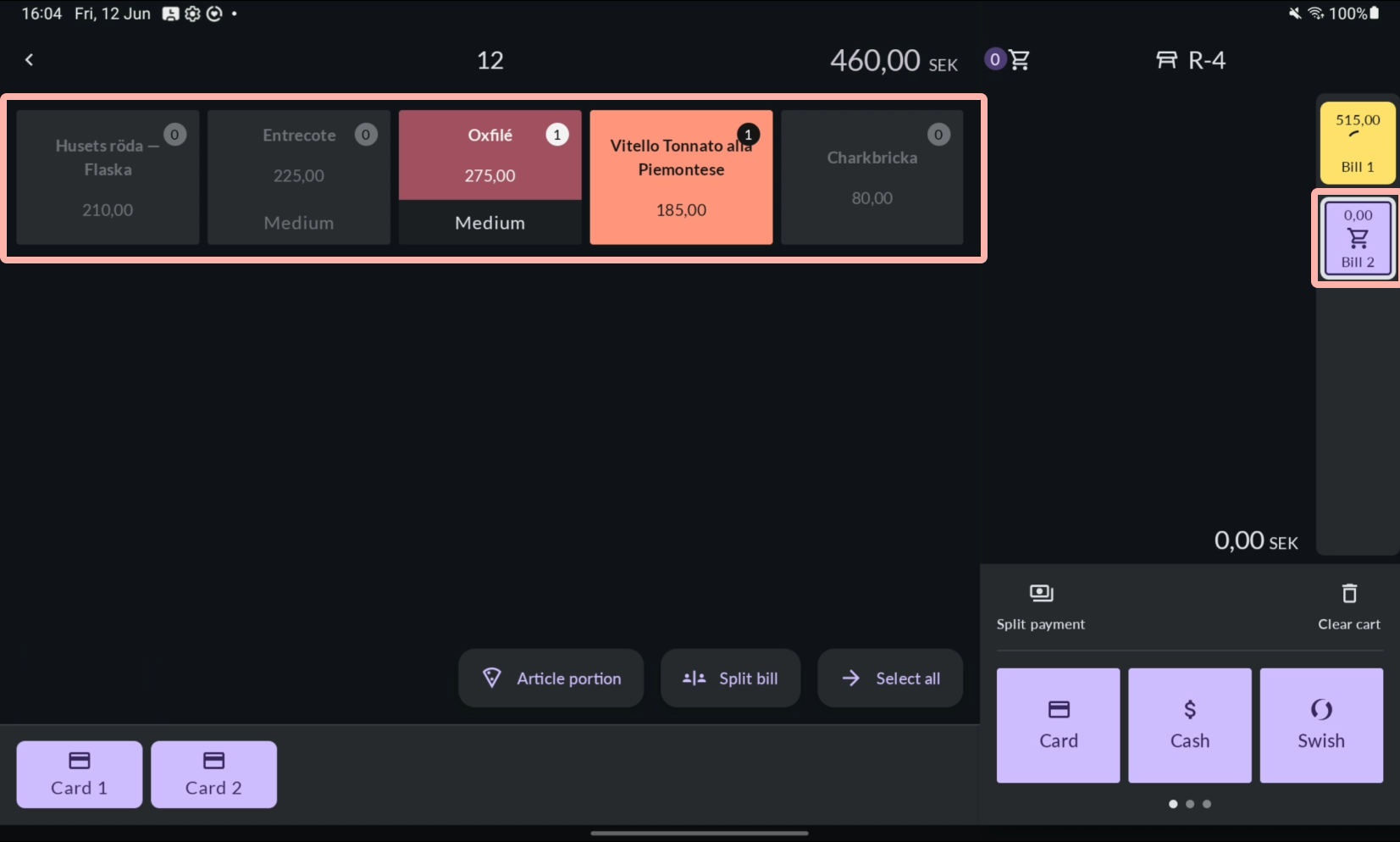
- Choose a different terminal and process the second payment in parallel.
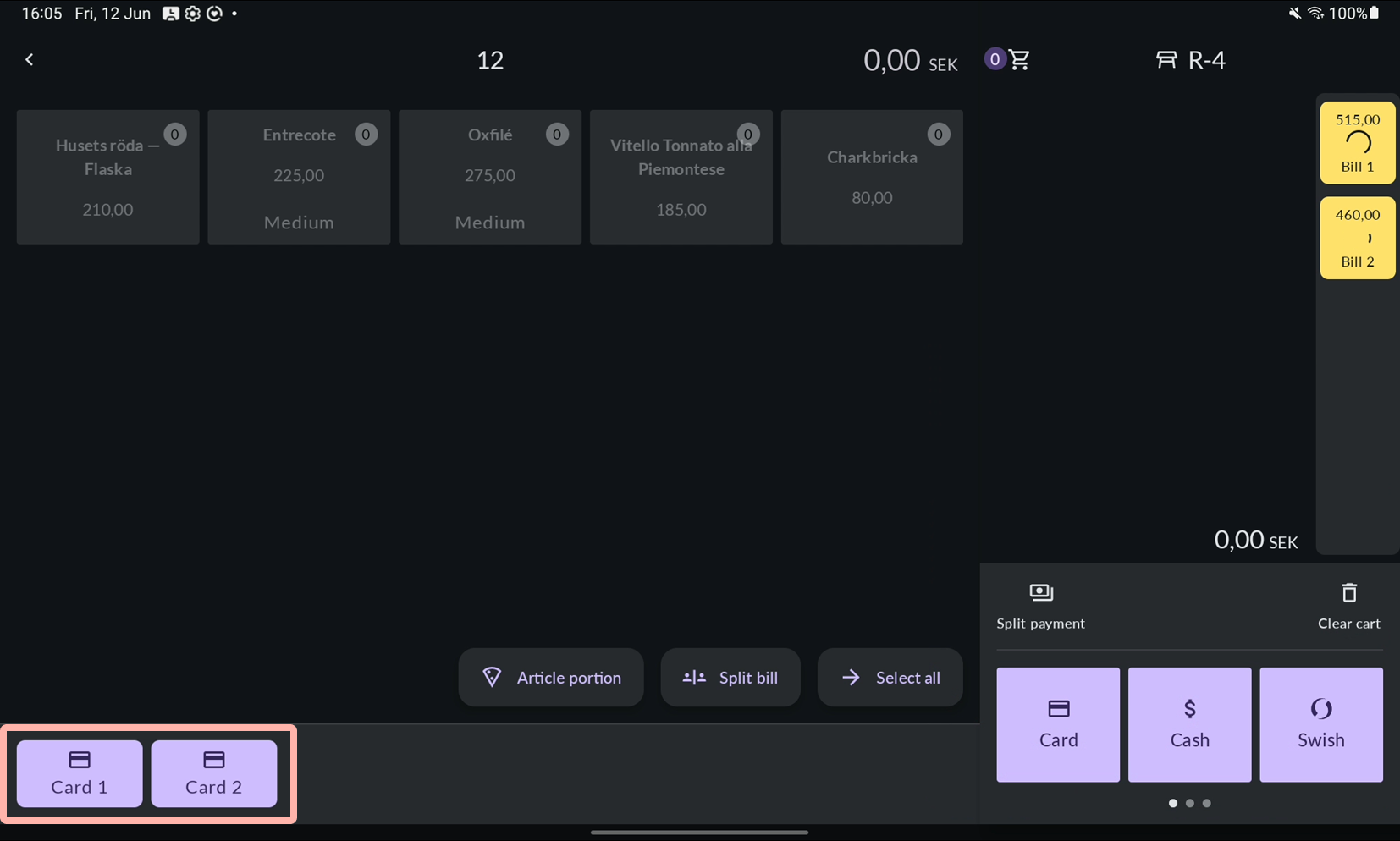
- Once the Bill 1 is paid, choose a receipt option.
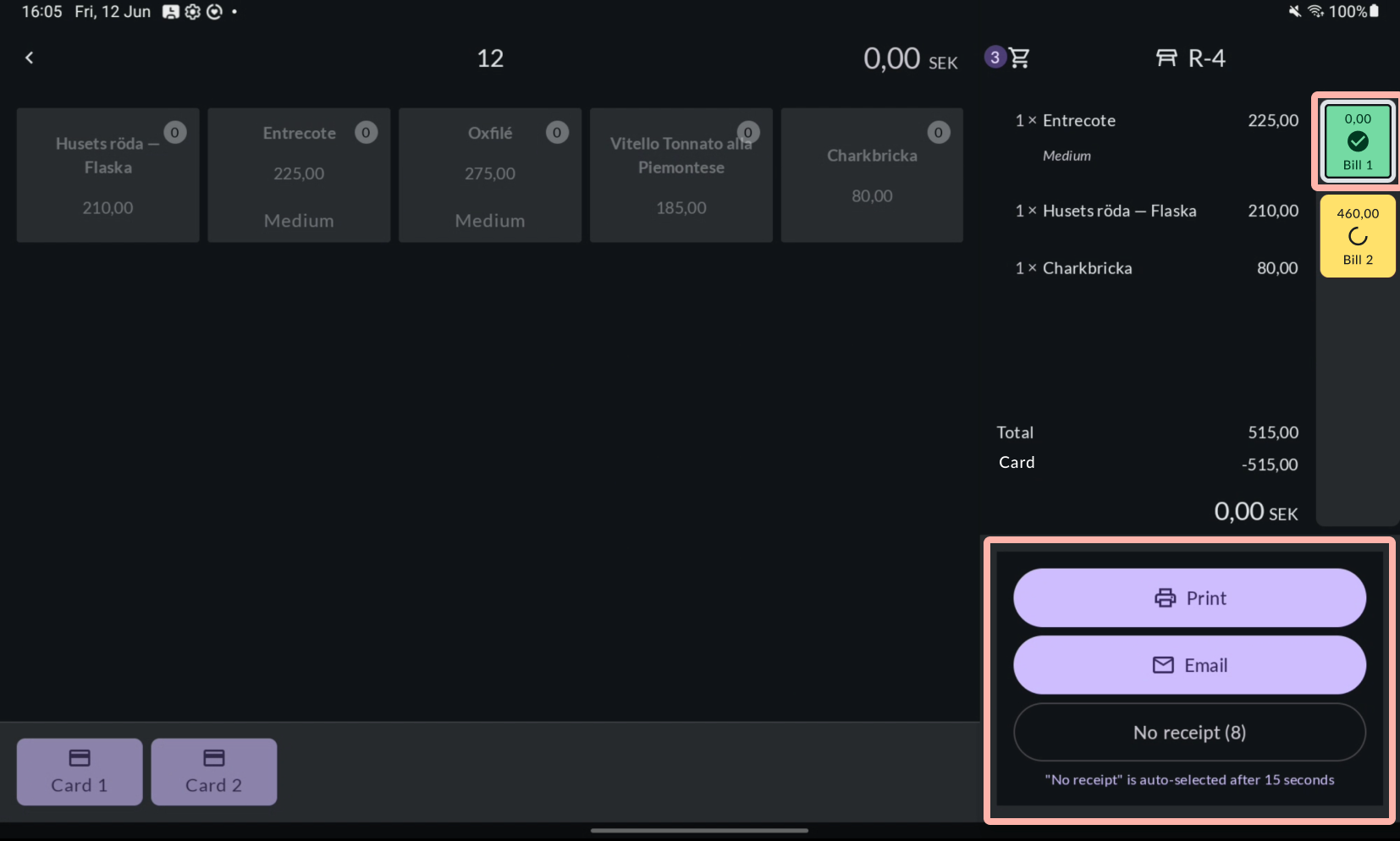
- Repeat for Bill 2.
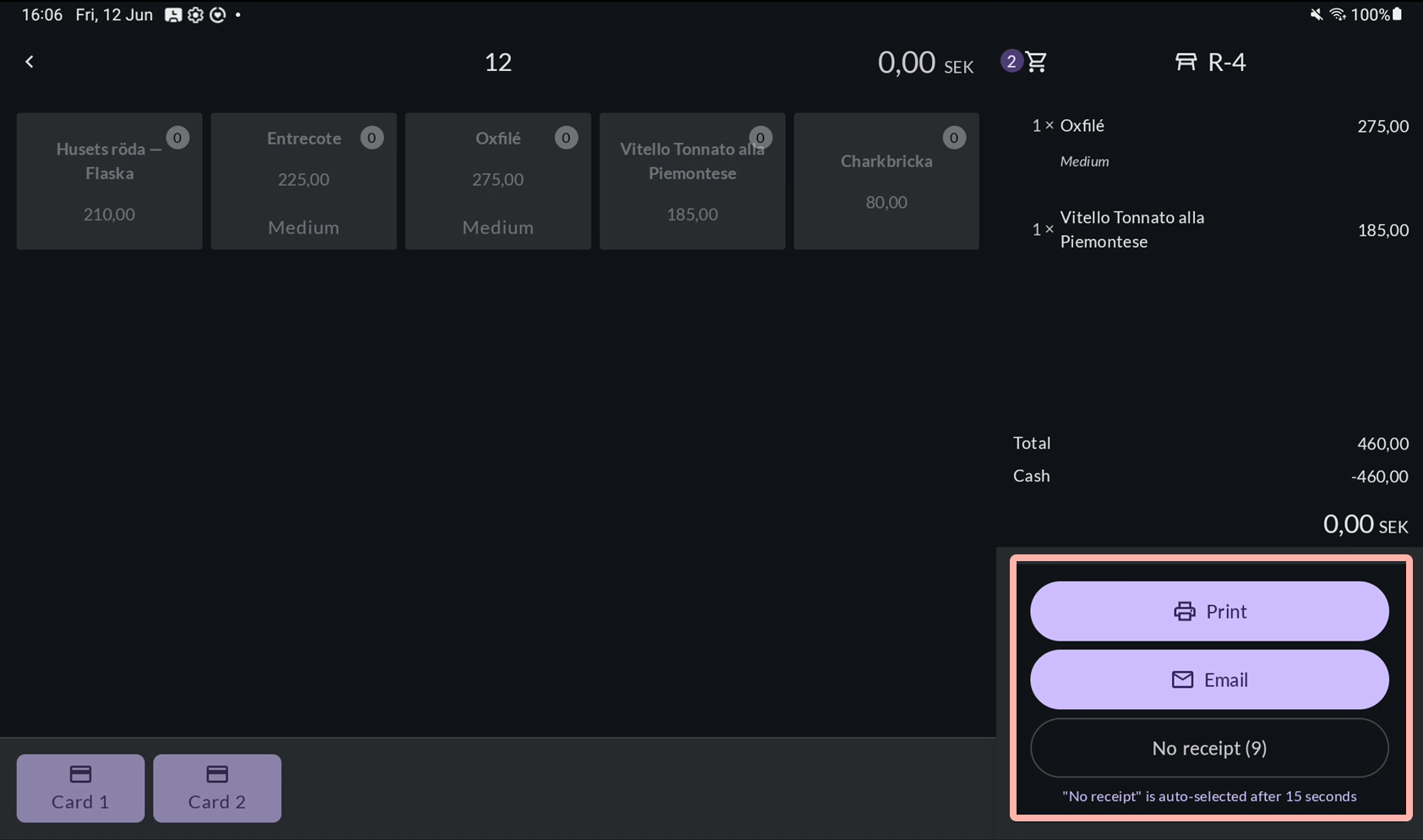
- The table closes automatically once all receipts are processed.


Split a payment across multiple methods
Use Split payment when one guest wants to pay using more than one payment method — for example, 100 SEK cash and the rest by card. This works for any number of articles in the cart, including a single article or a portion. The guest receives one receipt once the full amount is paid.
- Tap Pay to open the payment view.
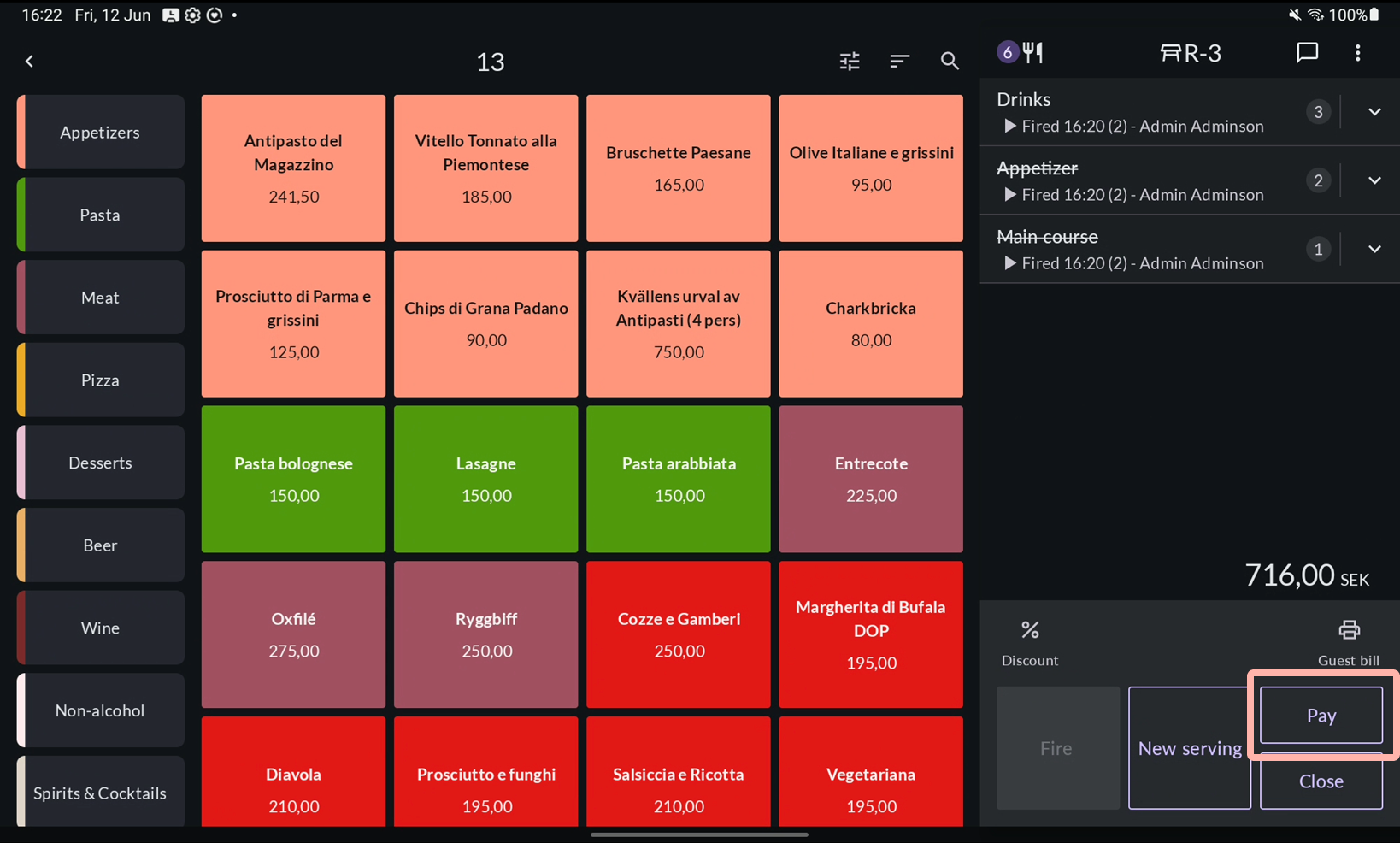
- Add the articles this guest will pay for to the cart.
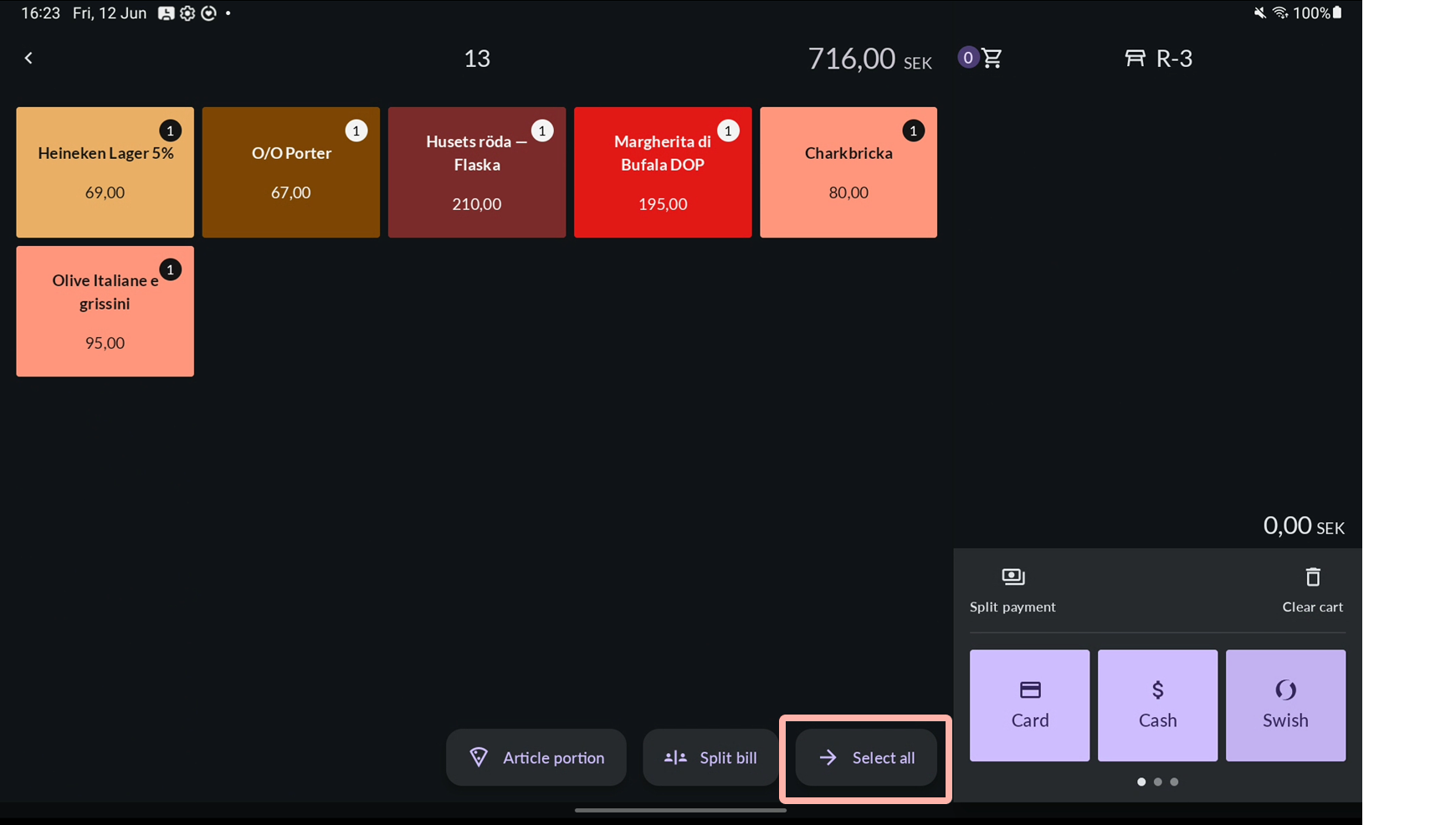
- Tap Split payment.
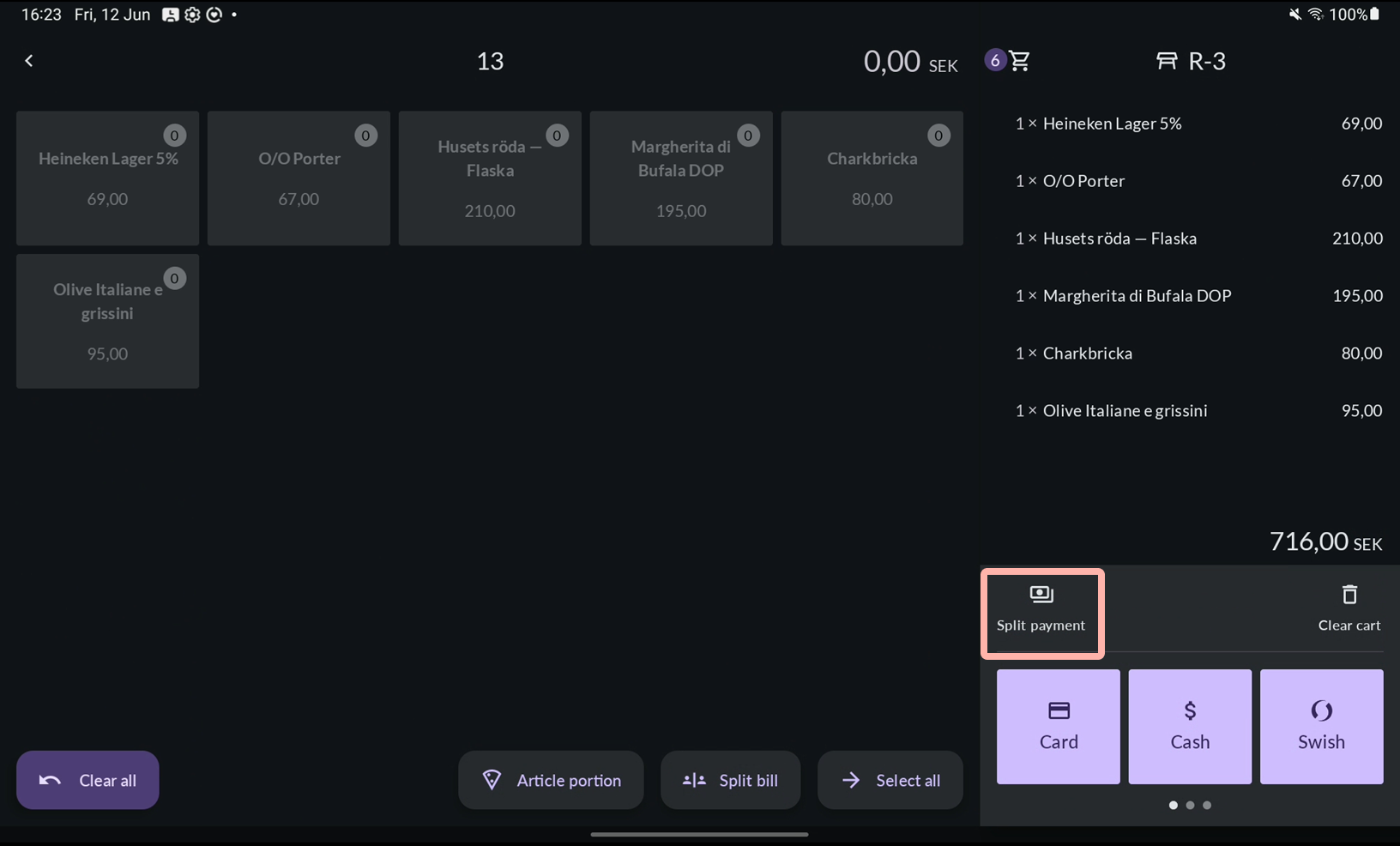
- Choose the first payment method.
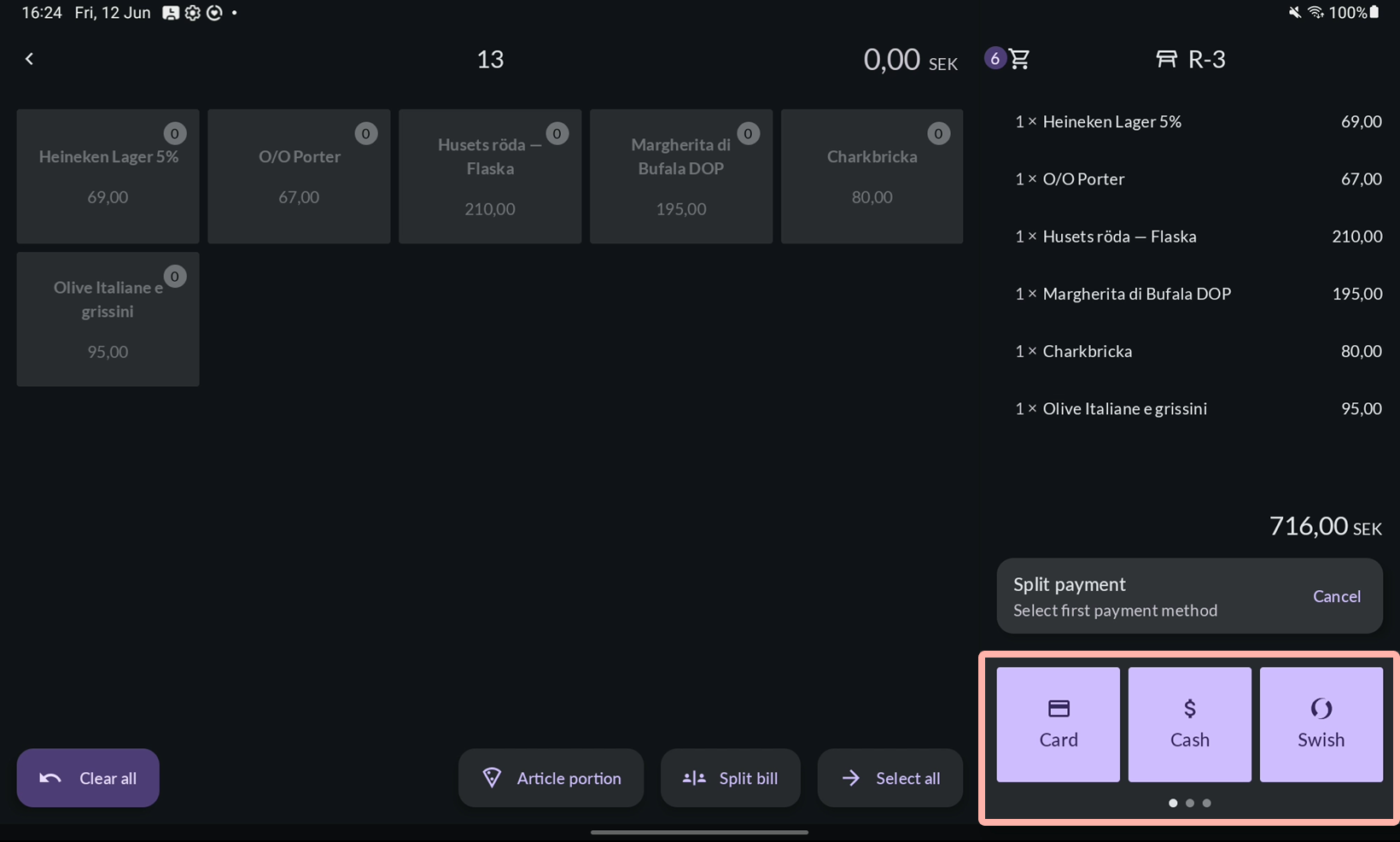
- Enter the amount to pay with it. Tap Confirm.
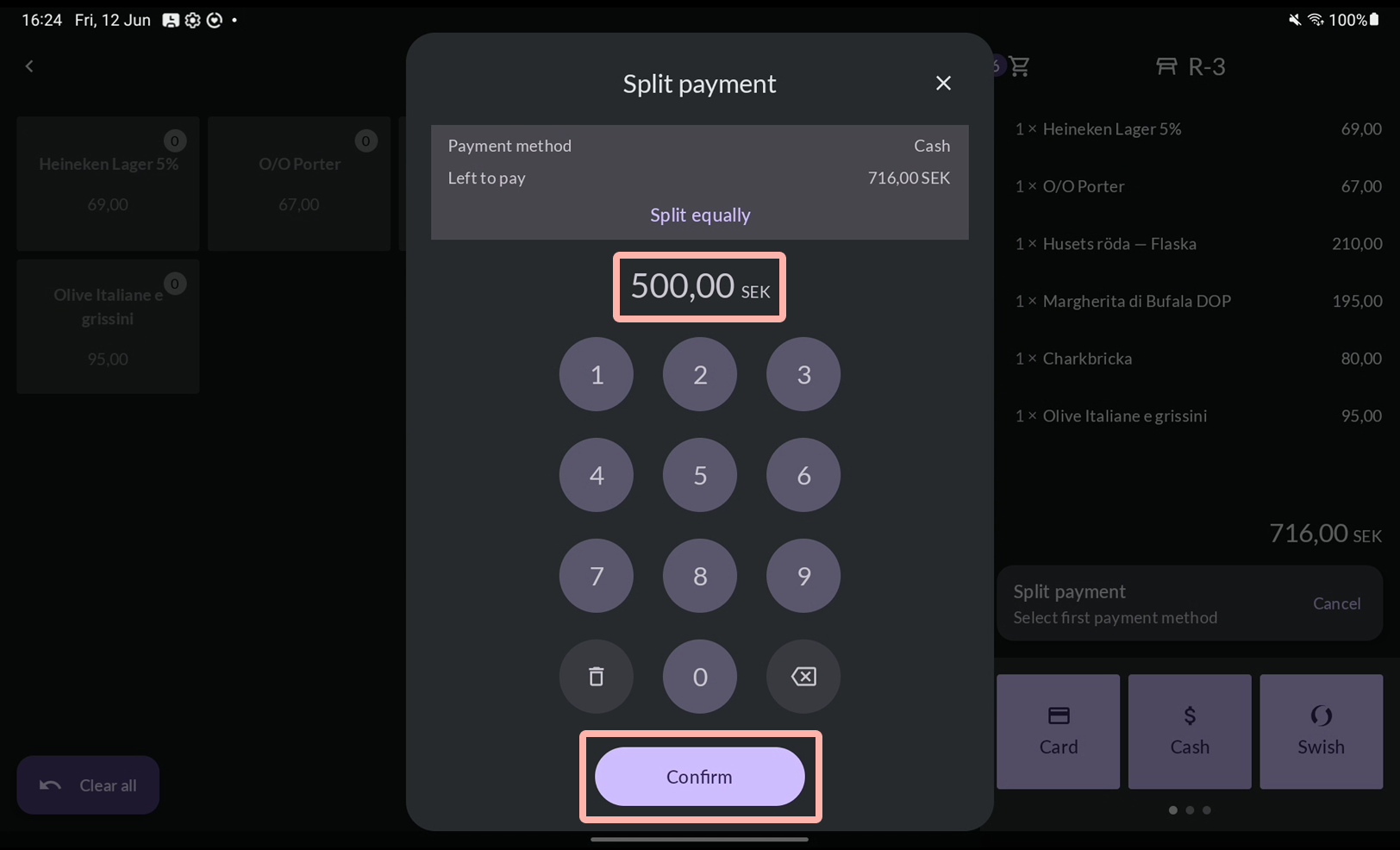
- Process the payment, for example a cash payment.
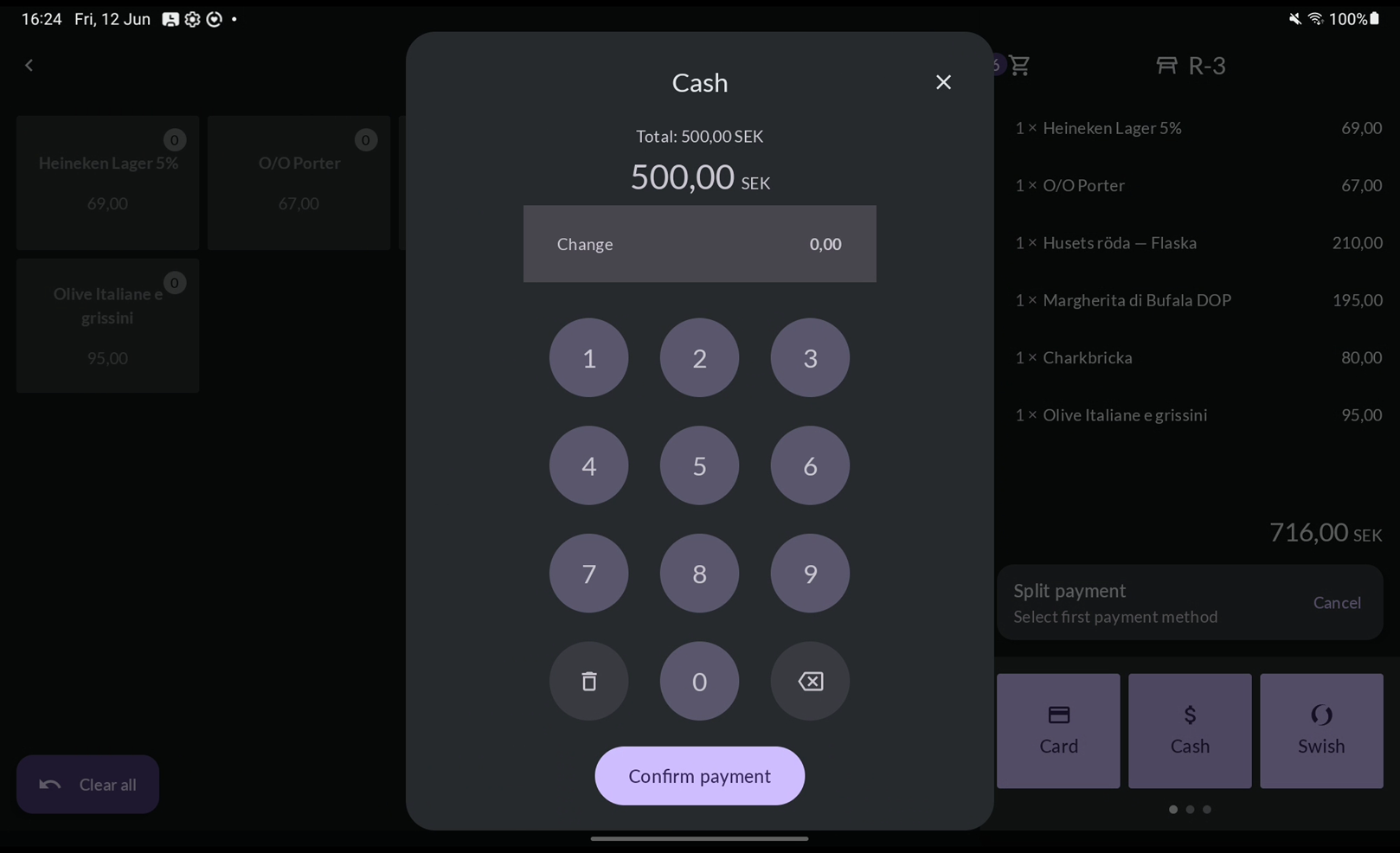
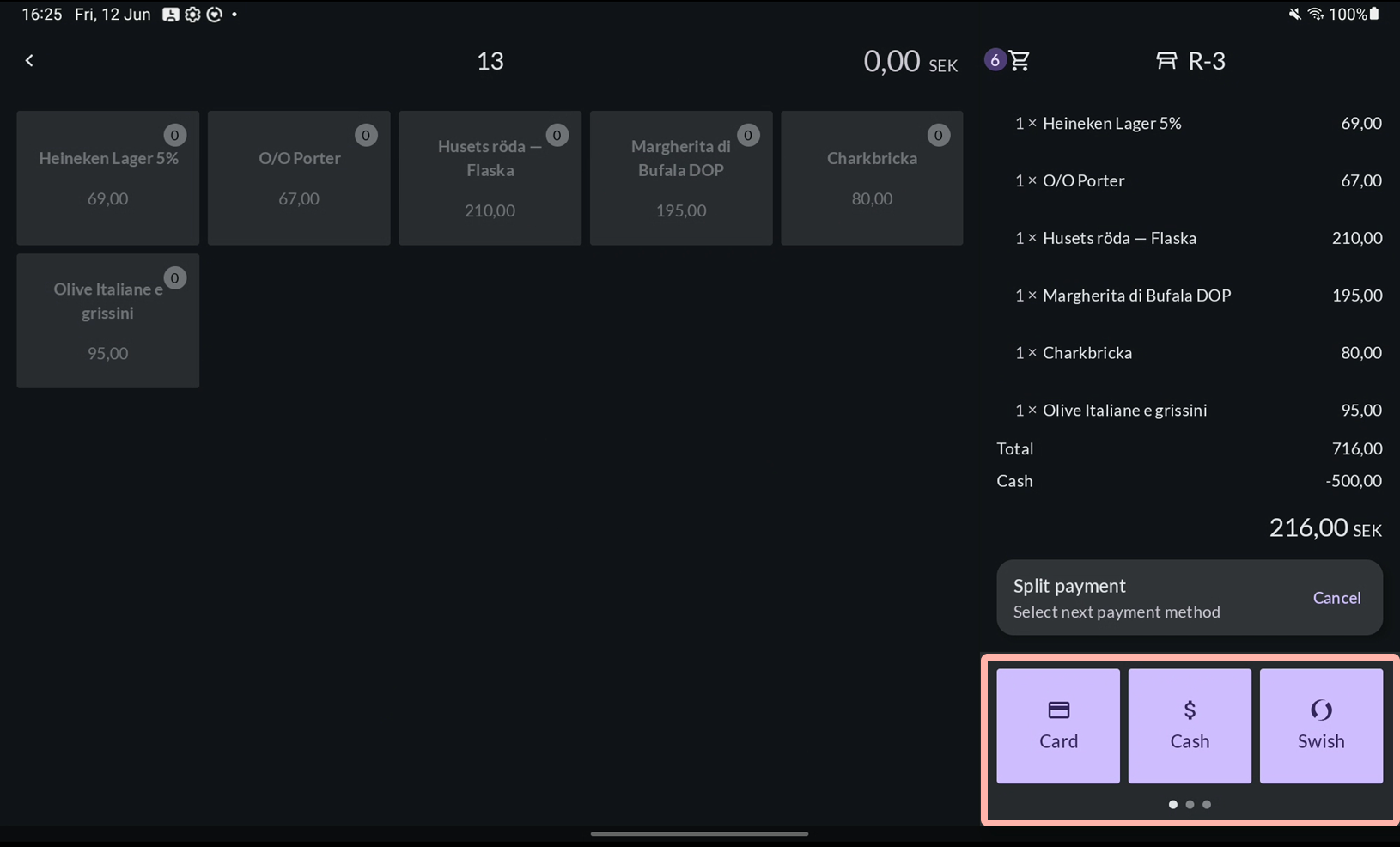
- Choose the next payment method.
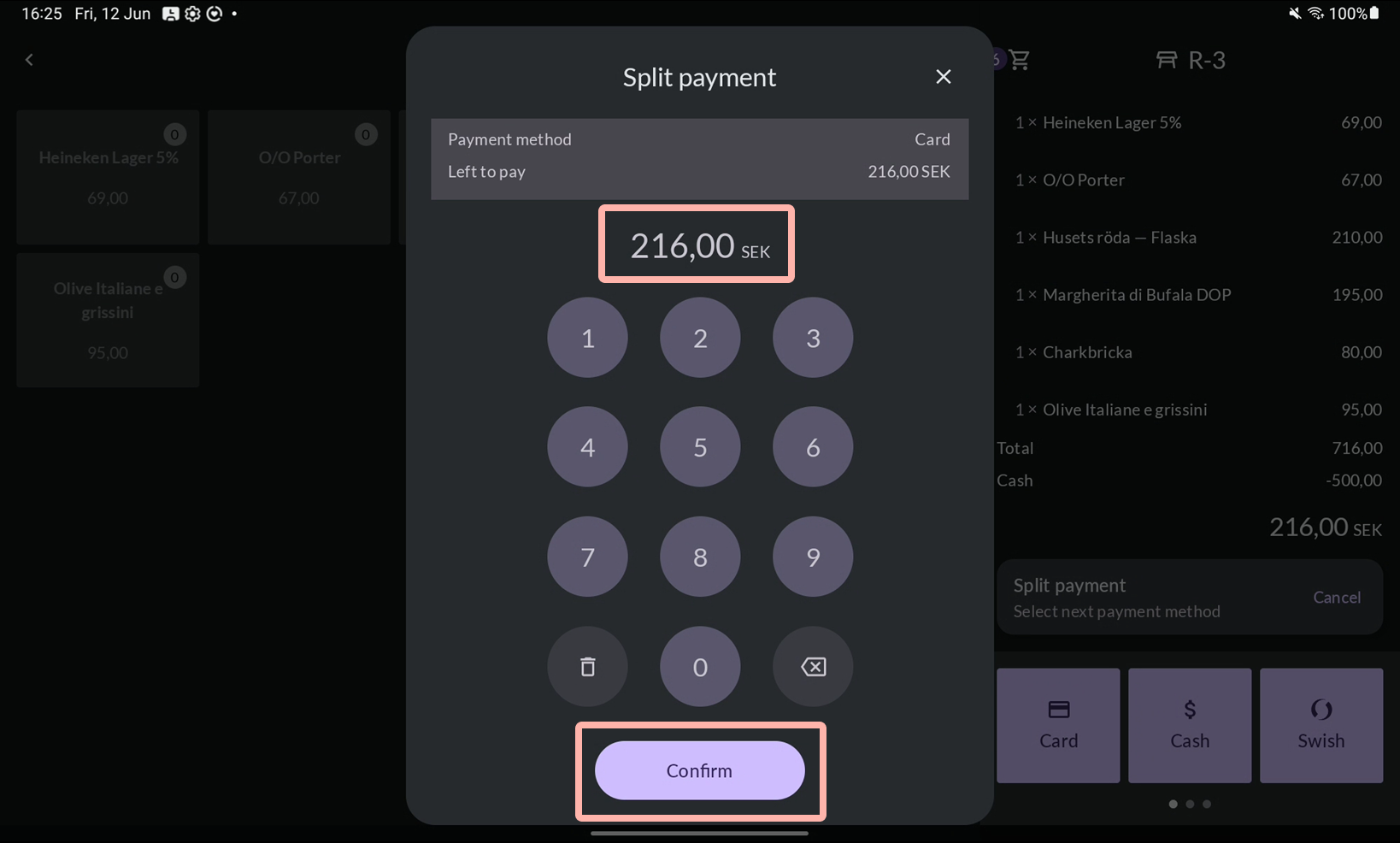
- Enter the amount to pay with it (what's left is pre-filled). Tap Confirm.
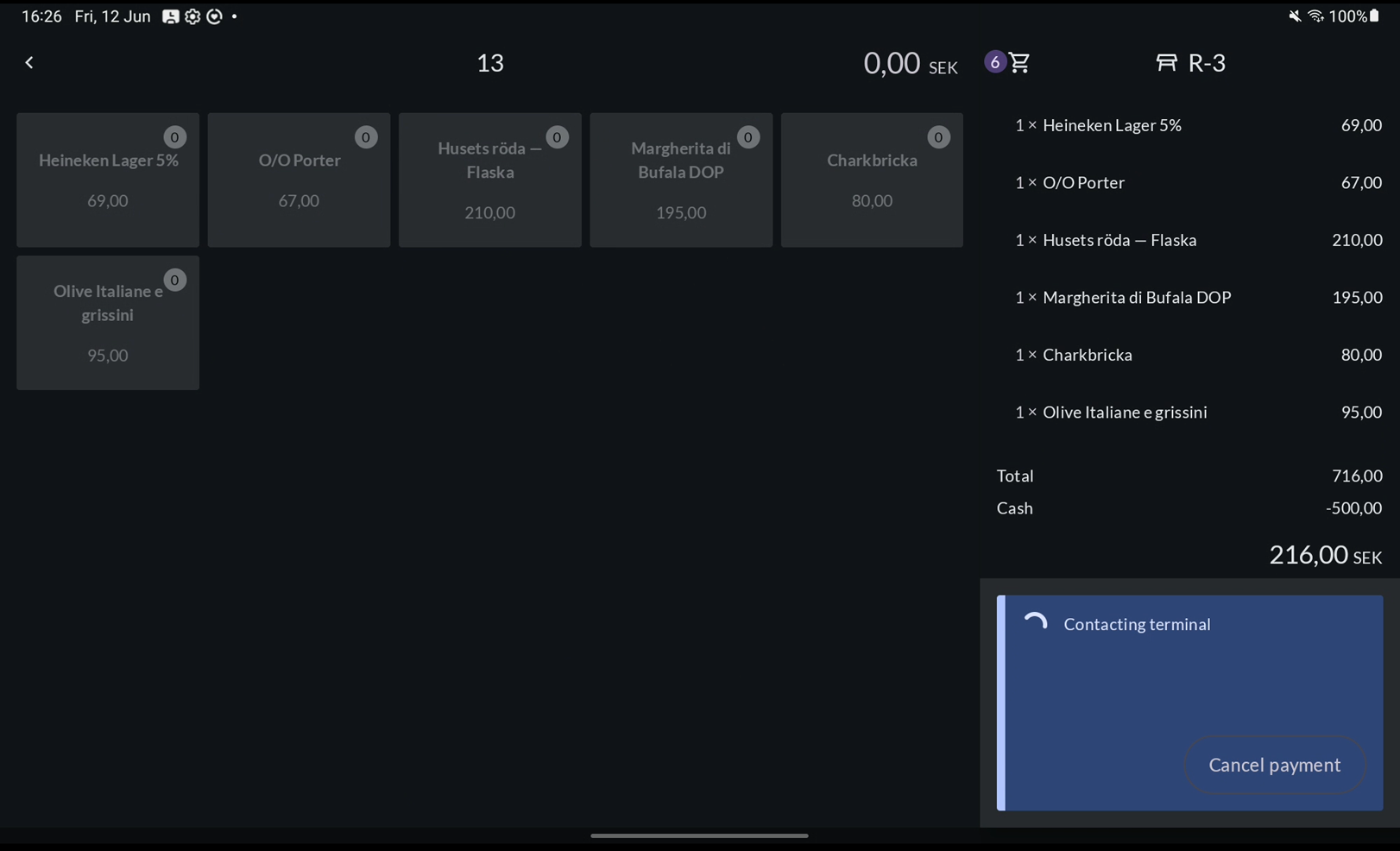
- Process the payment, for example a card payment. Repeat until the full amount is paid.
- Choose a receipt option to close the table.


Article portion — charge for part of an article
Use Article portion when guests have shared an article — such as a bottle of wine—and want to split the cost among themselves. For example, if four guests have shared a bottle of wine, you can charge them for one portion of the article.
When the first guest is ready to pay, select the Article portion feature and charge one-fourth of the bottle of wine. That portion is added to the cart, while the remaining portions are reserved for the other guests.
When the next guest is ready to pay, select the Article portion feature again and take another quarter of the article, which is moved to the cart. Process the payment and repeat for the remaining two guests.
Note
If four guests are sharing an article, you need to use the Article portion feature every time a guest pays, and enter, for example, one-fourth each time.
Example: Four guests have shared a bottle of wine
Tablet
- Open the payment view
- Tap Pay to open the payment view.
- First guest: charge for a portion
- Click Article portion at the bottom of the payment view.
- Select the article you want to take a portion of.
- Specify the portion you want to charge for, i.e. one-fourth, and click Confirm
- The portion is added to the cart. Add any additional articles and charge for the first guests order.
- Next guest: charge for another portion
- Once again: click Article portion at the bottom of the payment view.
- Select the article.
- Specify the same portion you want to charge for, i.e. one-fourth, and click Confirm
- The portion is added to the cart. Add any additional articles and charge for the second guests order.
- Remaining guests: charge for their portions
- Repeat the steps above for the third and the fourth guest.
TIP
You can also access the Article portion feature by long pressing the article you want to take a portion of.

Mobile / POS terminal
- Open the payment view
- Tap Pay to open the payment view.
- First guest: charge for a portion
- Click the three-dot menu at the bottom of the page and select Article portion.
- Select the article you want to take a portion of.
- Specify the portion you want to charge for, e.g. one-fourth, and click Confirm
- The portion is added to the cart. Add any additional articles and charge for the first guests order.
- Next guest: charge for another portion
- Once again: the three-dot menu at the bottom of the page and select Article portion.
- Select the article.
- Specify the same portion you want to charge for, e.g. one-fourth, and click Confirm
- The portion is added to the cart. Add any additional articles and charge for the second guests order.
- Remaining guests: charge for their portions
- Repeat the steps above for the third and the fourth guest.
TIP
You can also access the Article portion feature by long pressing the article you want to take a portion of.
