Activate OPEN Two on a smartphone
This guide will help you get started using OPEN Two on an Android smartphone as a cash register. We will walk you through the steps to download and activate the app on your device.
Softpay for contactless payments
If your smartphone has a built-in NFC reader, we also recommend setting up Softpay to accept contactless card payments directly on your device — no external pinpad needed.

What you'll need
Android smartphone connected to internet
Gmail account
Softpay account (recommended, for contactless card payments)
License required
You need a license to be able to use Softpay. Please talk to your sales representative to get started.
Step 1: Starting up your smartphone
If the smartphone is new to you, the first step is to power on your tablet and complete the device's built-in onboarding process. The steps may vary slightly depending on the brand or product, but usually it involves doing the following:
- Accept the device's user agreement
- Connect your device to a WiFi network
- Sign in to your Google account

Step 2: Download OPEN Two
Once your smartphone is connected to WiFi, you can proceed to download the OPEN Two app. Open The Google Play Store app and search for 'OPEN Two'. To download the app, you will need to be signed in to your Google account.

If you are unsure of how to add and use accounts in Google Play Store, you can follow this simple guide.
Step 3: Download Softpay
Softpay turns your smartphone into a card reader, letting customers pay directly on the device using contactless payment. Most modern smartphones have a built-in NFC reader, meaning no external pinpad is needed — keeping your setup simple, mobile, and cable-free.
While you can connect an external pinpad if preferred, using Softpay is recommended to get the most out of a mobile POS solution.
License required
You need a license to be able to use Softpay. Please talk to your sales representative to get started.
In your smartphone, navigate to Google Play Store, and search for Softpay.
Download the Softpay app.

Step 4: Sign in to Softpay
- Login with your username and password.
- Select your store.

- Wait for a confirmation.

- The Softpay app is now ready, but you need to complete the configuration in the OPEN Two app.

Step 5: Activate OPEN Two
- Open the OPEN Two app and press LET’S GET STARTED.

- Accept the terms and conditions by pressing YES, I AGREE.

Select product:
Choose OPEN Two to use the device as a standalone cash register.
Pinpad option
If you select pinpad, the device will only function as a payment terminal, i.e. it can only take card payments and must be connected to another POS device.

- A code will now appear on the screen, valid for 10 minutes.

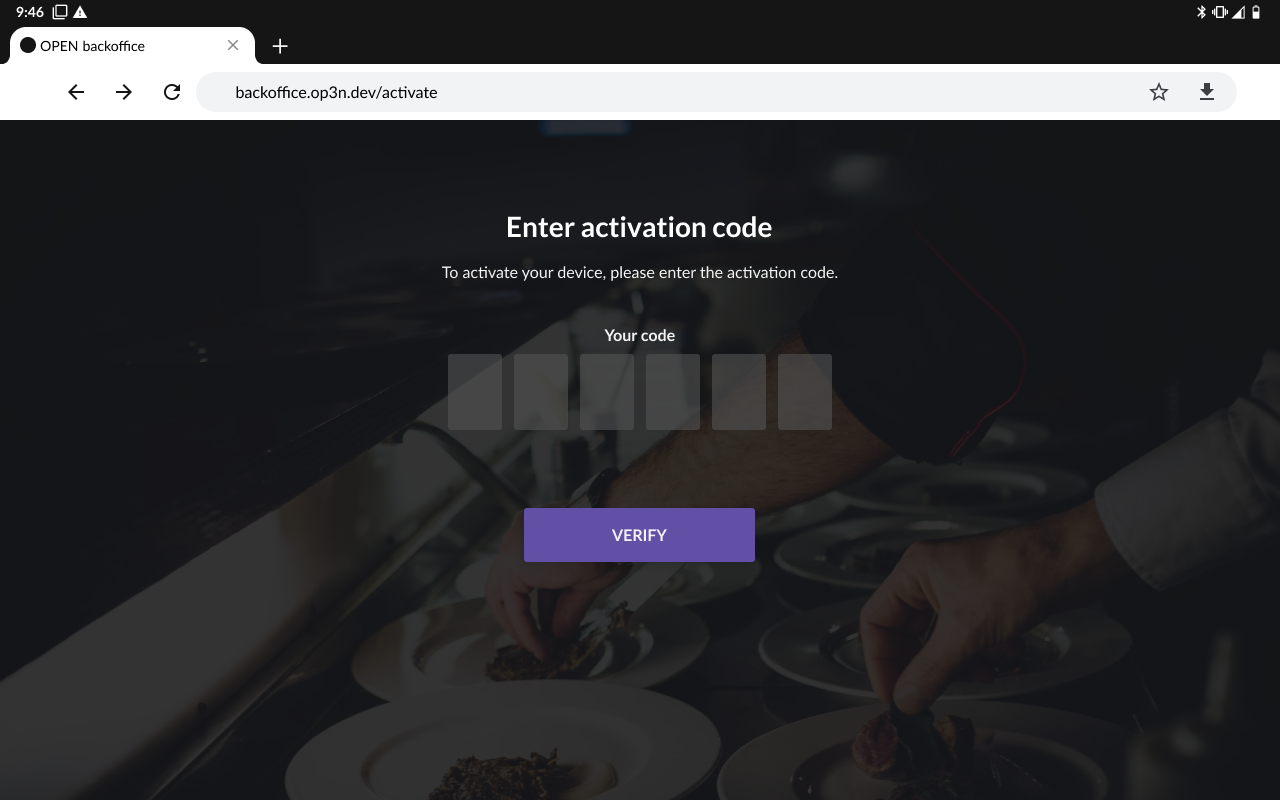
Use another device, such as your computer, to complete the activation. Go to http://backoffice.op3n.dev/activate and sign in using your BackOffice account.
Note
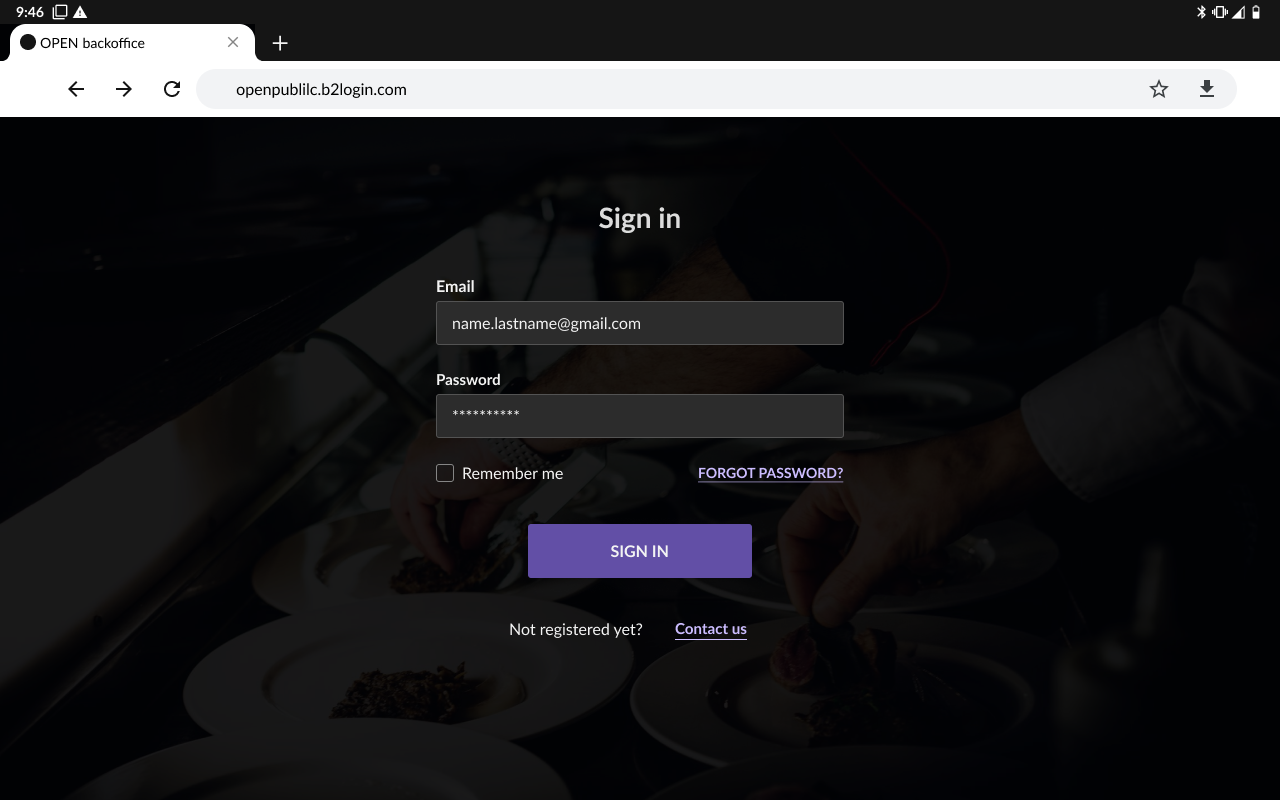
You can also access BackOffice from your cash register device's browser to complete the activation. In that case, press ACTIVATE and you will be redirected to BackOffice’s login page.
Enter the activation code and press VERIFY.
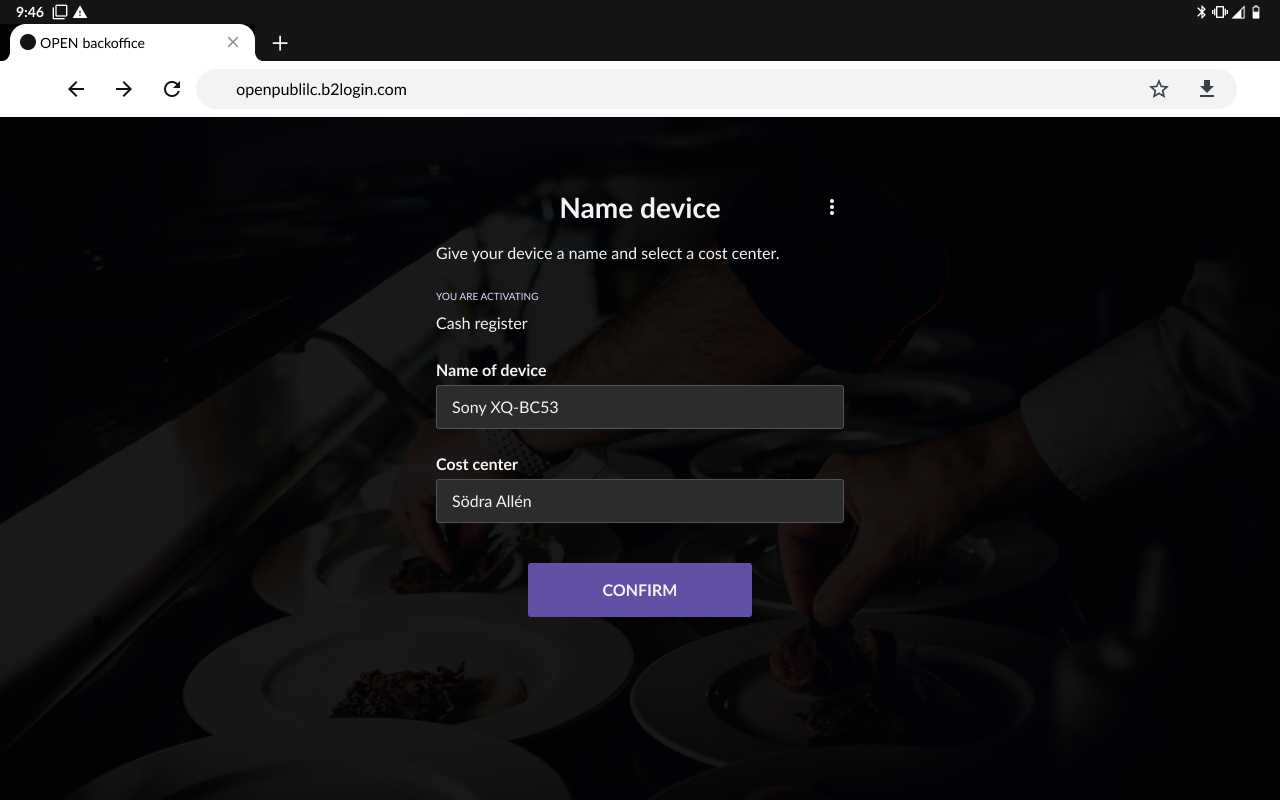
In the next view:
- Enter any name for the cash register.
- Enter which cost center you want the cash register to belong to.
This only applies if you have added one or more cost centres in BackOffice, otherwise you will not see this option. - Press CONFIRM.


- In the OPEN Two app, sign in with your PIN for the cash register.

Step 6: Select Softpay as your Payment terminal
Once you've signed in to OPEN Two, follow these steps to choose Softpay as your payment terminal:
- Open the hamburger menu in OPEN Two and navigate to Settings.

- Select Payment terminal.

- Choose Softpay.

You're all set! You can now start accepting payments via Softpay on your smartphone device.
FAQ
Forgot your PIN code?
If you have forgotten your PIN code to the cash register, you can easily change it in BackOffice.
Sign in to BackOffice.
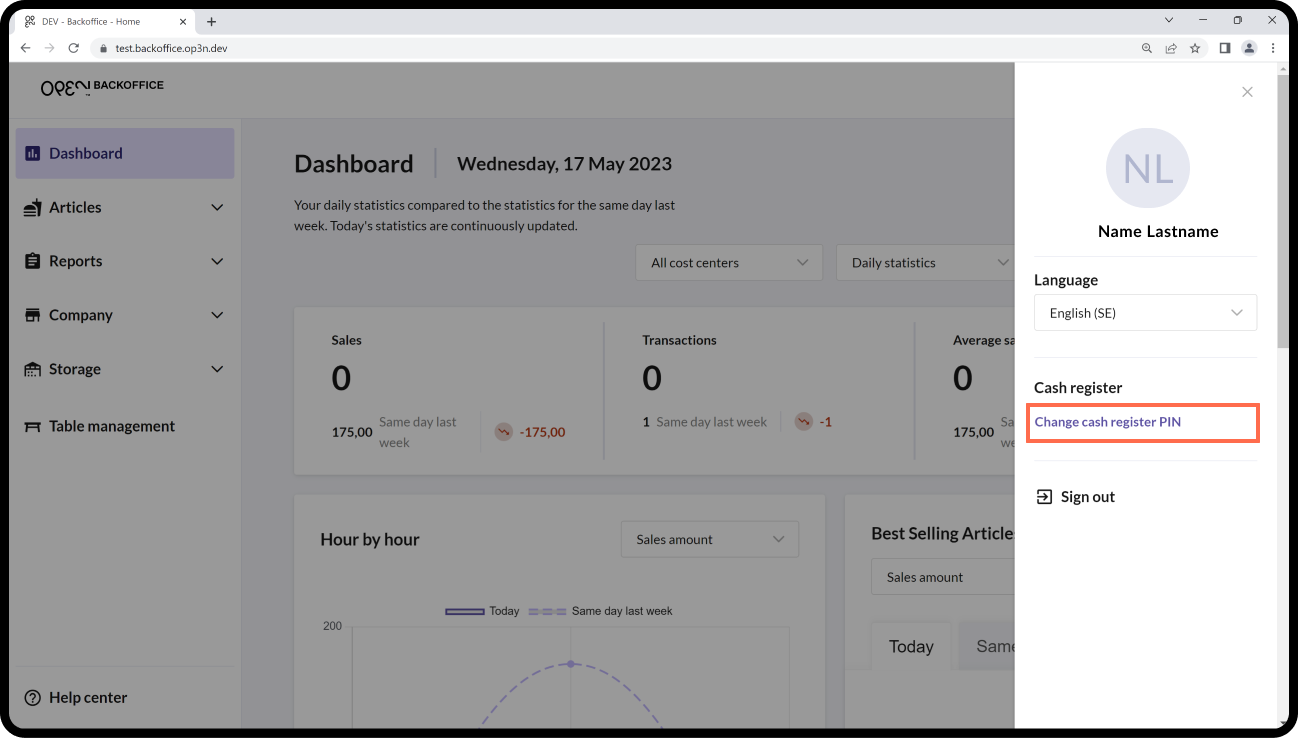
Click on your profile icon in the top right corner.
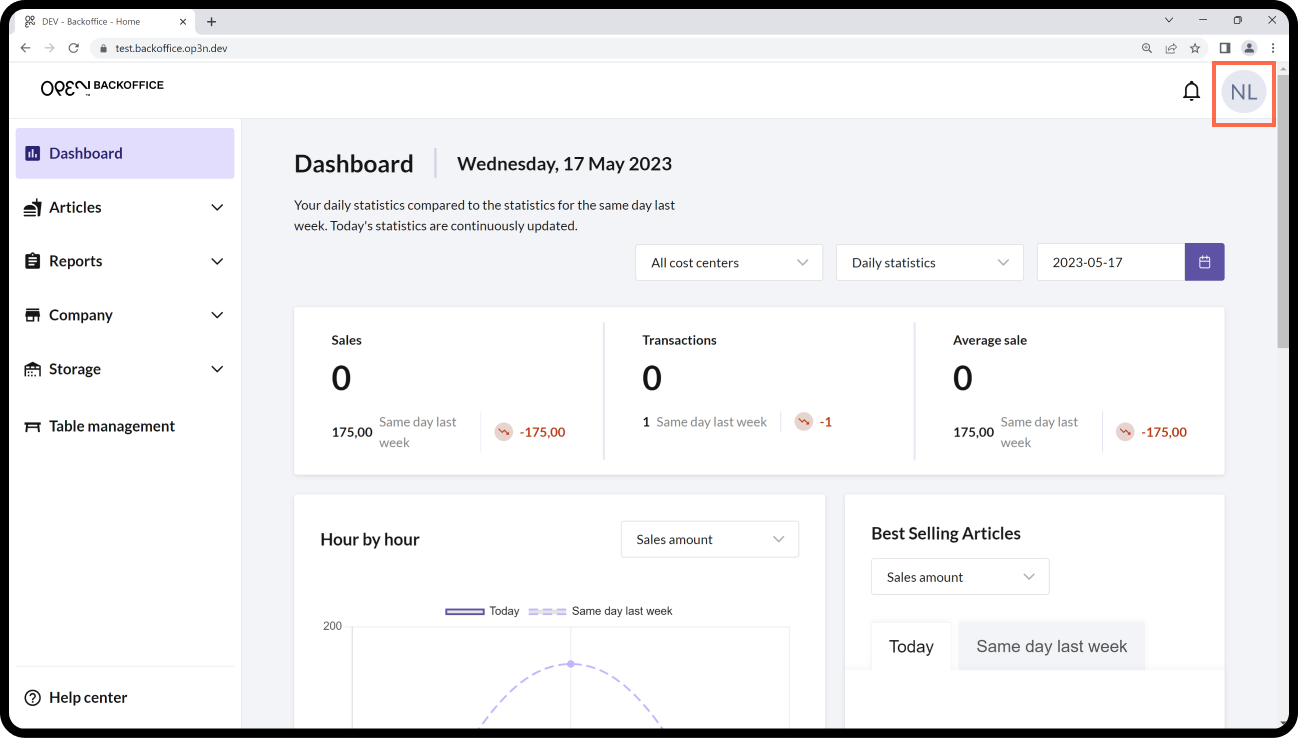
In the menu that opens, select CHANGE CASH REGISTER PIN.