Accounting via Spiris (before Visma eEkonomi)
Spiris is a comprehensive program for accounting and financial management that simplifies and streamlines the economic operations for companies.
To simplify the accounting, you can integrate OPEN Two with Spiris. Then your sales data is automatically transferred to Spiris after each end of day.
This guide helps you activate integration and manage any errors that may occur.
Preparations
Please note that in order to integrate Spiris with OPEN Two, you must have the optional Spiris Integration enabled. Contact Spiris if you would like to add this to your account.
When you activate the integration, you will need to create a chart of accounts by selecting bookkeeping accounts for your payment methods and product groups, among other things. This is necessary for the sales data, i.e., your transactions, to be exported to Spiris and accounted for correctly. If you are unsure which bookkeeping accounts to use, you should seek assistance from your accountant.
Activate the integration
In BackOffice, select Company from the menu and go to the Integrations page.
In the card for Spiris, press the Activate button.

Choose how you want to use the integration, then press Let's get started.
- Accounting – your sales data is exported to Spiris for bookkeeping. This requires the Spiris Integration option in your Spiris account.
- Accounting & Invoicing – you can also invoice via Spiris. This requires the Accounting and Invoicing options in your Spiris account.
Contact Spiris if you need to add an option to your account. To set up invoicing, see Invoice via Spiris.

To connect OPEN Two to your Spiris account, you are sent to Spiris to sign in and allow access. Press Continue.
Sign in to Spiris with your login details.

- Make sure the permissions eAccounting API, eAccounting accounting and Offline Access are ticked, then press Allow. You are sent back to BackOffice.

- Back in BackOffice, your access has been verified. Press Continue.

- Set the date from which your sales data will be exported to Spiris, then press Next.
Select bookkeeping accounts. On each page, choose which account in Spiris to use for each row. You can also add a new account from the list. Then press Next.
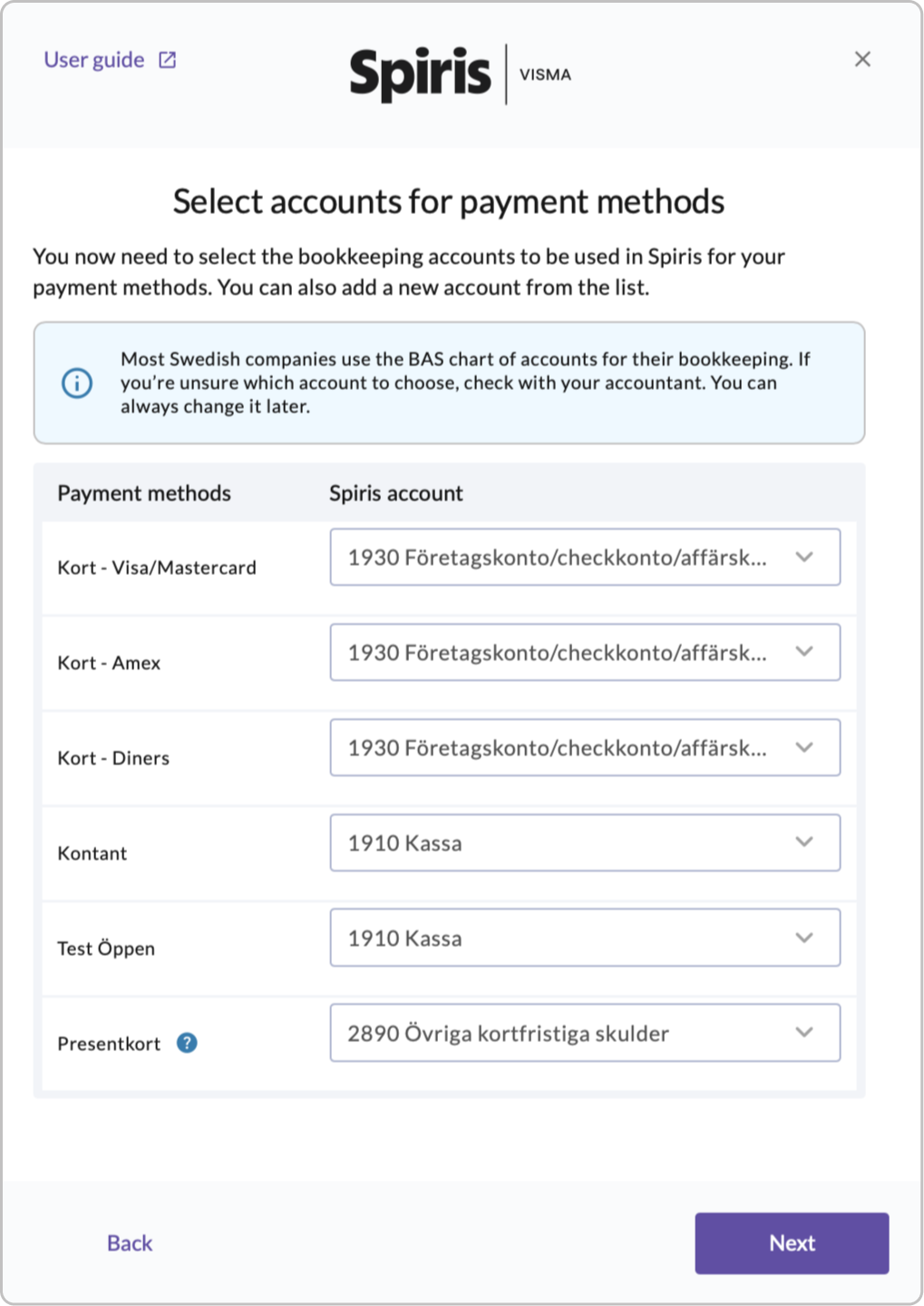
- Payment methods – for example card, cash and gift cards.
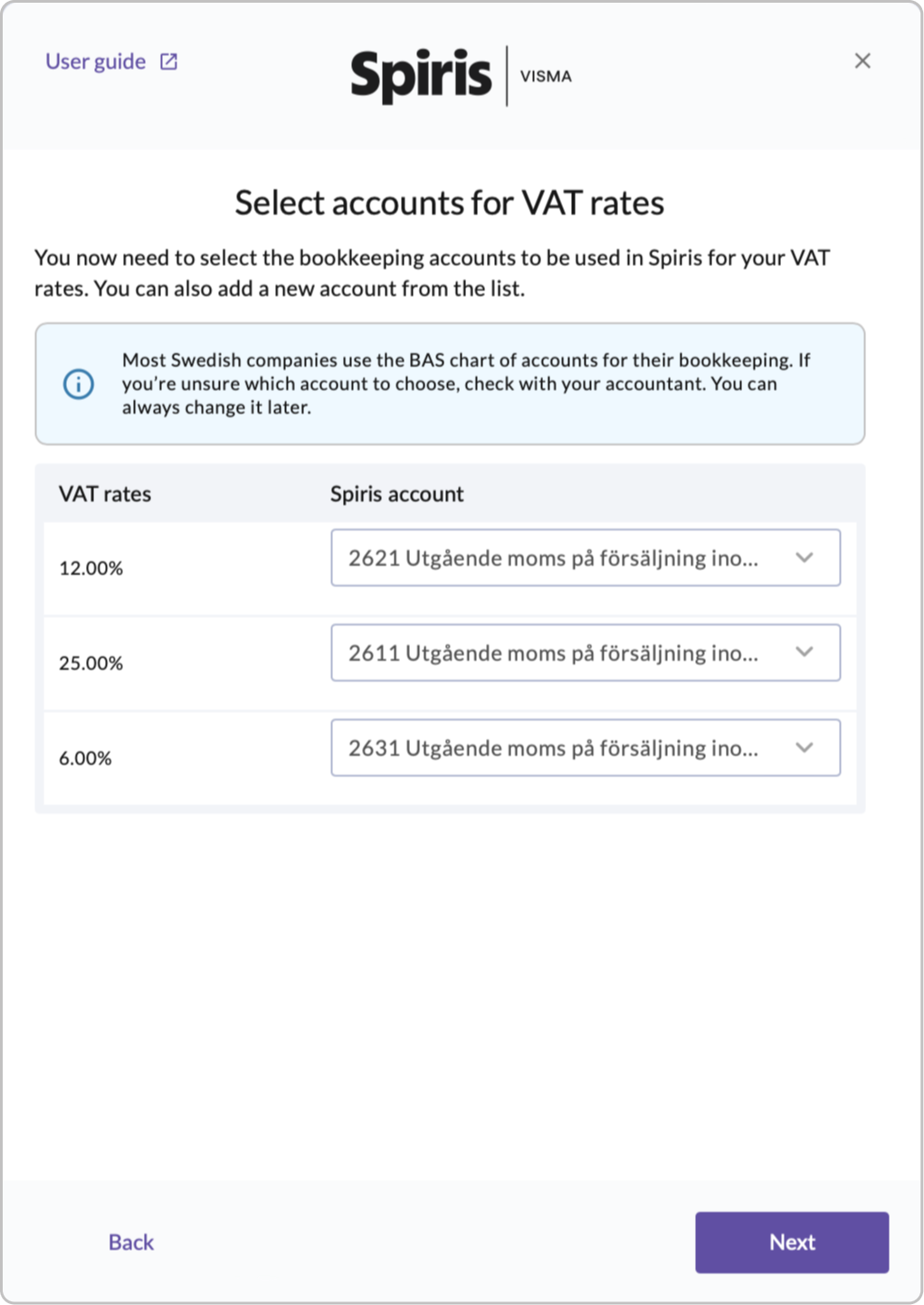
- VAT rates – one account per VAT rate.
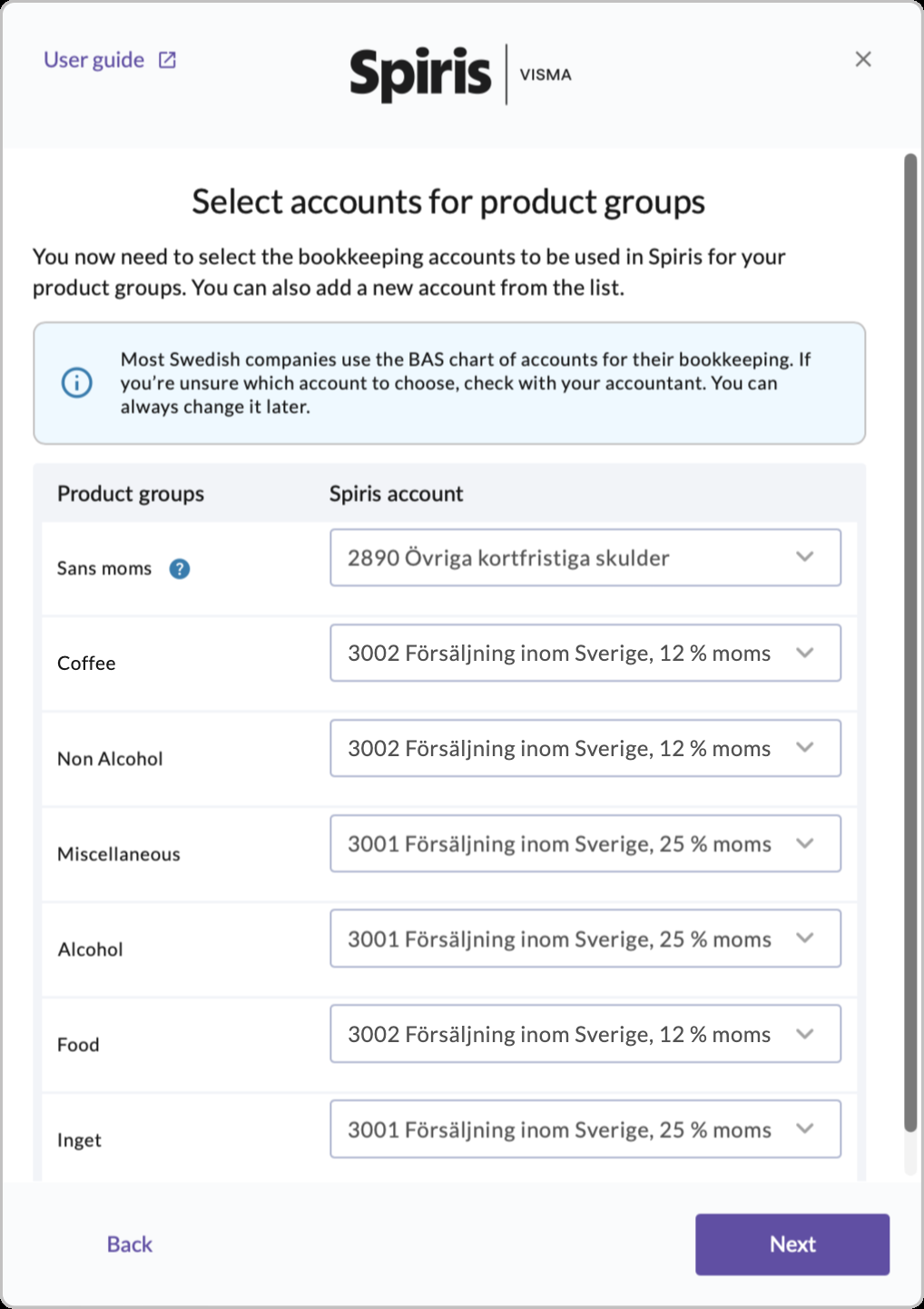
- Product groups – the sales accounts for your product groups.
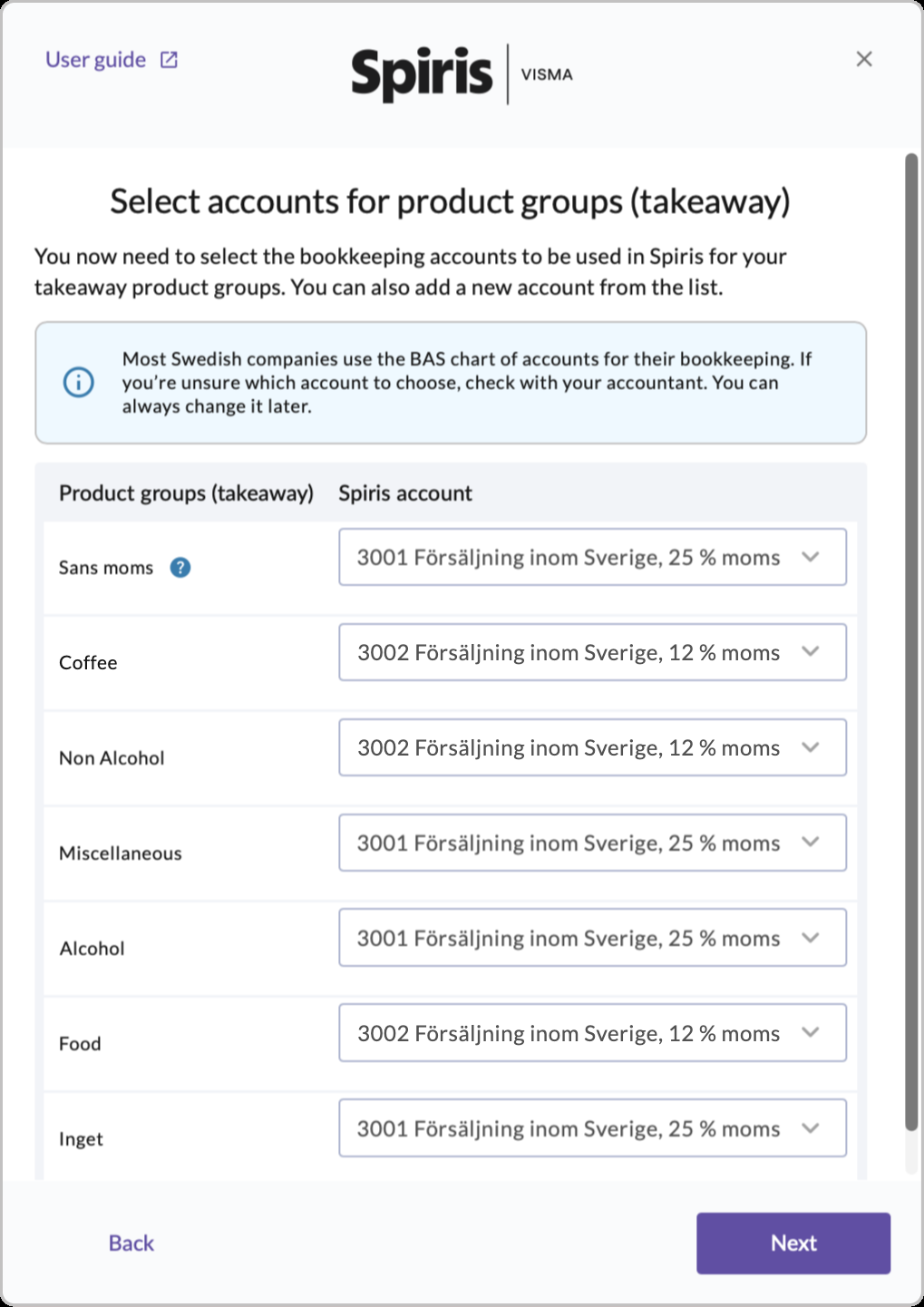
- Product groups (takeaway) – shown only if your company uses takeaway VAT. Takeaway sales can have a different VAT rate than eat-in sales, so they need their own sales accounts. Choose a sales account for takeaway sales in each product group.
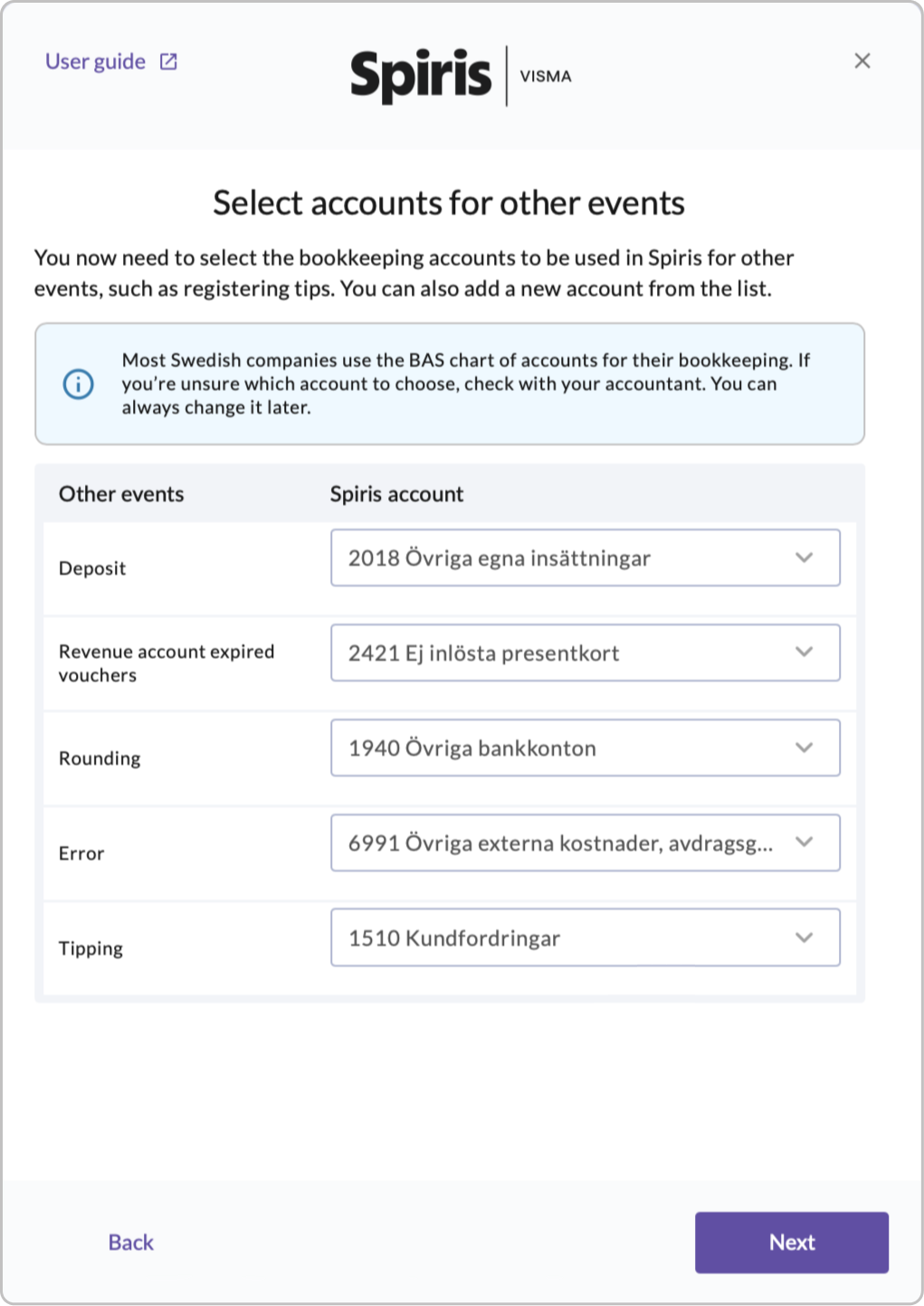
- Other events – for example tips, rounding and expired vouchers.


Link your cost centers to result units, then press Finish.
Result units let you follow up sales per part of your business in Spiris. Here you choose which result unit the sales from each cost center (for example a store or a webshop) are booked to. The grey headings are the types of result units you have set up in Spiris.
TIP
This step is optional. If you don't use result units, leave Select result unit as it is and press Finish. To use them, set them up in Spiris first – see Account mapping.

The integration is now activated, and your sales data is exported to Spiris after each end of day. Press OK.
To change the settings later, for example when you add a new payment method, product group, VAT rate or cost center, press the 3-dot menu on the Spiris card and select Settings.
Manual export
If for any reason you need to send the sales data to Spiris immediately, instead of waiting for the automatic export that occurs at the end of the day, you can perform a manual export.
Click on the 3-dot menu on the Spiris card and select Export manually.
In the dialog that opens, you need to confirm that you want to send the sales data by clicking Confirm.
Note that the sales data will also be exported after the end of the day if there have been any new sales. The integration ensures that only relevant data is exported.
Inactivate the integration
Click on the 3-dot menu on the Spiris card and select Inactivate.
In the dialog that opens, confirm that you want to inactivate the integration by clicking Inactivate.
Account mapping
Account mapping means linking each part of your sales in OPEN Two – payment methods, VAT rates, product groups and other events – to an account in your chart of accounts in Spiris. It tells Spiris which account each amount should be booked to. Without it, your sales can't be booked correctly and the export to Spiris won't work.
You do the account mapping in BackOffice when you activate the integration (step 9 above), and you can change it later under Settings on the Spiris card. You also need to check a few things in Spiris:
Make sure you have the right modules. Spiris needs different modules depending on what you want to use. To order a module, contact Spiris.
- Integration – required for the integration to work at all.
- Accounting – required for accounting.
- Invoicing – required for invoicing.
- Order & Quote – required for collective invoicing, together with Accounting and Invoicing.
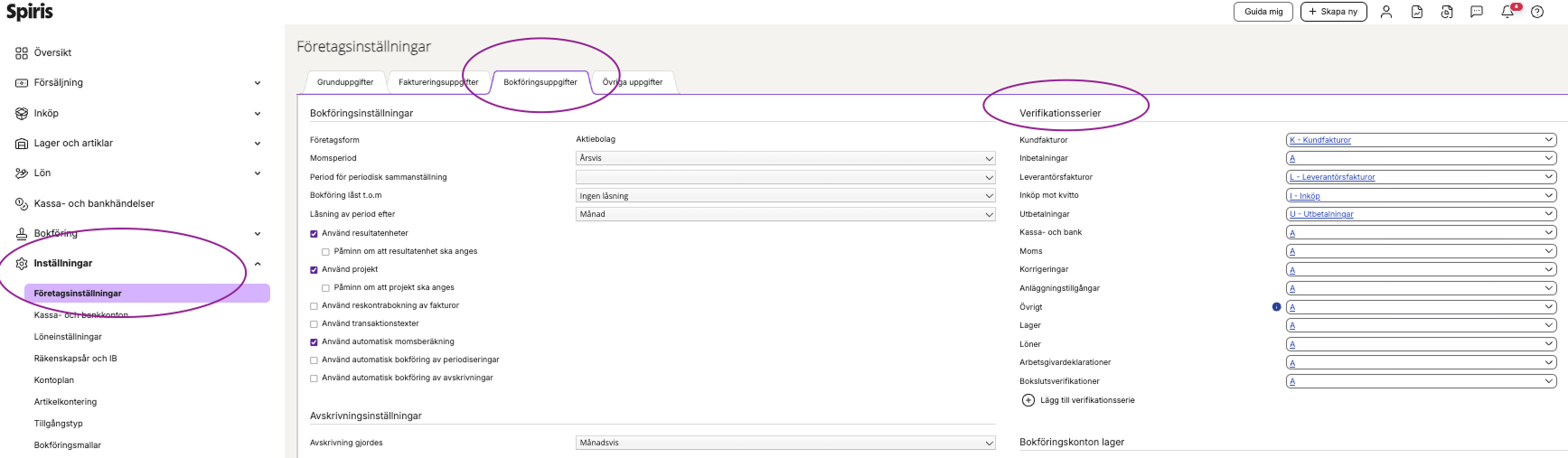
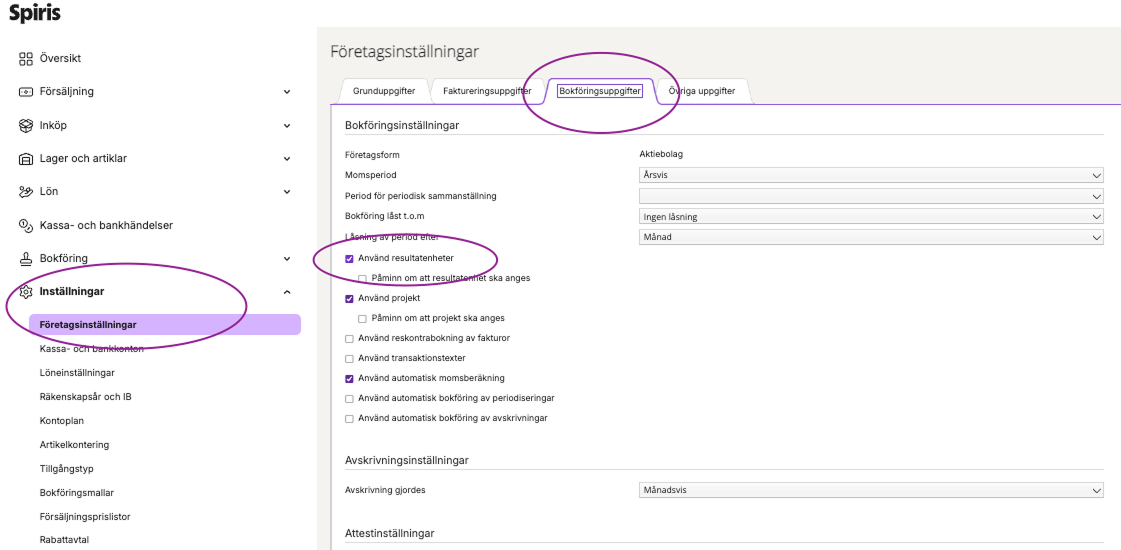
Turn on result units (optional). If you want to follow up sales per cost center, go to Settings > Company settings > Accounting information and tick Use result units. Then add your result units under Accounting > Result units.
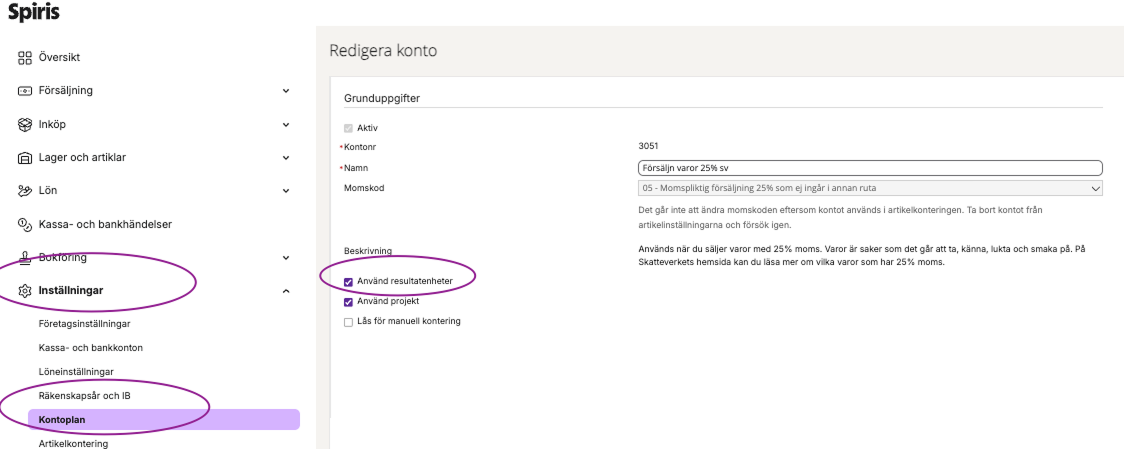
Check your accounts. Make sure all accounts you chose in the account mapping exist and are active in Spiris. If you use result units, also tick Use result units on each account under Settings > Chart of accounts.
Choose a voucher series. Under Settings > Company settings > Accounting information, choose the voucher series you want to use for the integration.