Preparations
Before you can start setting up your storage in OPEN Two, you first need to ensure that you have a license for this. If not, contact a sales representative. There are also some preparations that you should make to facilitate the process. We will walk you through the process for a smooth start.
Obtain license
Contact your salesperson to obtain the required license to work with storage management.
Cost center
Each storage has its own cost center. So make sure you create cost centers for each storage before you start. If your storage also functions as a point of sale, like a shop, you need to connect a cash register to it. To do this, simply link both the cash register and the storage to the same cost center.
- To create and manage your cost centers, select COMPANY in the menu and go to MY COMPANY. Your cost centers are listed in the "Cost centers" card, under "My cost centers".

- When you start using BackOffice, there is a cost center called Default. Click on the cost center in the list to open the "Edit cost center" dialog. Change the Name and press SAVE.

- To create a new cost center, press NEW COST CENTER.

- Enter a Name for the cost center. You can also fill in an external ID and a sales address if it differs from the business address. Press SAVE.

Store articles
You can control which articles should be stored and in which storage(s). To store an article, certain settings need to be configured from the Articles page:
- enable inventory tracking
- specify a unique SKU
Only articles with these settings can be added to a storage.
Select ARTICLES in the menu and go to ARTICLES. Click on an article to open the "Edit article" dialog.
Go to the POS SETTINGS tab and open the Inventory & deposit section. Tick Inventory tracking and fill in the SKU. When inventory tracking is enabled, an SKU is required, as it is used to identify the article in the storage. Press SAVE.

- The article's Sales unit, which you choose under the ARTICLE INFO tab, is also used as the article's stock unit in the storage, for example pcs, 33 cl or 75 cl.

You can also manage these settings directly in the list on the Articles page. Press COLUMNS and tick Inventory tracking and SKU to show the columns.

You can then fill in the SKU and tick Inventory tracking directly in the list. Note that the Inventory tracking checkbox is grayed out for articles that don't have an SKU.

If an external Ongoing storage is to be used to order goods, it's also important to ensure that the articles have a purchase price. This will be used to show the cost of the orders.
Ongoing integration
The Ongoing integration enables you to connect your storage system to your external Ongoing storage, allowing you to order goods from your external storage to your internal storage directly in BackOffice.
Select COMPANY in the menu and go to INTEGRATIONS.
On the Ongoing card, under "Storage management", click ACTIVATE.
Fill in the following information:
- URL address to your Ongoing account
- Username
- Password
- Store name
- Goods owner ID
- Customer number
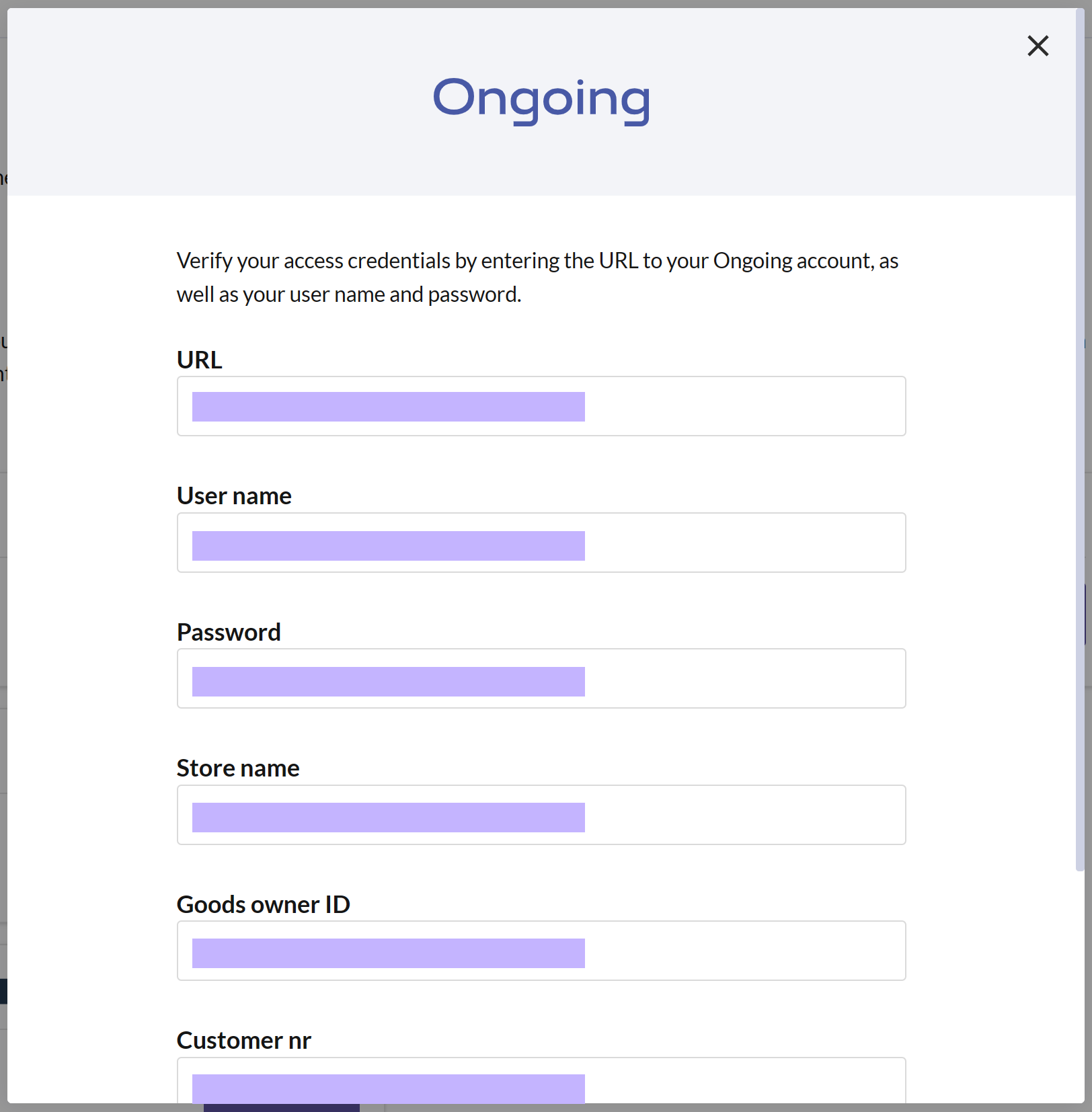
Press VERIFY when you're finished. If the information is correct, the integration will be activated automatically. Close the dialog with the X in the upper right corner.
You can now see that the Ongoing integration is activated, marked with a green bar on the card. This means that moving forward, you'll be able to order from your external storage, but first, this needs to be configured on your internal storage. To change the login details later, press the 3-DOT MENU on the card and select SETTINGS.

