Create and manage storages
Once you've set up your cost centers and linked them to the correct cash registers, you can now create and manage your storages. If you haven't set up any cost centers yet, use the guide Preparations for assistance.
Brief on creating a new storage
When creating a new storage, you will go through the following steps:
- Copy articles from an existing storage or start with an empty storage
- Configure settings for the storage. This includes settings related to orders, inventory, and whether the storage should be used as a template for other storages.
- Add/remove articles and configure settings for your articles. This includes details such as how many items there are in a box and the location of the article within the storage.
The Storages page
Select STORAGE from the menu and navigate to STORAGES. Here you can see all your storages. To create a new storage, click on NEW STORAGE.

- Use the 3-DOT MENU next to NEW STORAGE to Reorder storages, i.e. change the order in which the storages are listed.
- A storage that needs to be counted is marked with Stocktaking needed. A storage that is used as a template for other storages is marked with Storage template.
- Use the PRINTER button to print a storage, or the PEN button to edit it.
Click on the arrow in front of a storage to see its articles and stock balance. You can search for an article by name or SKU in the search field.

Creating the first storage
Now, let's walk through how to create your first storage step by step.
Copy articles from storage or start blank
After clicking NEW STORAGE, you can choose how you want to start: either with a completely empty storage (START BLANK) or by copying articles from an existing storage (COPY FROM STORAGE).

Storage settings
Now you need to configure settings for your storage. The "Storage settings" dialog opens automatically, but you can also open it from the GEAR ICON next to SAVE.

Name & cost center
Start by entering the STORAGE NAME and selecting one or more COST CENTERS for the storage. If the storage is accessed from a cash register, it needs to have the same cost center as the cash register. Note that you cannot have the same cost center linked to multiple storages.
Email address
You can choose whether to provide an email address for the storage. It's used to send a pick order list when an order is placed for items to be shipped from the current storage.
Address
Filling in an address is optional, and currently, it's not used for anything.
Orders from
Here, you tick which storage or storages the current storage will be able to order goods from. If you have an external Ongoing storage, you can already choose this storage from the list. You can revisit this setting later if you're going to create more internal storages.
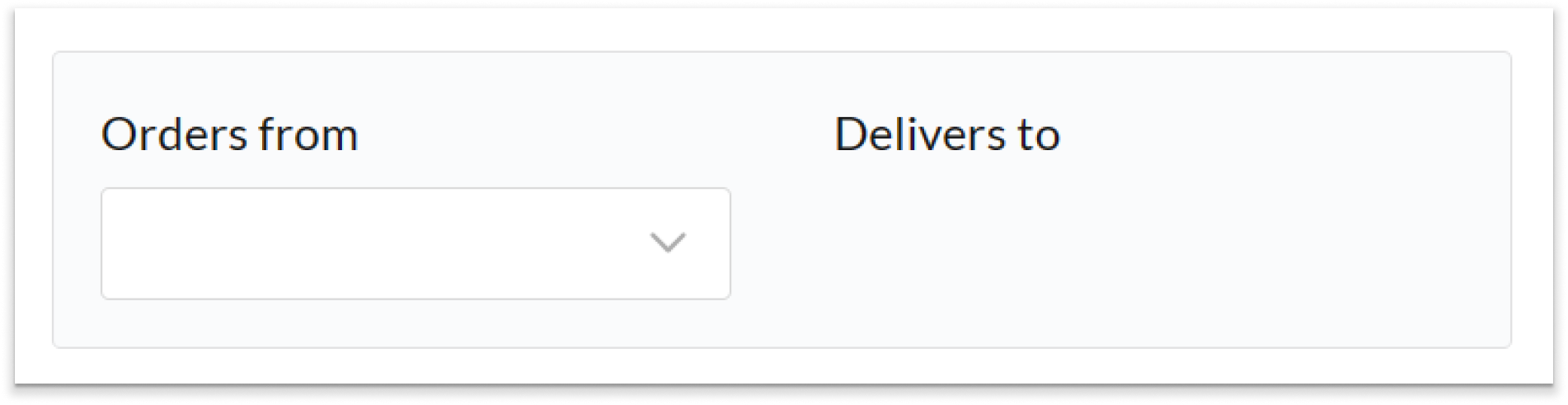 NOTE: If the current storage is intended to function as a point of sale (i.e., linked to a cash register), you can only have one supplier, meaning you should choose a maximum of 1 storage to order goods from.
Auto-accept orders
By enabling this setting, incoming orders will be automatically accepted. This means you'll save a click when managing the order.
Note that even if you've accepted an order, you still have the opportunity to make changes to it from BackOffice, such as adding or removing articles from the order.
 Example: Imagine that your main storage has enabled the setting to automatically accept orders. When an order is placed from another storage, it becomes immediately available for picking. If the setting isn't enabled, the staff at the main storage must first decide whether they want to accept or reject the order before it can be processed.
Storage template
If you have multiple storages with the same articles and storage locations (for example, Article 1 is on Shelf 1 in both Storage A and Storage B), you can use a storage template. When you want to add articles to the storage or make other changes that affect the articles, you only need to do it in the storage template.
To base the current storage on the template, press USE TEMPLATE in the "Use storage template" card.
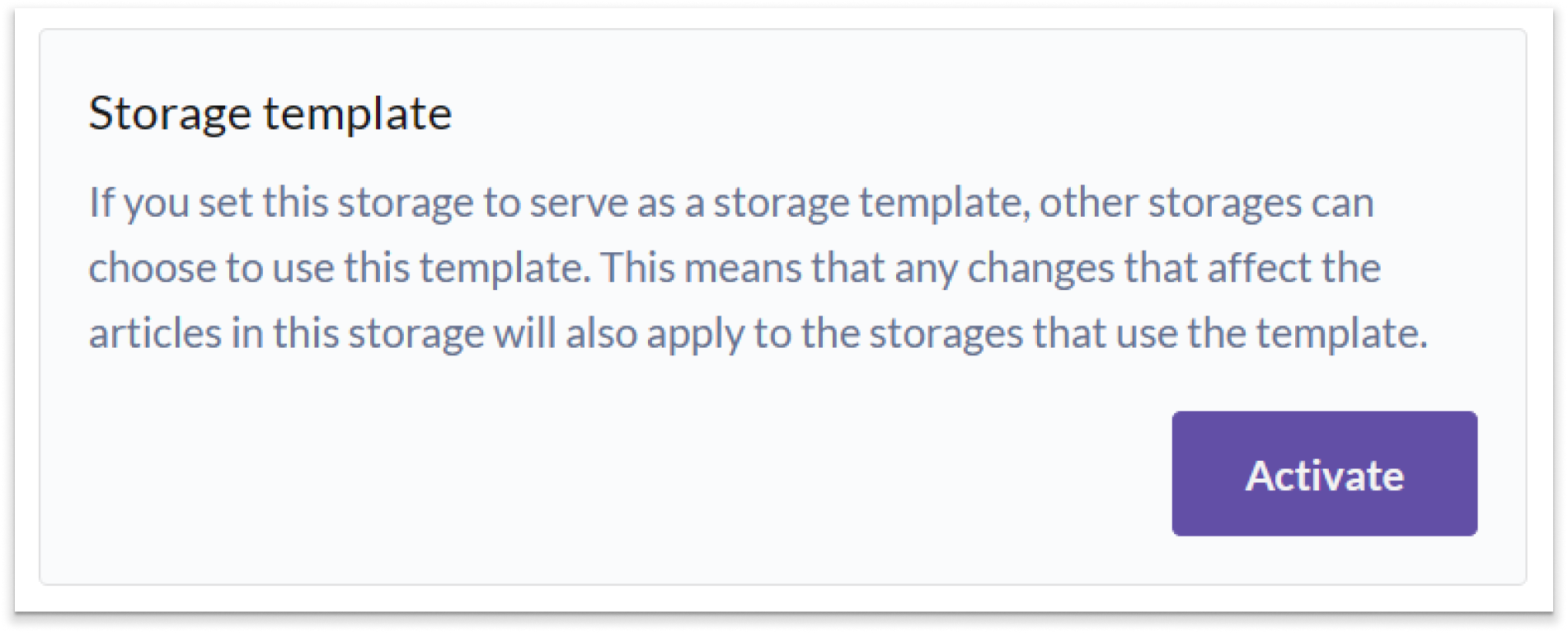
The storage template includes the following information:
- Which articles are included in the storage
- The article's storage location (e.g. 'Shelf 1')
- The article's target level
- The article's order point
- The position of the articles in the list
- The number of items per box for the article
The storage template does not include the stock balance of the articles or the settings for the storage.
Tip: If you have a main storage and several smaller storages where the target level and order point differ between the main storage and the smaller storages, you can instead use one of the smaller storages as a template for the others. This way, you'll only need to manage changes for the articles in the main storage and one of the smaller storages in the end.Scheduled inventory
You can set a scheduled (and recurring) inventory day for your storage. This will automatically create a stocktake for the entire storage on the chosen day.
Note that this feature is primarily useful if you have a cash register linked to the storage. In that case, you'll receive a notification when you log in to the cash register informing you that there is a stocktake to be conducted.
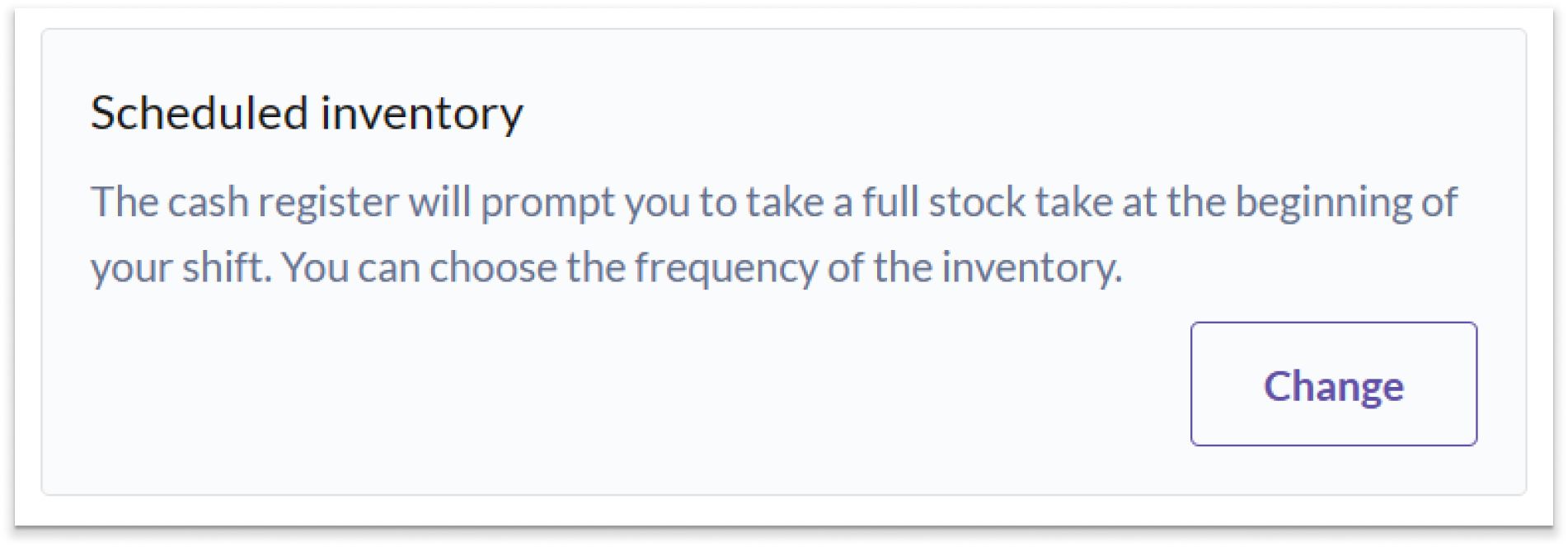
In the "Scheduled inventory" card, press CHANGE to open a new dialog. Choose the interval for the scheduled inventory and specify a time for when the inventory should appear. Press SAVE when you're done.
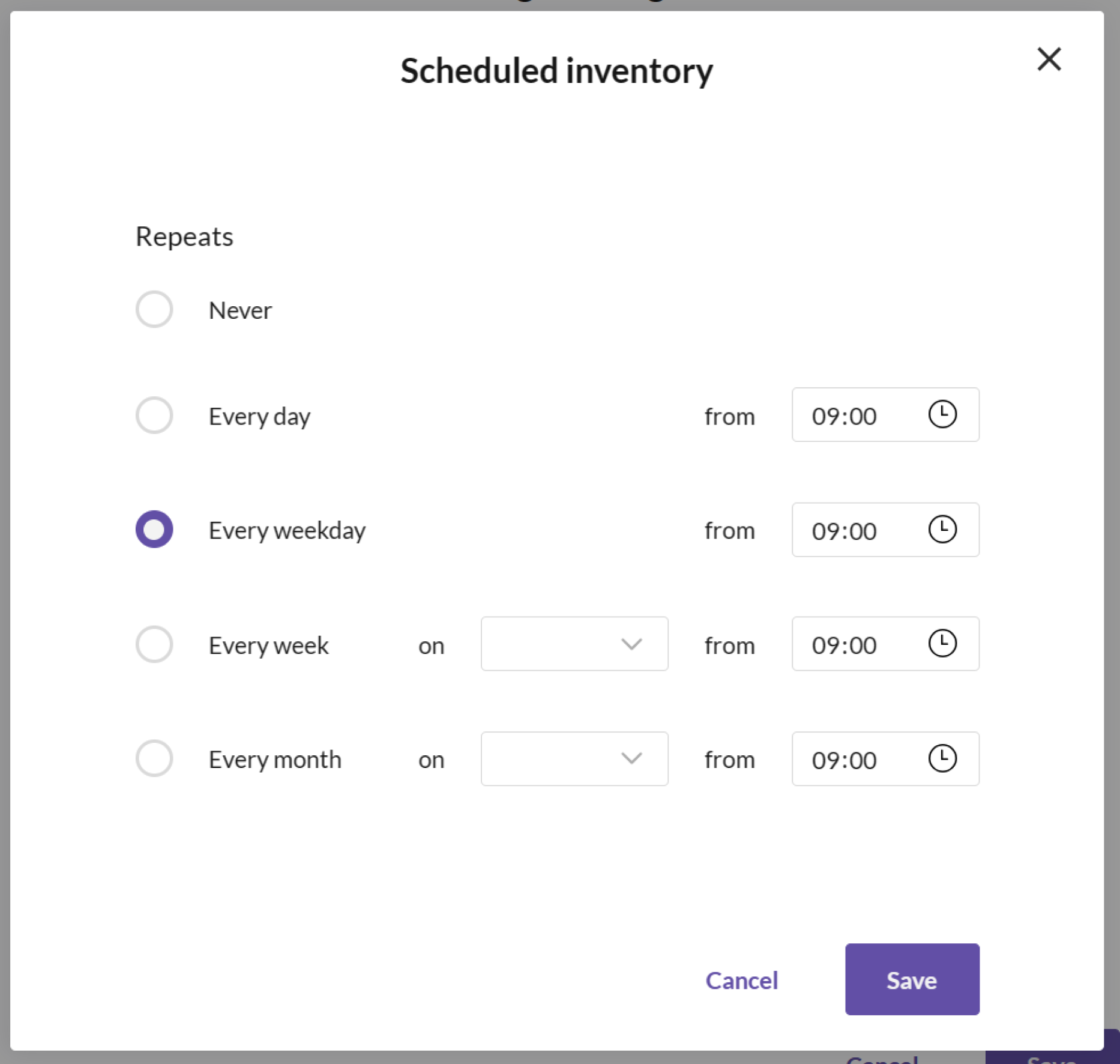 NOTE: Currently, the specific time setting is not implemented. This means that a scheduled inventory will appear immediately upon the first login to the cash register after the previous day's closing.
Save the settings
When you're satisfied with the settings for your storage, press SAVE in the dialog.


Storage articles
If you've chosen to copy the articles from your external Ongoing storage, they have been automatically imported along with information about how many items there are in each box (see the Items per box column). Note that only the articles with the same SKU in your external Ongoing storage as in your article structure in BackOffice will be imported.

For each article you can see its stock unit below the name, for example pcs, 33cl, 75cl, g or kg. You can also fill in:
- Placement – where in the storage the article is located (e.g. 'Shelf 1')
- Items per box – how many items there are in one box
- Target level – the desired stock quantity for the article
- Order point – the stock level at which the article should be reordered
Add or remove articles
If you don't have an external Ongoing storage, or you haven't chosen to copy the articles, you can add them by pressing SELECT ARTICLES.

In the panel that opens, you can search by name or SKU, choose between All articles, In this storage and Recently created, and filter the list by Stock unit, Product groups and Display categories. Tick the articles that should be in the storage (untick the ones that should be removed) and press CONFIRM. Use Select all matching to tick all articles that match the current search and filters.

Sort order
Press SORT ORDER to change the order in which the articles are listed, for example so that the list follows the shelves in your storage.

How stocktaking is calculated
Click on the arrow at the end of an article row to see how the article is counted in a stocktake. For an article with boxes, you enter boxes and single items, and for an article sold in cl (for example a 75cl bottle) you can also enter extra cl for an opened bottle.


When you're done, press SAVE to save the storage.