Combination articles
This guide explains what combination articles are, how to set them up in BackOffice, and how they work at the register — in direct sales and in table handling — including kitchen tickets, receipts, and refunds.
What are combination articles?
A combination article is made up of parts. Each part contains one or more articles: when a part has just one article it's always included, and when it has several the customer chooses one — for example meat or vegetarian for the main course.
At the register a combination shows as a single button with one price, but underneath it's the individual articles that are sold, sent to the kitchen, and reported.
What you can use them for
- Fixed menus (e.g. fine dining). A set menu — starter, main, dessert — sold as one combination, with alternatives to choose from where you want them.
- Simple bundled offers. A few articles sold together under one button at a combined price — for example "Aperol & snacks".
- Packages. Products and services that belong together, sold under one button — a long-term parking (a service plus an article).
Key terms
- Combination article — what you sell at the register; made up of one or more parts.
- Part — a building block of a combination. It holds one or more articles; if it holds several, the customer chooses one.
- Variant — a variant of a selected article (e.g. size or preparation), where the article has variants.
Current limitations
- A part can contain several articles, but the cashier can select only one of them per part at the register — there's no multi-select within a part yet. (This could be useful for a build-your-own meal, like a burger lunch.)
Setting up combination articles in BackOffice
The video shows how you easily create a combination article for a menu, with the pricing option 'Sum of part prices'.
Go to Articles -> Combination articles.
Tap New combination.
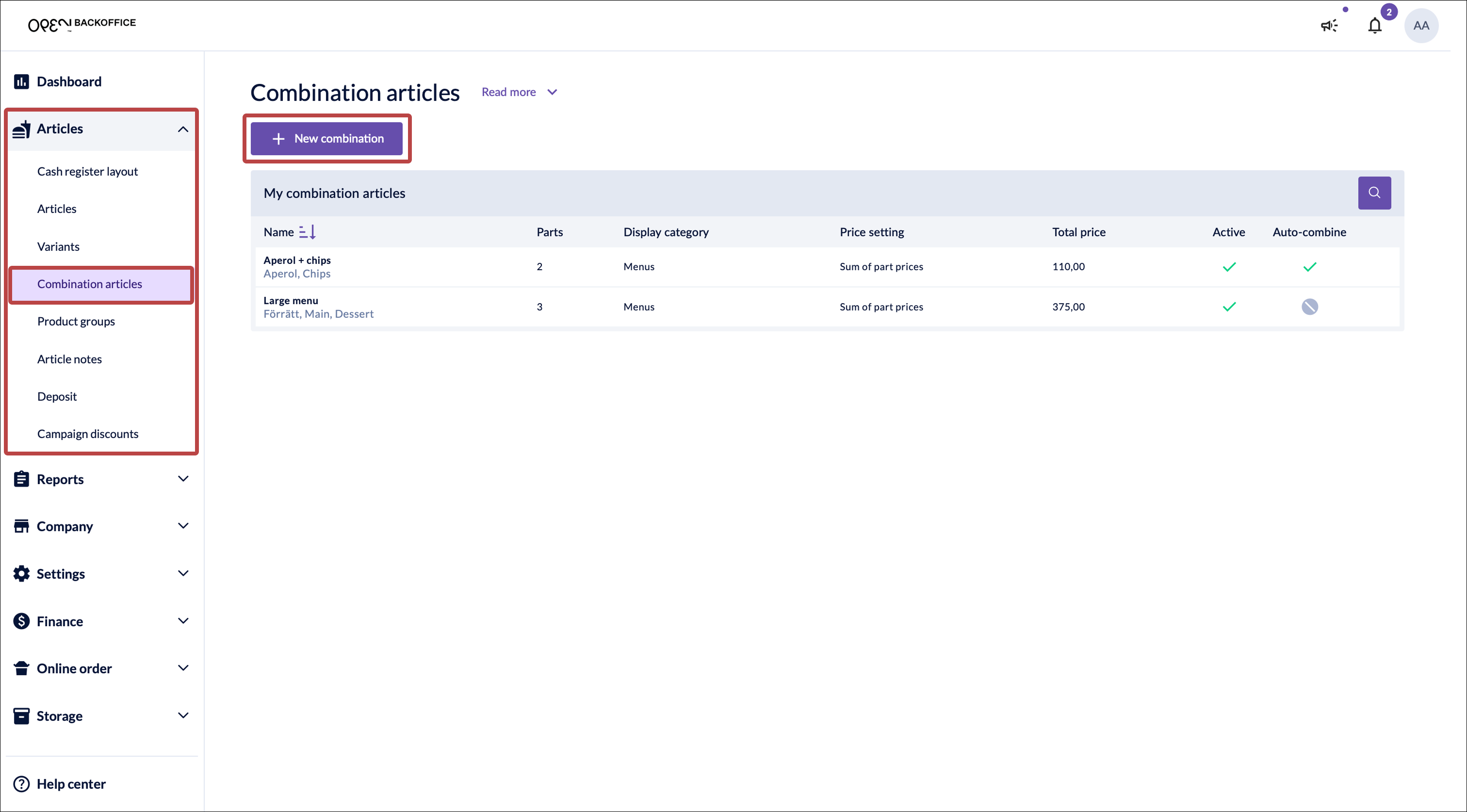
Name it.
Enter a Name (e.g. "Large menu") and, optionally, a Display category that controls where the combination appears in the register (e.g. "Menus").
Choose the price setting — Sum of part prices or Article price (see Pricing below).
Keep Active on so the combination shows in the register.
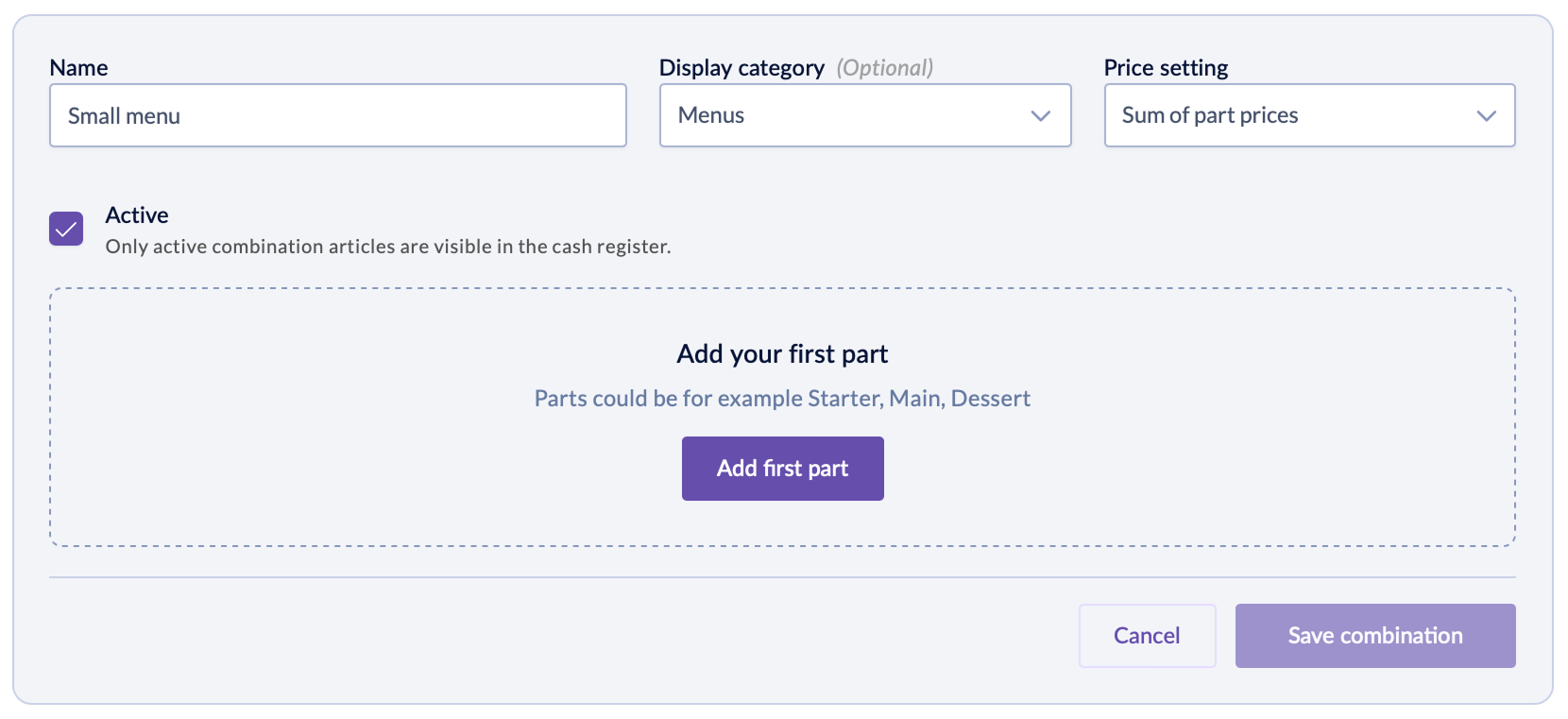
Add a part.
- Select Add first part.
- Give it a Name (e.g. "Starter").
- With Sum of part prices, enter the part's Price.
Choose the part's articles.
- A part can hold one article (always included) or several (a choice).
- Under Select articles, search or filter by product group or display category, then tick the articles the customer can choose from.
- They appear as Included articles, with one marked (default) — the article pre-selected when the combination is added at the register.
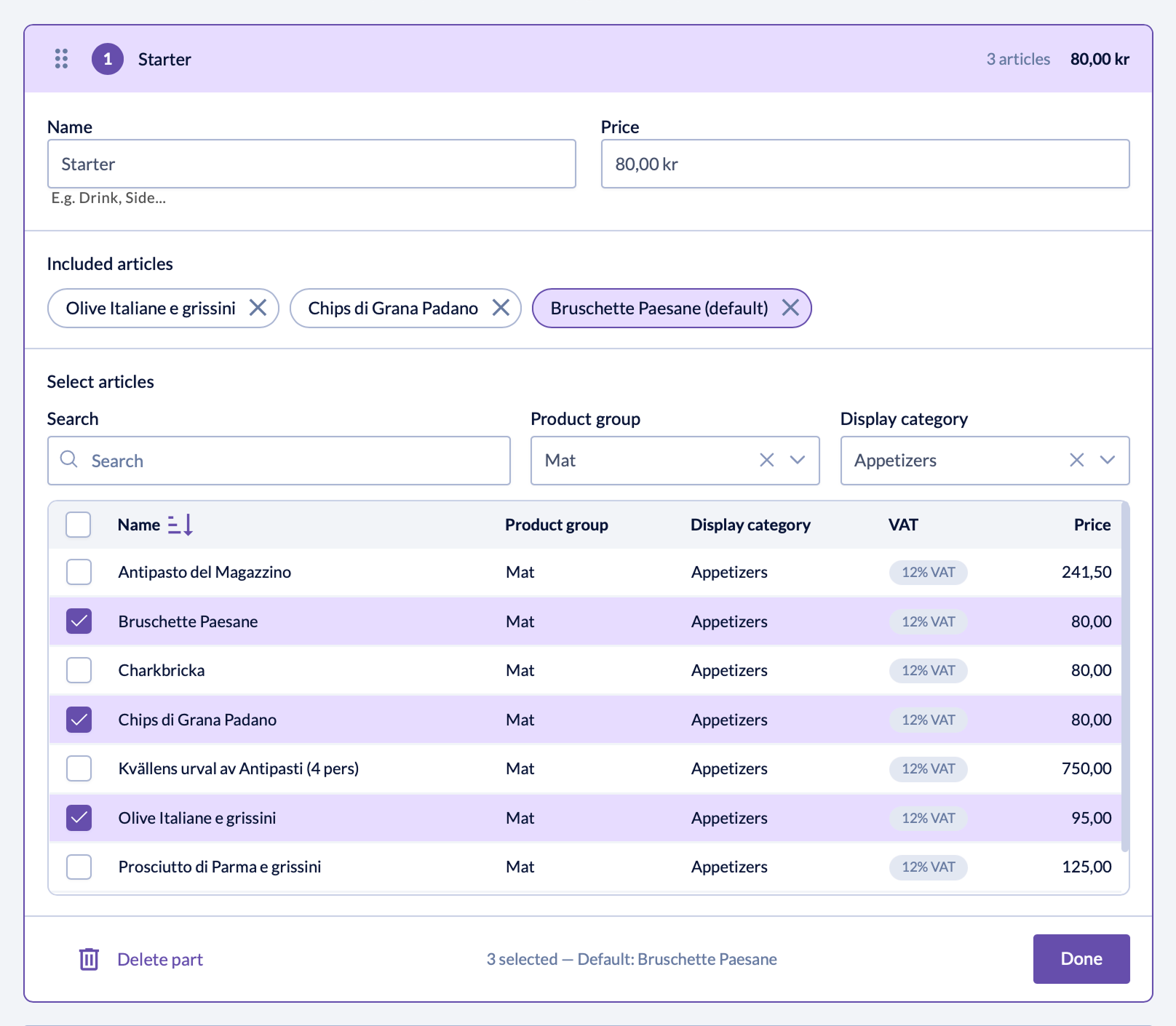


Save your part by tapping Done.
Add the remaining parts with Add part, repeating steps 6–8.
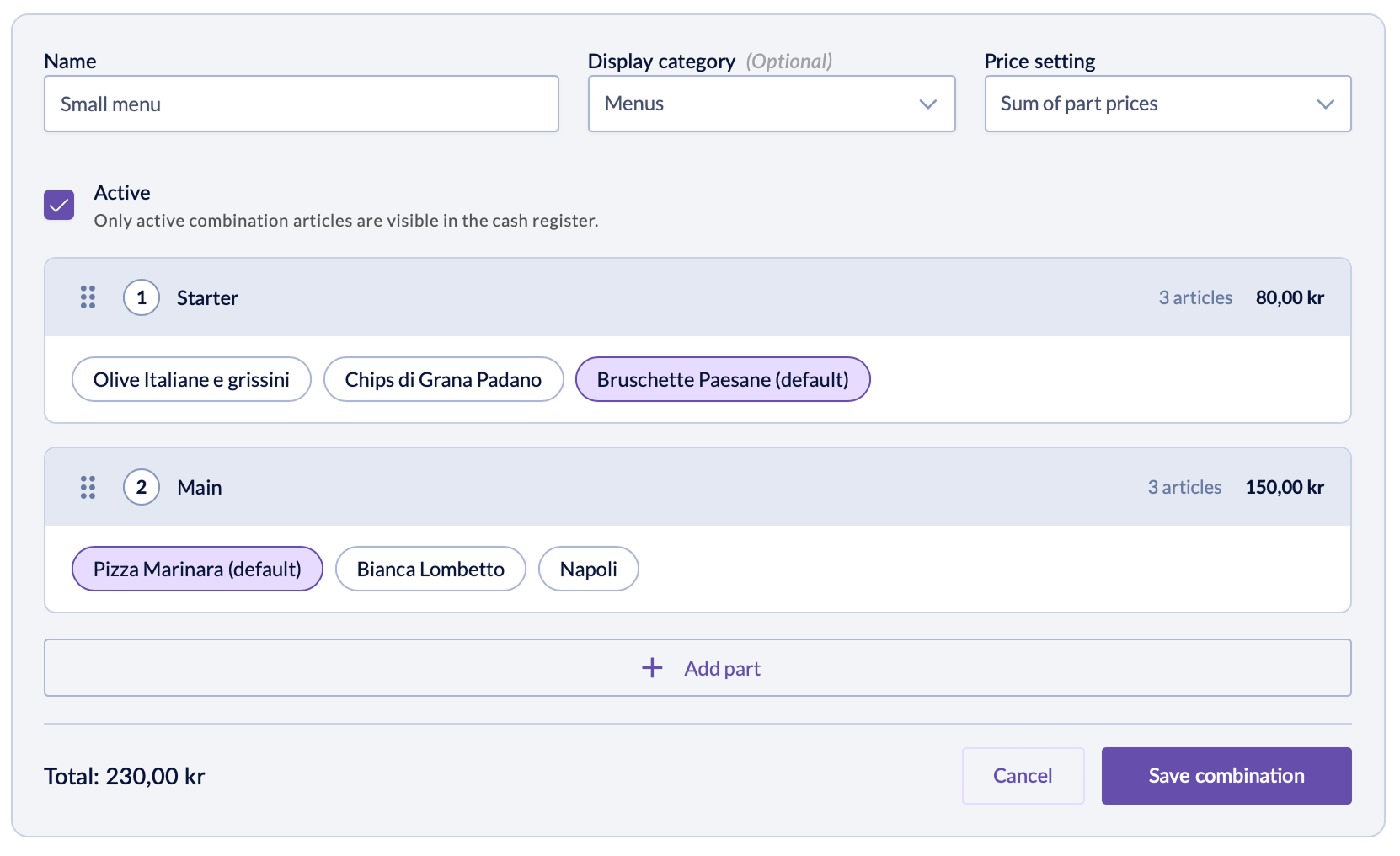
Review and save.
The Total at the bottom is the sum of the part prices. Select Save combination.

A saved part collapses to a summary row showing its number, name, article count, price, and included articles.
Pricing
You choose how a combination is priced when you set it up.
Sum of part prices
A set price per part, regardless of the article chosen; the total is the sum of the part prices.
Good for selling a menu at a set (often lower) price while still letting customers choose between options.
The total only changes if a chosen article has a variant with a surcharge — a variant can be free, or it can add an amount to the article's price.
Article price
Each part costs whatever the chosen article costs, so the total varies with the selection.
Good when you just want one button to bundle articles — including articles with different VAT rates.
Variant surcharges add to the total here too.
Example. A three-course menu where the main offers fish or steak:
- Sum of part prices: the menu total is the same — say 395 kr — whether the customer picks fish or steak.
- Article price: the total follows the selection, so steak costs more than fish.
Discounts
A combination doesn't have its own discount setting. Whether a combination can be discounted is decided by its articles: if the included articles are eligible for a discount, the combination is too.
Using combination articles at the register
Most behaviour is shared between direct sales and table handling; the differences are below.
Editing a combination:
- Tap any of its articles to open the combination dialog.
- On the Variants tab you can change which article is selected (in a part that offers a choice), its variant or comment.
- On the Quantity tab you can change the quantity.
- To remove the combination, set its quantity to 0 or tap the trash icon.

Direct sales
Adding to the cart
- Tap the combination article, just like any other article.
- Make any changes in the dialog box that opens.
- Then press Add to cart.
How it's displayed
- Article view: a single button with the combination name and total price.
- In the cart: a single unit — the combination name and total, with the selected articles listed below it (any variants under each). The articles don't show individual prices.

Making changes
While the sale isn't completed, you can edit, re-quantify, or remove a combination freely — direct sales have no corrections.
TIP
You can change the quantity of a combination in the cart with swipe gestures: swipe right to increase and swipe left to decrease.
A kitchen ticket can still print when the sale completes. If something needs changing after that, the cashier sorts it out directly with the kitchen.
Table handling
Adding to the cart
- Tap the combination article, just like any other article.
- Make any changes in the dialog box that opens.
- Then press Add to cart.
How the included articles land in your servings depends on the BackOffice setup:
- Flexible servings (serving 1, serving 2, …): all articles go into one shared serving — a new one, or the serving you've selected.
- Standard courses (Appetizer, Main course, …): articles linked to a standard course (or an open drink serving) go to their respective servings, new or existing.
How it's displayed
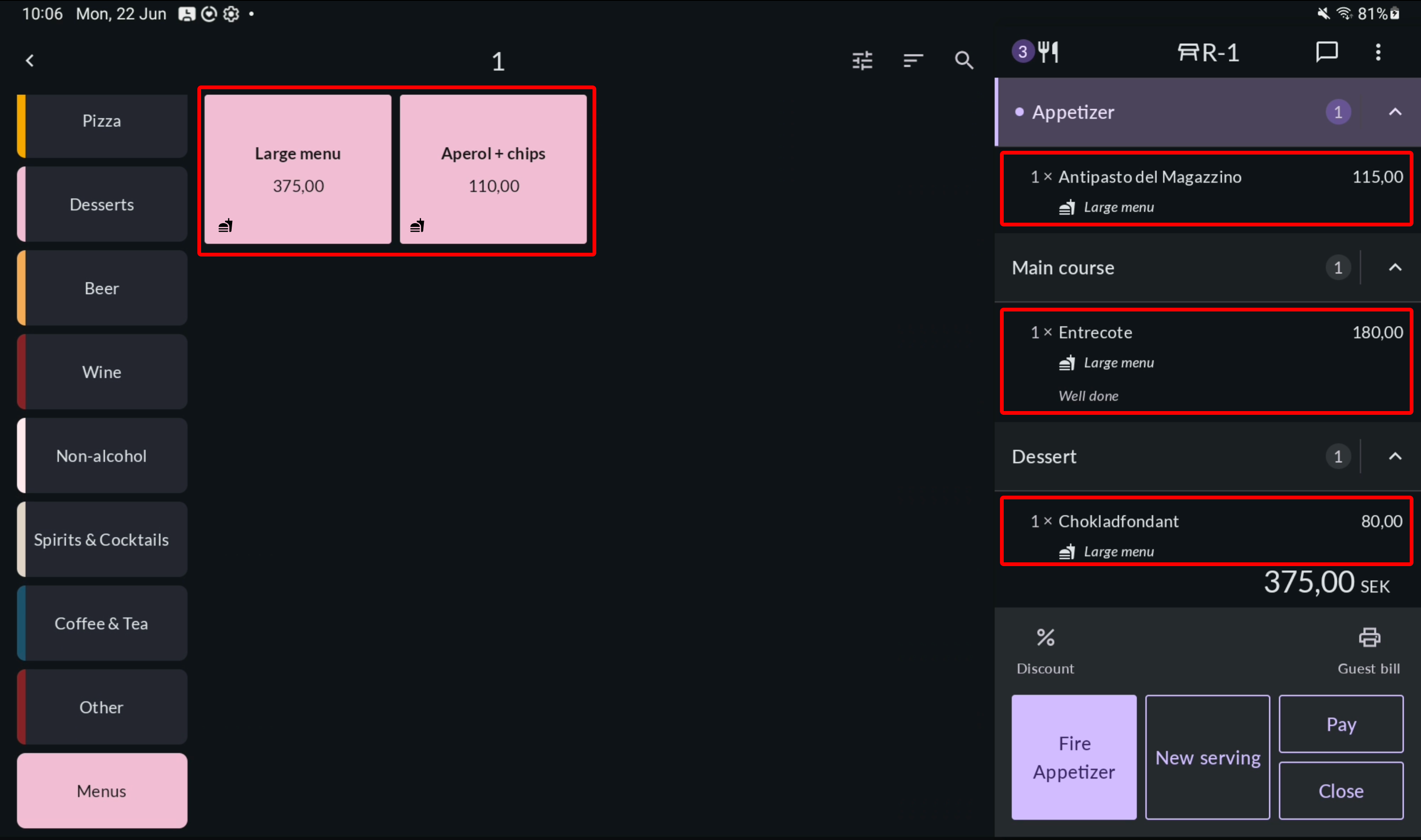
- Article view: a single button with the combination name and total price.
- In the order cart: articles appear individually under their serving, each with its own price and tagged with the combination name (any variants below each). The parts of a combination are often fired across different servings.
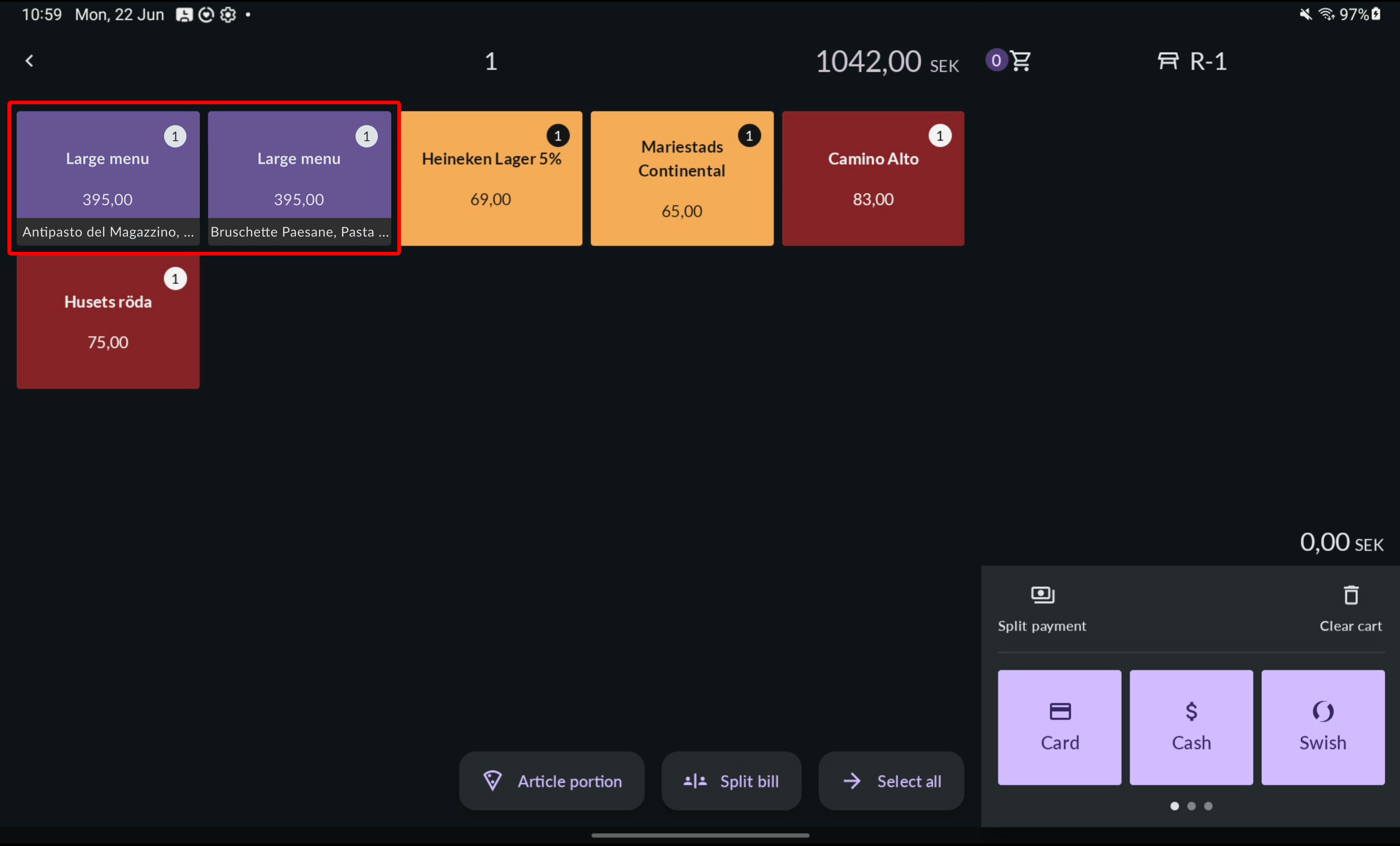
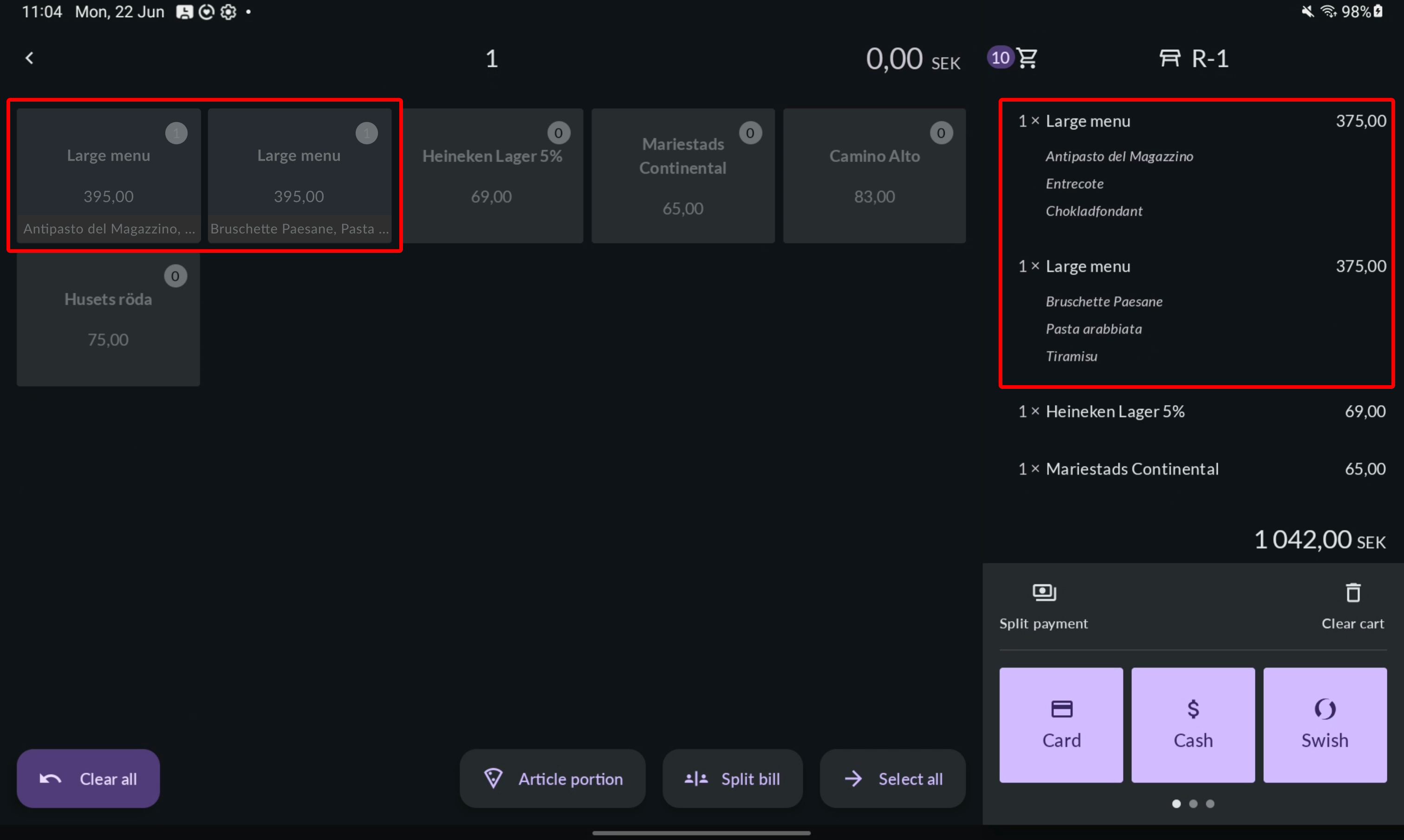
- In table payments: the combination appears as one unit — a tile in the articles view (name, total, and its articles listed below) and a line in the cart (name, total, and its articles with any variants below). Two of the same combination with different selections show as separate tiles/lines, each with its own price.


Making changes and corrections
Whether you can edit directly or need a correction depends on whether the serving has been sent to the kitchen. A sent serving has status Fire or Wait — Fire means prepare and serve now, Wait means the kitchen knows about it but holds it. Both mean the kitchen already has the serving.
- Not yet sent: edit directly.
- Already sent (Fire or Wait): make the change, then confirm the correction with Save changes in the cart.
The same applies to changing the quantity or removing the combination: do it freely before the serving is sent, or confirm as a correction with Save changes once it has been sent.
Kitchen tickets
Combinations don't appear on the kitchen ticket — the kitchen needs to know what to cook, so the ticket shows the individual articles only, not the combination name.
The articles are routed like any other article: listed under their serving (with the serving's status) and grouped by kitchen section.
Articles from the same combination can therefore appear in different servings and sections. A serving you Fire in the POS prints as Forward on the ticket; a held serving prints as Wait.

Receipts
On the receipt, a combination shows as:
- the combination name, with its quantity and total price on one line
- the selected articles listed below it, without individual prices
Each combination is its own line, so two of the same combination with different selections appear separately. Regular articles appear as normal, with their own quantity and price.
This applies to both direct sales and table handling.

Refunds
A combination is refunded as a whole unit: refunding it returns all of its sold articles together. You don't refund the individual articles within a combination — it's shown and managed as one unit throughout the refund.
How it's reported
A sold combination is broken down into its individual articles almost everywhere:
- Regulatory reports (Z report, X report, grand total): the individual articles, not the combination as a unit.
- Article report: the individual articles — not a count of combinations sold.
- Combination report: the only place a combination is counted as a unit; it shows the number of combinations sold, optionally with a breakdown of their contents.