Deliveries
During deliveries, articles are added to your inventory without being moved from any of your existing storages. This sets deliveries apart from orders, where articles are transferred between storages. Deliveries are particularly useful for small business owners who purchase articles from various suppliers outside of OPEN Two's inventory system and need to add them to their inventory balance.
Note that deliveries can only be performed from the BackOffice and only for articles that already exist in your inventory. If you have received completely new articles, make sure to first add them on the Article page (with SKU and inventory tracking) and then to your inventory. Only then can you perform a delivery.
A brief overview of deliveries
- Adds goods to your stock balance
- Can only be performed from the BackOffice
- Can only be done with existing stock articles If you have received entirely new articles, you must first add them as an article in the BackOffice and then add them to the relevant storage
- Differs from orders, as deliveries do not move goods between your existing storages but only add goods to one storage
Create delivery in BackOffice
- Select STORAGE from the menu and go to DELIVERY. Here, you can view your created deliveries. Use From, To and Storage to filter the list. Press NEW DELIVERY to create a new delivery.

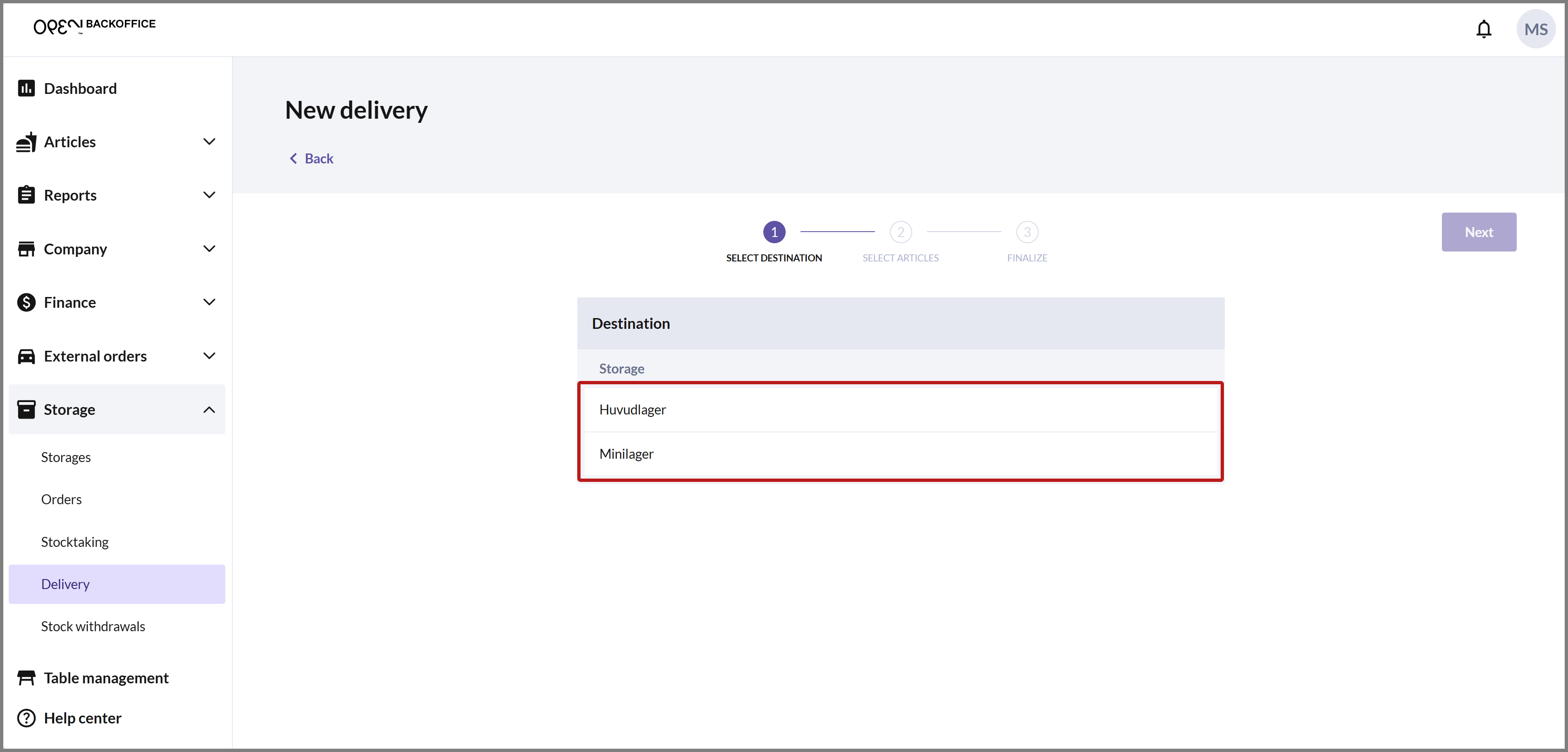
SELECT DESTINATION
Choose the destination storage, i.e., the storage where the goods will be added to, then proceed to step 2 automatically.
SELECT ARTICLES
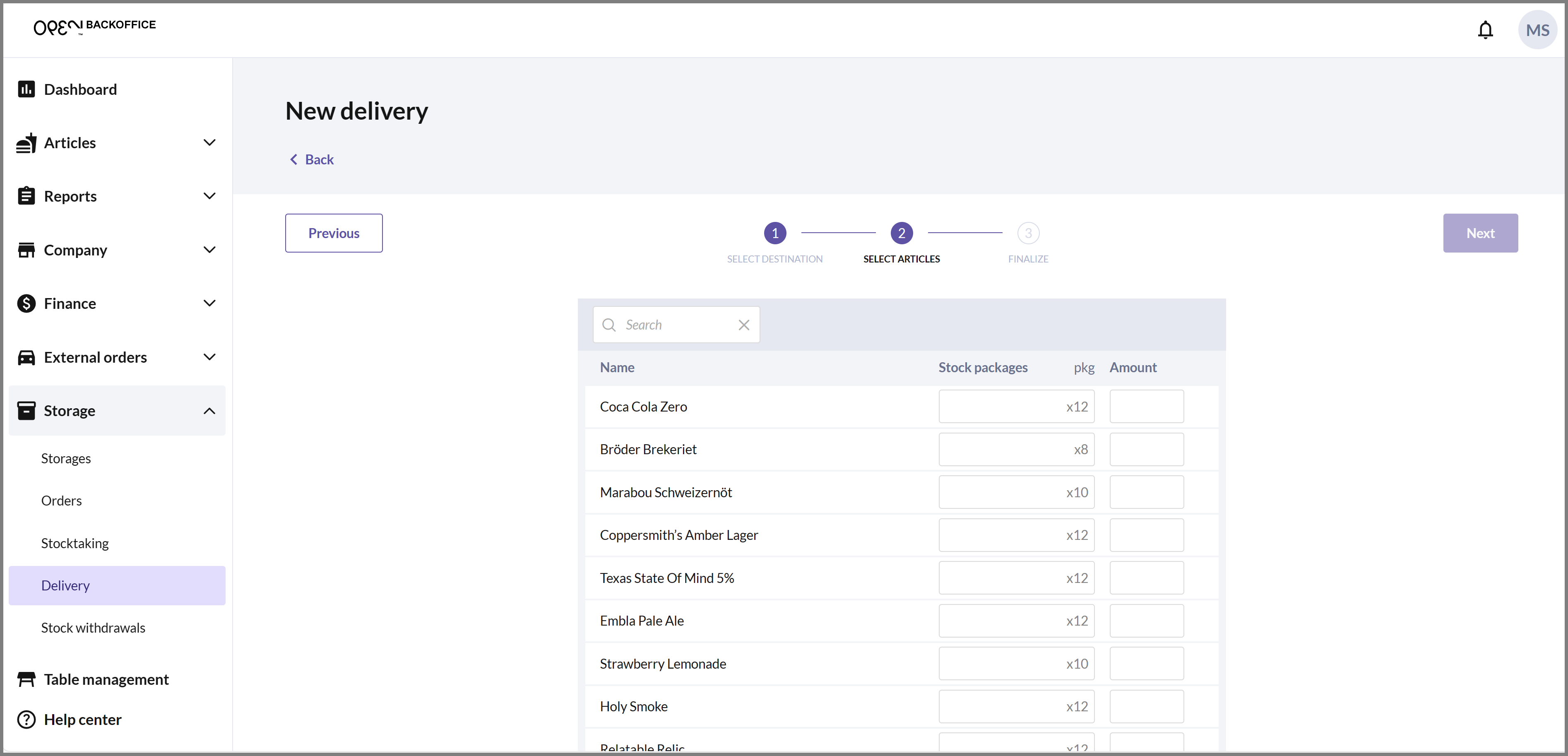
Select articles by specifying the quantity delivered for each respective article. You can search by name or SKU, or filter the list by Product groups and Display categories.
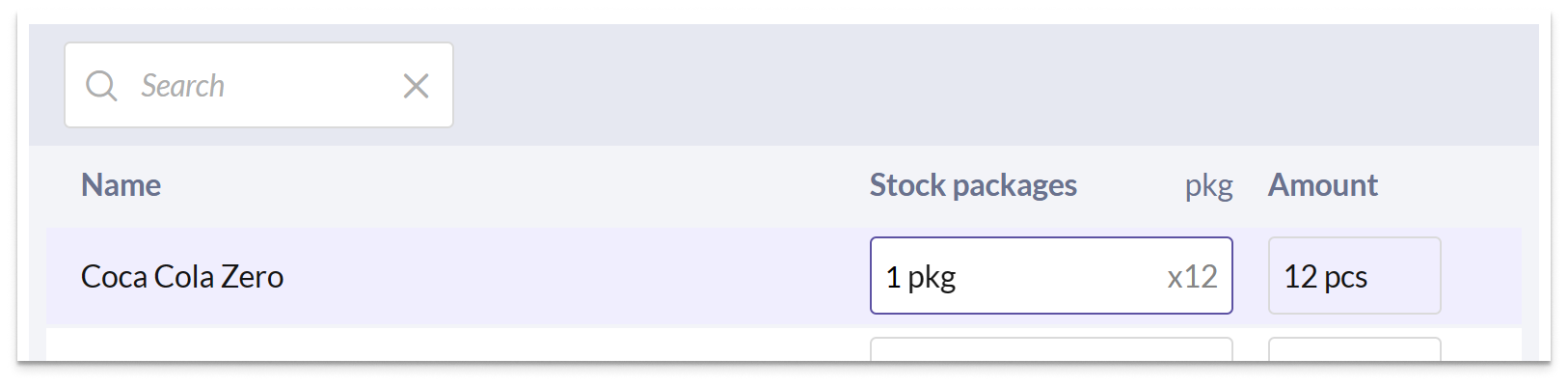
You can specify the quantity in Boxes (BX) or in Single items, and the two columns translate to each other. If you enter 1 in Boxes, Single items is automatically filled in with the number of items in one box, and vice versa.
If you enter a quantity that doesn't evenly match whole boxes, Boxes is rounded up and the row is marked with ≠, together with a note that a box must be broken up. However, this doesn't affect the delivery, because only the quantity in Single items is added to the stock balance.
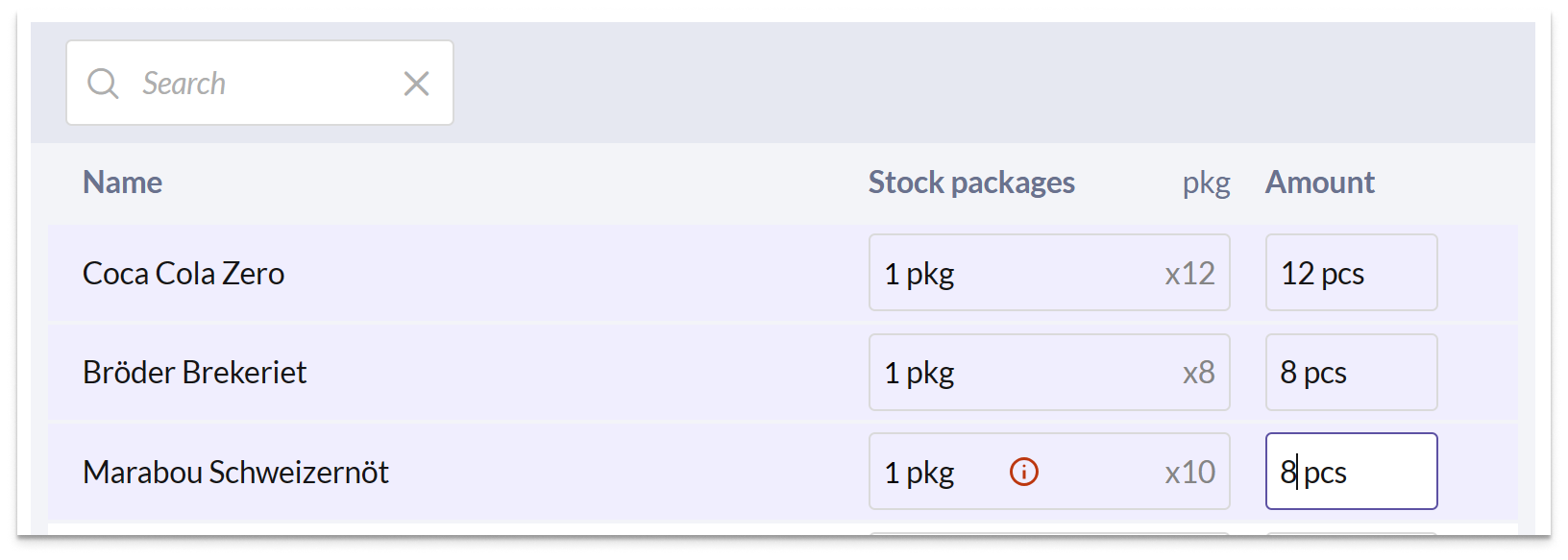
If the Boxes field is grayed out, the number of items per box is not specified for the article. In this case, enter the quantity you've received in Single items instead.

Once you have filled in the delivered articles, press NEXT to proceed.


FINALIZE
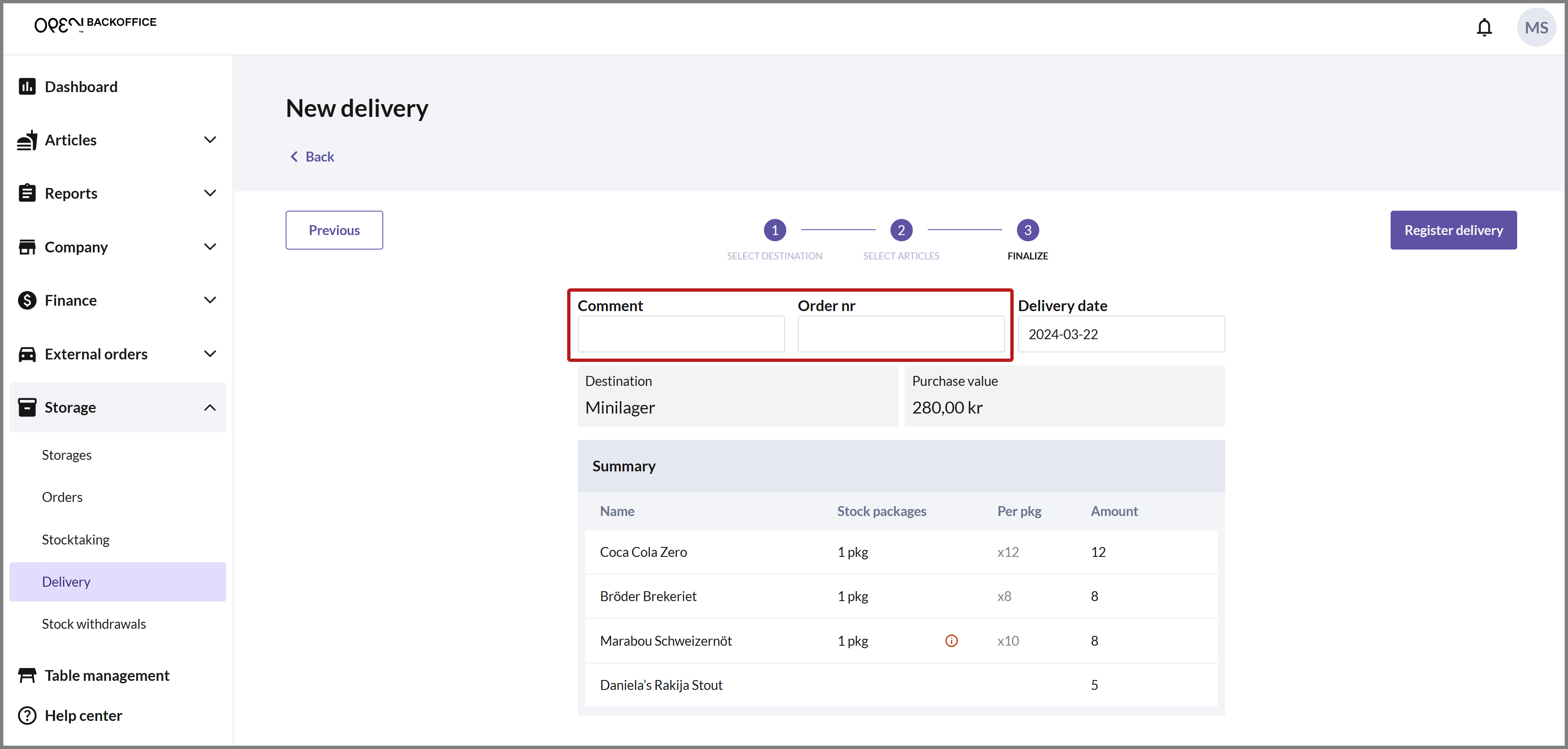
In the final step, a summary of the delivery is displayed. Here, you can also see the total purchase value, which is based on the purchase price of the articles.
Fill in a Comment and an Order nr to identify what has led to the delivery (for example, an order of goods outside of OPEN Two's inventory system). You can also change the Delivery date.
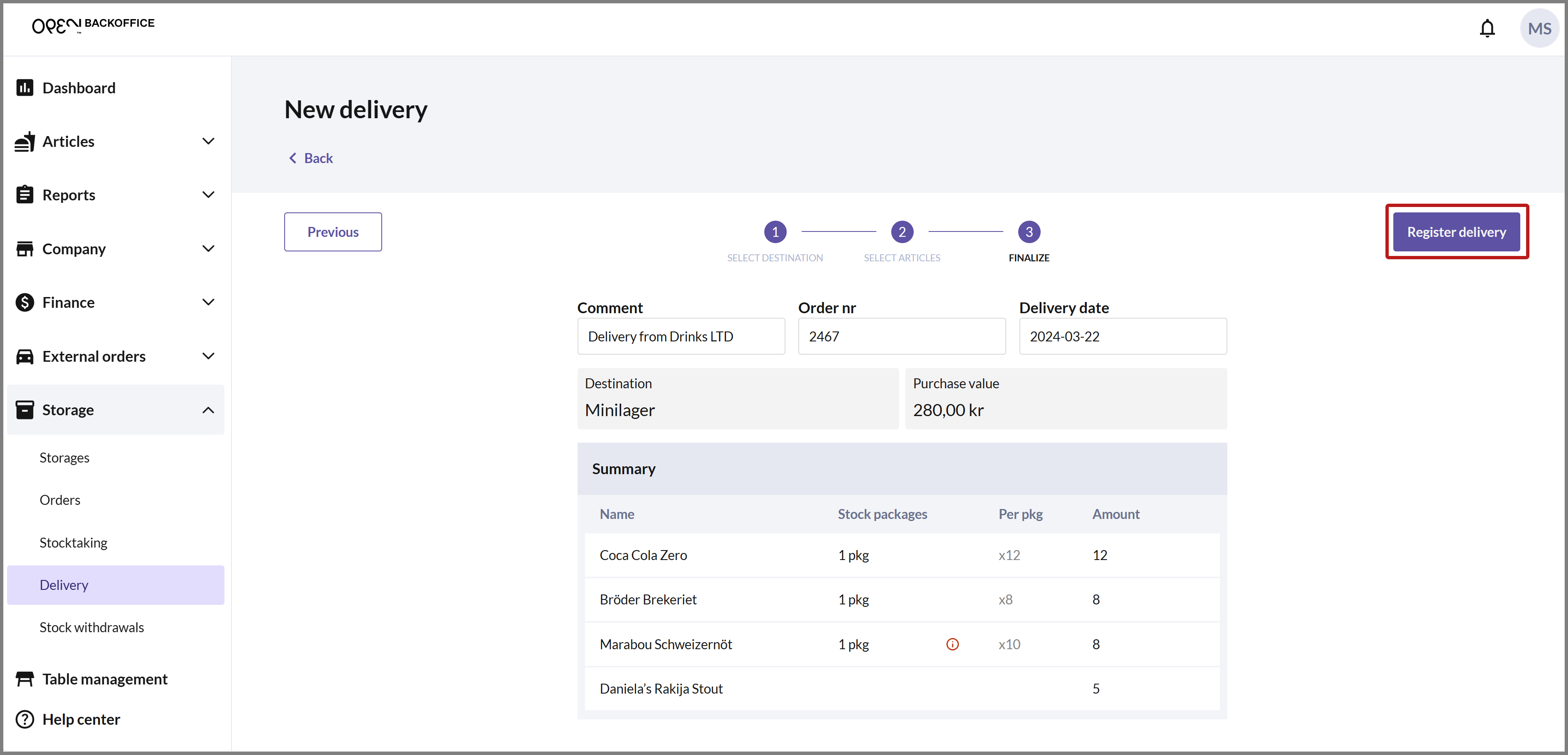
Press REGISTER DELIVERY to complete the delivery.
SUMMARY
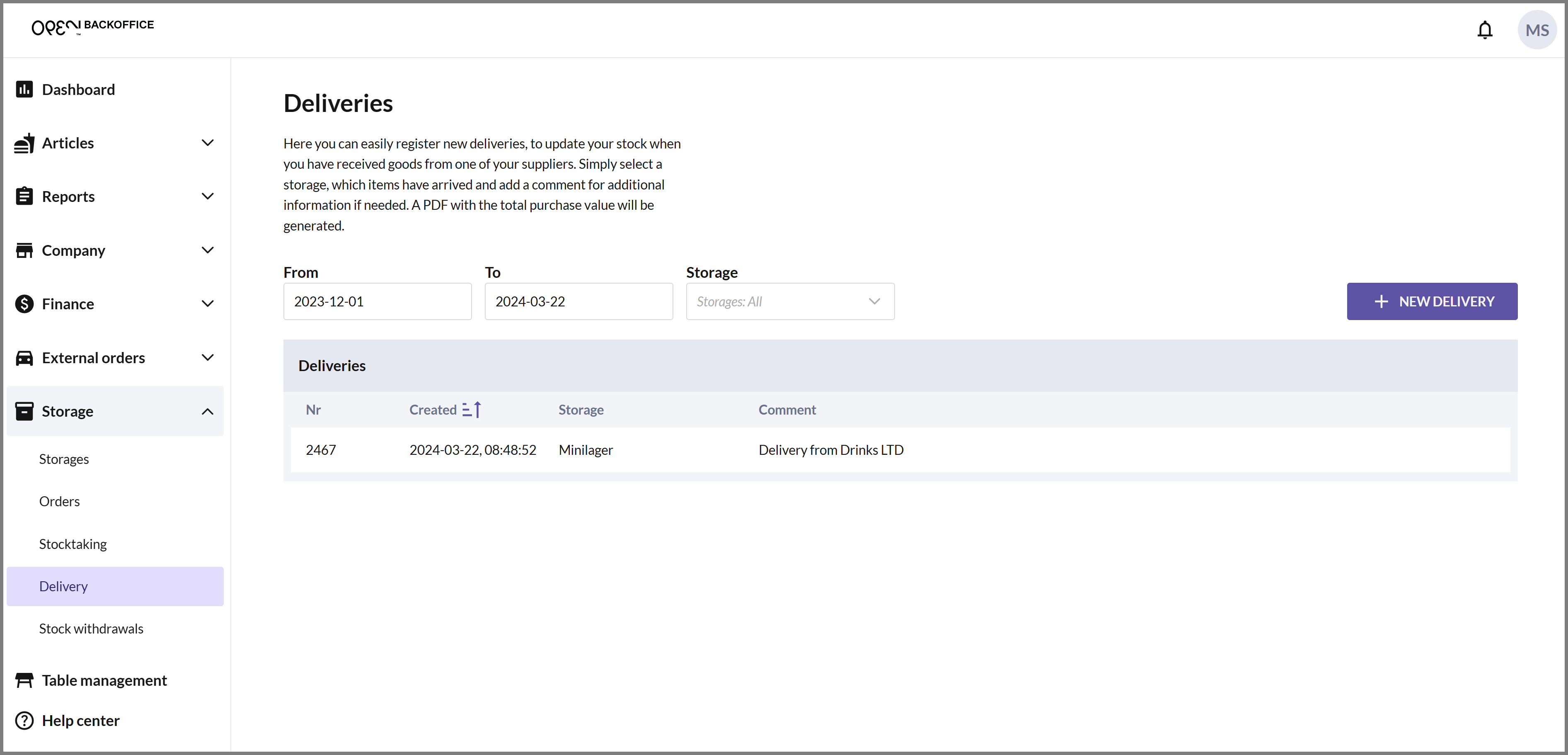
You can now view the delivery in the list.
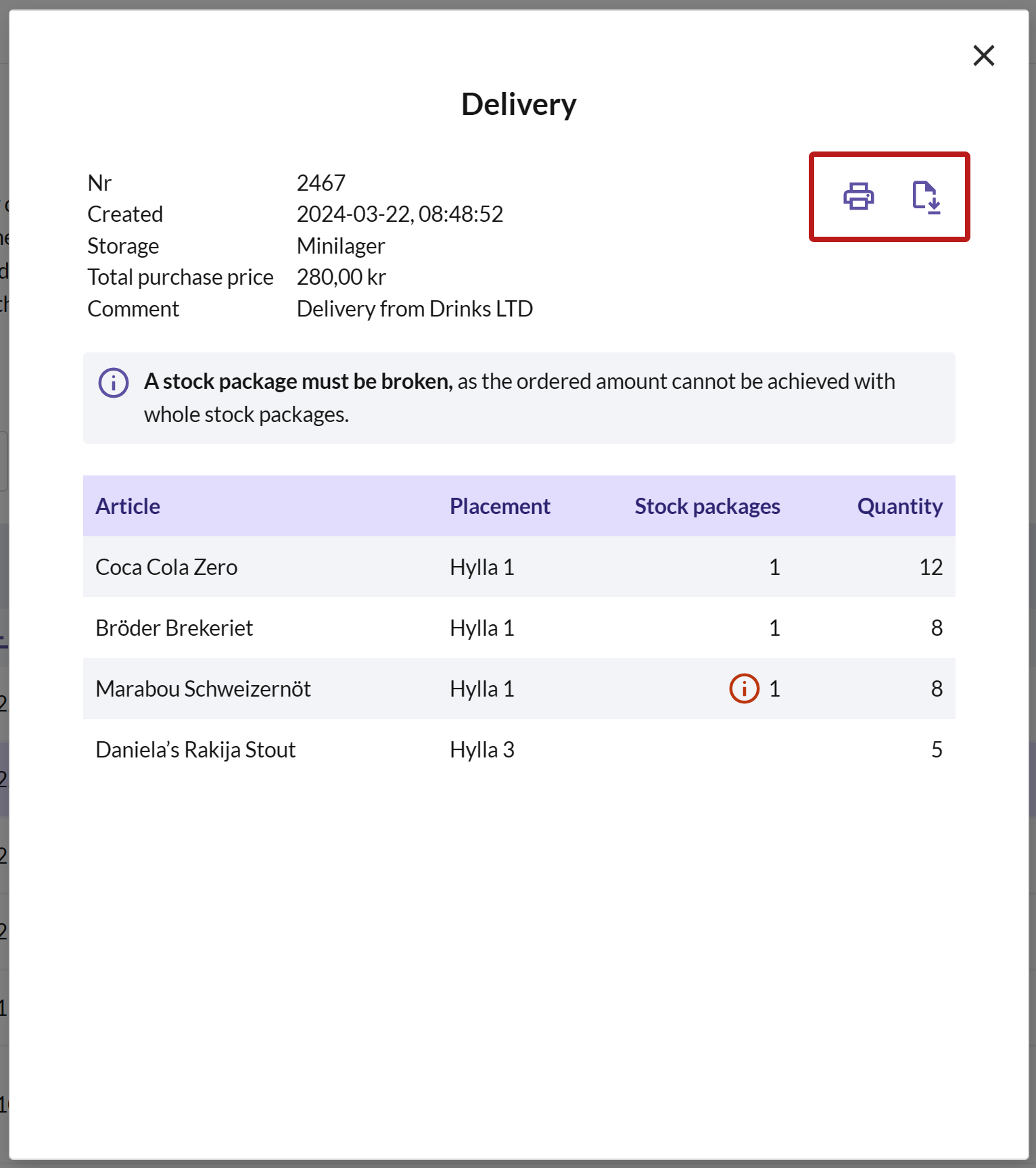
If you want to see a summary of the delivery, click on the delivery in the list to open a dialog. Here, you can choose to print or download the delivery as a PDF.